I am having the same issue importing this csv file:
| Date | Description | Amount |
| 18/04/22 | Etsy Deposit | -xxx.xx |
| 19/04/22 | Etsy Sales 13/04/2022 to 19/04/2022 | xxx.xx |
| 19/04/22 | Etsy Discounts 13/04/2022 to 19/04/2022 | -xxx.xx |
| 19/04/22 | Etsy Fees 13/04/2022 to 19/04/2022 | -xxx.xx |
| 19/04/22 | Etsy Marketing 13/04/2022 to 19/04/2022 | -xxx.xx |
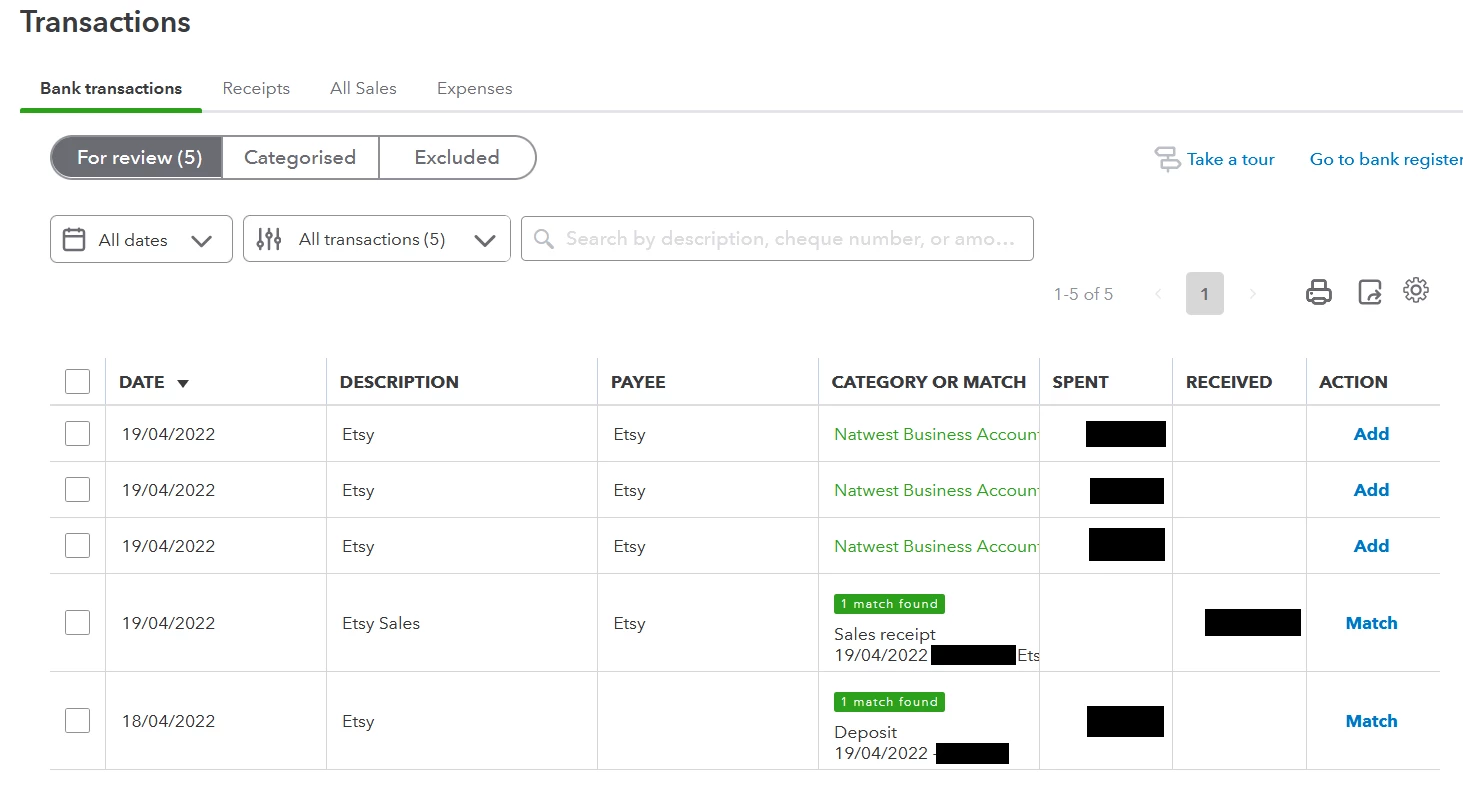
After importing, all the transaction descriptions just say "Etsy". The decription from the csv file has ended up in the Memo field, but all the clever remembering which accounts I linked everything to last time only seems to work on the description field. Somehow the import process has seen that I have a customer set up called "Etsy" and has decided to link everything to that instead of just leaving everything alone how I wanted it.
Please change this so that the Description is left alone. I quite like that it puts the description into the Memo field as well so please don't change that.
Hi there, @JohnnyDMonic.
Thanks for sharing screenshots and a detailed explanation of your importing concern. This is a great help to me so I can provide you with a timely solution.
To let the whole details show on the Description column, you can follow the steps recommended by my colleague, JessT to enable the Show bank details option. 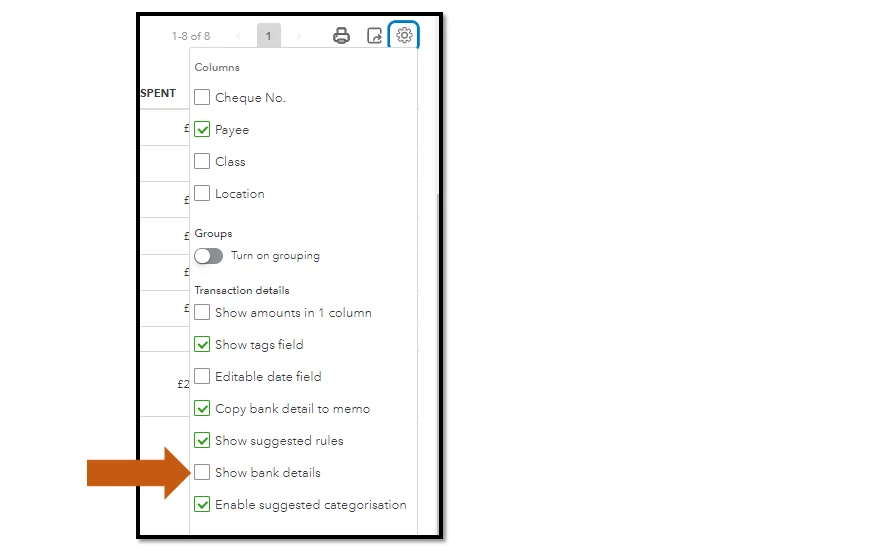
Additionally, when adding the imported transactions to your QuickBooks Online (QBO) account, you have to ensure that you fill in the correct information of each field before clicking the Add button. This is to make sure you can prevent the transactions to be linked to the customer set up as Etsy. 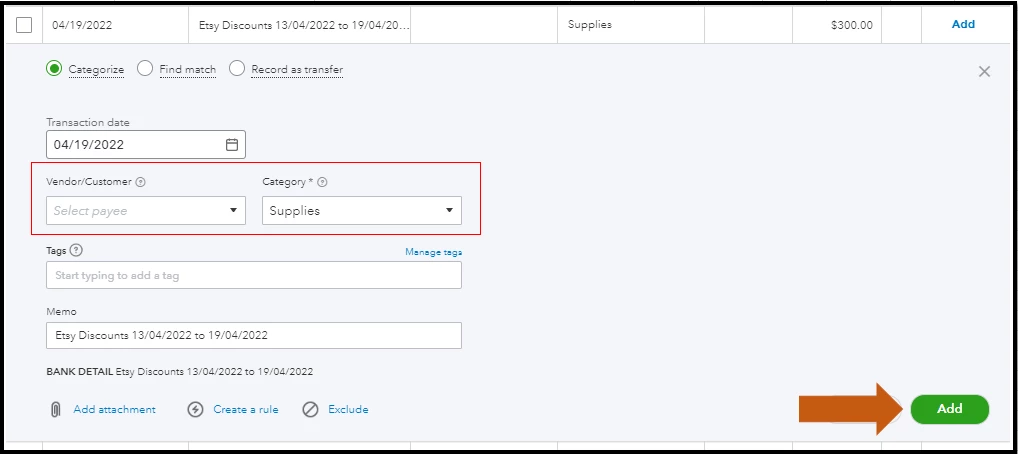
You'll also have the option to send feedback to our Developer team. Simply add your comment on the Feedback box and submit it so they can review your suggestions. I'll guide you on how:
- In your QuickBooks Online (QBO) account, click the Gear icon.
- Then, choose Feedback under the Profile column.
- Next, type your comments and suggestions in the box.
- Once done, select Next to submit.
Once submitted, feel free to visit our QuickBooks Online Feature Requests website to track the status of your suggestion.
Just in case you'll want to speed up the review process of your uploaded transactions, you can create bank rules in QBO. With this, the system will automatically categorise those entries for you.
I'm always glad to help if you have any other queries in managing your imported Etsy transactions in QBO. Simply leave a reply below and I'll get back to you as soon as possible. Take care and have a good one.

