February 10, 2020
Solved

Bank Feed rules

  • February 10, 2020
  • 2 replies
  • 0 views

In the add rules details is there a way to add classes as a do this, when the deposit is in a certain bank account?

We used QBO last year and that feature saved me hundreds of hours. I am hoping that I can set it up in the Desktop version as well.


-Charlotte

Best answer by JasroV

Hi there, @charodie.


As of now, we're unable to add class detail when adding a bank rule. You'll want to manually select a class for a transaction in your bank feeds. Here's how.


In your QuickBooks Desktop (QBDT):

  1. Go to the Banking menu.
  2. Select Bank Feeds and Bank Feeds Center.
  3. Choose the appropriate bank account.
  4. Click the Transaction List.
  5. Locate the deposit and select a class in the CLASS column. 
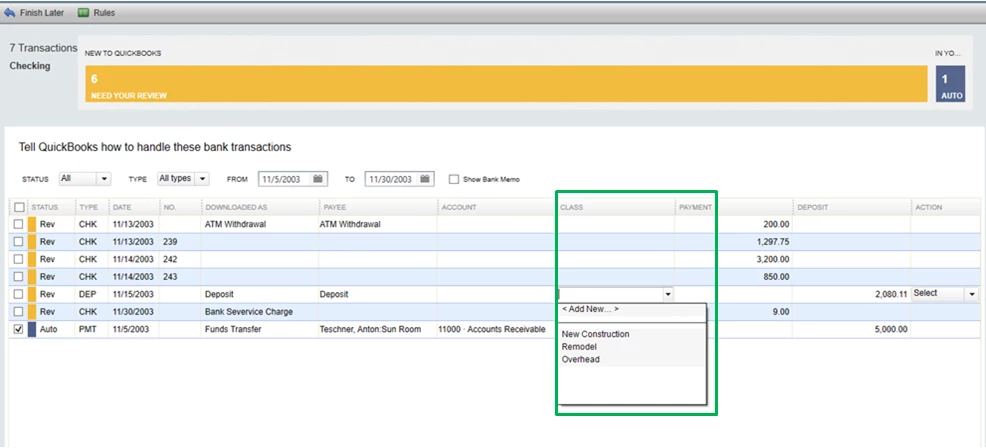
You can also visit our Banking and bank feeds page in case you need to learn some tricks on managing your bank feeds.


Should you have other concerns or questions in the future, you can always get back to us anytime. Have a great day!


2 replies

JasroV
JasroVAnswer
February 11, 2020

Hi there, @charodie.


As of now, we're unable to add class detail when adding a bank rule. You'll want to manually select a class for a transaction in your bank feeds. Here's how.


In your QuickBooks Desktop (QBDT):

  1. Go to the Banking menu.
  2. Select Bank Feeds and Bank Feeds Center.
  3. Choose the appropriate bank account.
  4. Click the Transaction List.
  5. Locate the deposit and select a class in the CLASS column. 

You can also visit our Banking and bank feeds page in case you need to learn some tricks on managing your bank feeds.


Should you have other concerns or questions in the future, you can always get back to us anytime. Have a great day!

charodieAuthor
February 11, 2020

Hi JasroV


Yes I have been adding the class to my transactions in that bank feeds window, but it takes longer than I would like. It was MUCH easier to have the option to add the class in different bank accounts as a rule in QBO.

Thank you for your response.


-Charodie

September 7, 2022

Hello 

When using WebConnect, are you able to customize what gets uploaded to QB Desktop?

For instance, we want to upload all the Debits but none of the Deposits.

Is that possible?

September 7, 2022

Thanks for joining this thread, chicagopos. I'm here to help and address your concern about importing transactions, specifically for debits.


Yes, we can customize to what transactions we want to bring in QuickBooks using Web Connect. We can export the debits from your bank, just ensure to download them as a (.QBO) file extension. If the deposits are also exported, we can remove them manually before importing them to QuickBooks.


 Then, upload that file to your QuickBooks Desktop company file to add those transactions to your accounts.


  1. From Banking, select Bank Feeds, then Import Web Connect Files.
  2. Select the .QBO file you saved, then select Open.


Also, feel free to use these articles for guides:


If you encounter issues during the import process, this article is a great help to accomplish the task: Learn how to fix the import errors


To keep them accurate from time to time, we can match and reconcile your account:


I'm always around if you have other concerns about importing transactions and any data in QuickBooks Desktop. If you need help handling your bank data, I'm also here to lend a hand. Have a good one.

September 7, 2022

Hello 


Thank you for getting back.

We are using Bank of America for Online Banking.

I have tried to Download transaction data from my bank and select to only download Debits.

However, the download shows every transaction. Deposits and everything.

I have done this is on a Excel format just so i can see what the download looks like it.

Are you saying that if I was to download it as QBO it will look different and also allow us to pick and choose what we want to import into QB?

By the way, we are using Desktop Pro 2021.

Because of that we have to use WebConnect right?