

November 22, 2022
Solved

Bank Import Rules do not look at "Show Bank Memo" data

  • November 22, 2022
  • 2 replies
  • 0 views

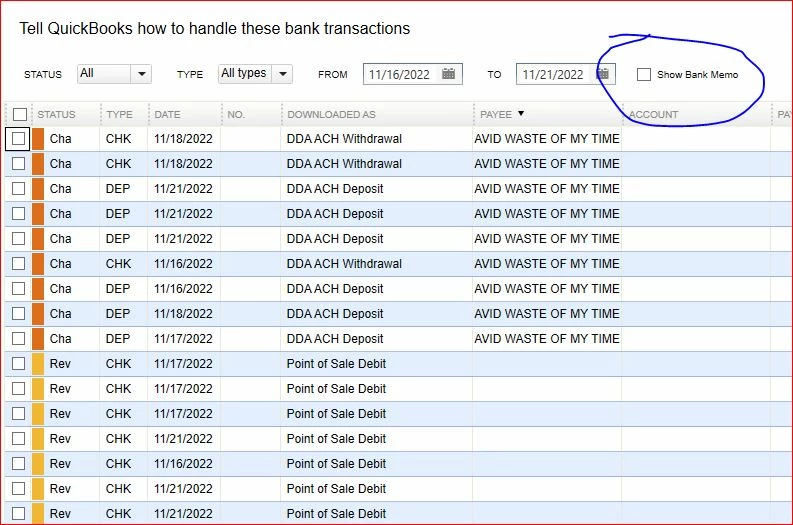
My client's bank export shows up in QuickBook's Bank Feed Transactions with a lot of the same entries like "Point of Sale Debit".


To see what the transaction is, you have to check "Show Bank Memo". With this feature column I see a lot of transactions which can be easily managed by Rules. But when I make a rule based on this bank memo, the rule is not applied.


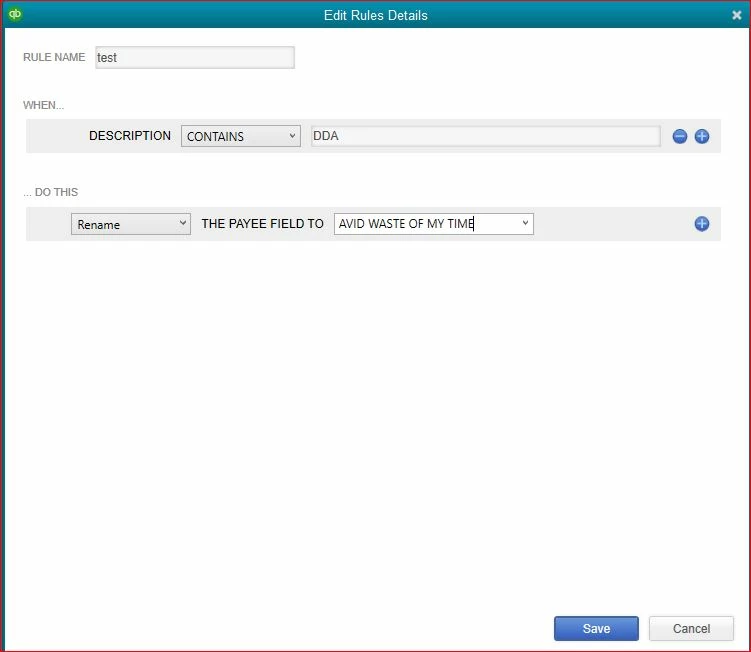
I made a Test Rule based on the "Downloaded As" data. Only then is the rule is applied, as shown here:


The Edit Rule modal dialog box doesn't allow you to select from where the text match is made ("Downloaded As", or "Bank Memo") and instead only has this feature named "Description":


If you look inside the QBO file, there isn't anything labeled "Description". Just NAME and MEMO:


<STMTTRN>
<TRNTYPE>DEP
<DTPOSTED>20221121000000[-5:EST]
<TRNAMT>1971.00
<FITID>1952...
<NAME>DDA ACH Deposit
<MEMO>Citizens NET SETLMT Citizens NET SETLMT
</STMTTRN>


How do I create a rule which handles MEMO??

Best answer by JaeAnnC

Thanks for the prompt response, @chrissimon.


Switching to Advanced Mode in QuickBooks Desktop (QBDT) Enterprise is easy, and I'm here to help you with that! 


Before switching, you'll have to ensure that you're in single-user mode and that your QBDT is updated to the latest release


Once confirmed, here are the steps on how to enter Advanced mode:


  1. Go to the Edit menu and select Preferences.
  2. Select Checking and click Company Preferences.
  3. In the Bank Feeds section, select Advanced mode.
  4. Click OK.


Here's an article on creating rules in QBDT using Advanced Mode: Create rules to categorize transactions in QuickBooks Desktop. In Advanced mode, you can update transactions quickly and create rules to match them automatically to your books.


Should you have further questions about switching between banking modes, please don't hesitate to return to this thread. We're always here to assist you with every concern. Enjoy your Thanksgiving!

2 replies

JoesemM
November 22, 2022

Thank you for providing me the complete details of your concern, @chrissimon.


You can create a rule in Advanced Mode to easily match those entries in your client's bank. With the Advanced mode, QuickBooks will separate your transactions into 3 categories (RecognizedPartially recognized, and Unrecognized) based on the information gathered from your transactions and in the system.


To create a rule using Advanced mode, follow the steps below:


  1. Go to the Banking menu.
  2. Choose Bank Feeds, then Bank Feeds Center.
  3. Select Rules, then Add Rule.
  4. Add a Rule Name, then select if it’s Money In or Money Out, or Both.
  5. Add Conditions and if the rule is for Any or All of the conditions for descriptionmemo, and amount.
  6. If your class tracking is enabled, add values for PayeeAccount, and Class.
  7. For Money Out rules, you can also assign a Customer: Job.
  8. Select Save.


Also, in the Edit Rule dialog box, you can select Categories to help you classify the transactions. Then, select a specific account to complete the rule. Just, click the Rename drop-down arrow.


For more details, see this article: Create rules to categorize transactions in QuickBooks Desktop.


Please browse these handy articles for in-depth information about matching transactions and reconciling your account: 


Get back to me if you have follow-up questions or concerns with creating rules. I'm more than happy to assist you. Take care!

November 22, 2022

How do you enter "Advanced Mode"?

JaeAnnC
JaeAnnCAnswer
November 22, 2022

Thanks for the prompt response, @chrissimon.


Switching to Advanced Mode in QuickBooks Desktop (QBDT) Enterprise is easy, and I'm here to help you with that! 


Before switching, you'll have to ensure that you're in single-user mode and that your QBDT is updated to the latest release


Once confirmed, here are the steps on how to enter Advanced mode:


  1. Go to the Edit menu and select Preferences.
  2. Select Checking and click Company Preferences.
  3. In the Bank Feeds section, select Advanced mode.
  4. Click OK.


Here's an article on creating rules in QBDT using Advanced Mode: Create rules to categorize transactions in QuickBooks Desktop. In Advanced mode, you can update transactions quickly and create rules to match them automatically to your books.


Should you have further questions about switching between banking modes, please don't hesitate to return to this thread. We're always here to assist you with every concern. Enjoy your Thanksgiving!

November 25, 2022

Ok. Both replies are very helpful; however, since I didn't even know there was an "Advanced Mode", or how to get there, I will mark this as the most helpful answer in my situation. For anyone new to QBE, both answers are very informative.

That said, for the one client who is new, Advanced Mode is very useful. For other clients who I've been working with for some time and have rules in the ol boring mode, I just discovered you need to recreate all of your old rules. So, YMMV