December 10, 2020
Solved

Banking Balance Widget/Card Banner Disappeared

  • December 10, 2020
  • 1 reply
  • 0 views

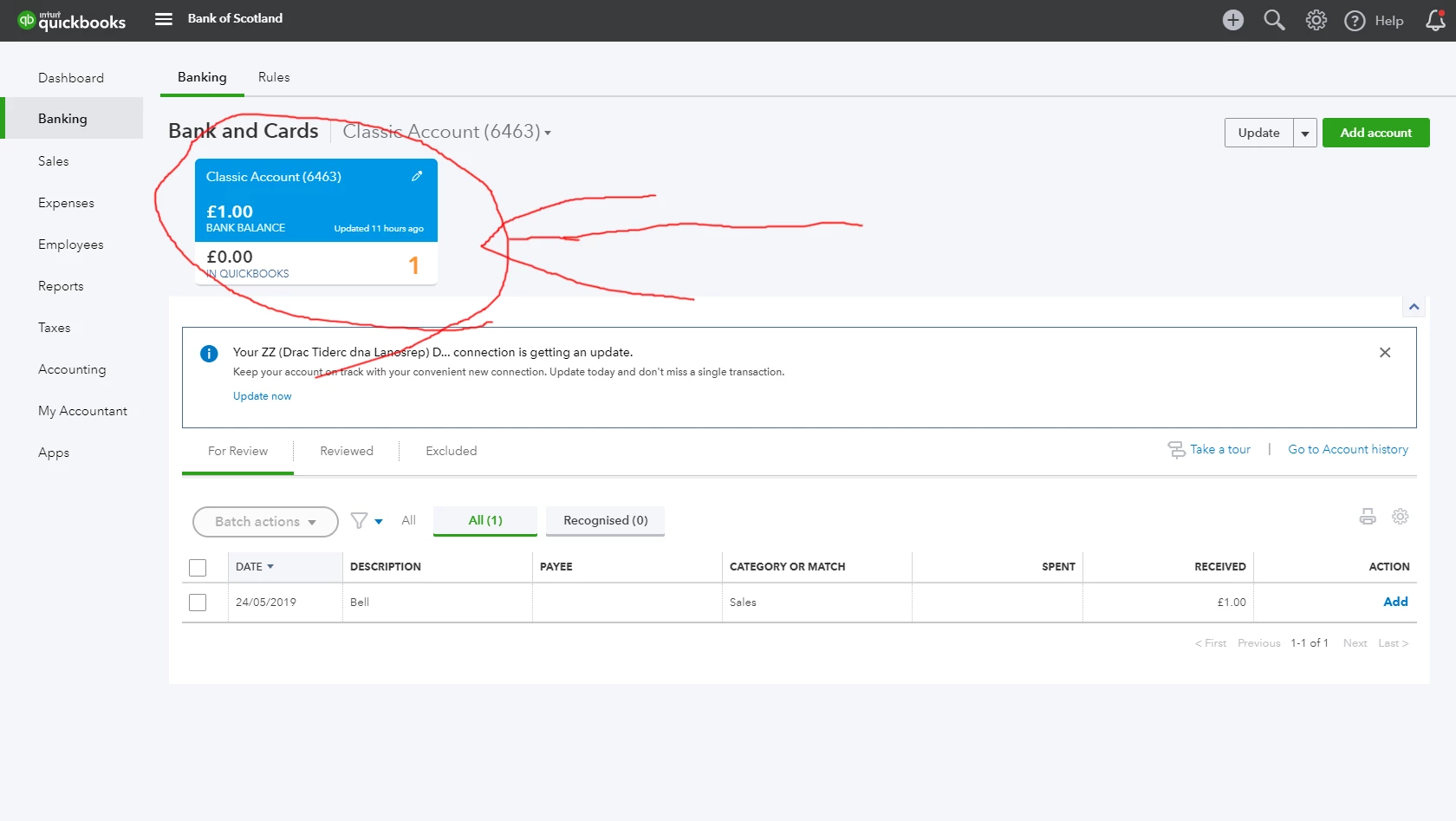
I don't know what these things are called.  They are widgets or cards that appear as a banner showing the current balance of all your linked accounts at the top of the Banking screen.  See photo for an example of what I'm talking about.  When I logged in this morning, that banner is gone and there is just a drop down to switch between all of the accounts.


Does anyone know if this was a software update that removed it? QBO having issues today? Can I turn it back on in a setting?


Thanks
 

Best answer by Candice C

Good morning, @nwoodard34


It's great to see a new face here in the Community. I've got you covered. All you need to do to make the banner of accounts appear is click one button on the Banking page. It's that simple. Allow me to walk you through the steps. 


  1. Go to the Banking tab on the left-hand side of the screen. 
  2. Choose the Banking portion. 
  3. Tap the Arrow under the "Update" button. 


After doing these steps, your Banking page should display the banner of accounts like the picture below. 


For additional details about Online Banking, here's a guide that can help you and your business in the future: Categorize and match online bank transactions


These instructions should do the trick. It's my priority that you're able to navigate through your QuickBooks Online (QBO) smoothly. Let me know if you have any other questions or concerns. I'll always be around to help. Wishing you and your business continued success! 

1 reply

Candice C
Candice CAnswer
December 10, 2020

Good morning, @nwoodard34


It's great to see a new face here in the Community. I've got you covered. All you need to do to make the banner of accounts appear is click one button on the Banking page. It's that simple. Allow me to walk you through the steps. 


  1. Go to the Banking tab on the left-hand side of the screen. 
  2. Choose the Banking portion. 
  3. Tap the Arrow under the "Update" button. 


After doing these steps, your Banking page should display the banner of accounts like the picture below. 


For additional details about Online Banking, here's a guide that can help you and your business in the future: Categorize and match online bank transactions


These instructions should do the trick. It's my priority that you're able to navigate through your QuickBooks Online (QBO) smoothly. Let me know if you have any other questions or concerns. I'll always be around to help. Wishing you and your business continued success! 

December 11, 2020

That was super simple and I am embarrassed I didn't find it that easily.  I had looked all over the site except right there, thanks for your help!