March 21, 2019
Solved

Can you change an account in a reconciled item

  • March 21, 2019
  • 1 reply
  • 0 views
Original commenter did not share additional details

Best answer by MaryLandT

Welcome to the Intuit Community, @jujuinman.


You'll be glad to know that you can change the category of the reconciled item. No worries. This doesn't affect the balance in your bank register.


Here's how:
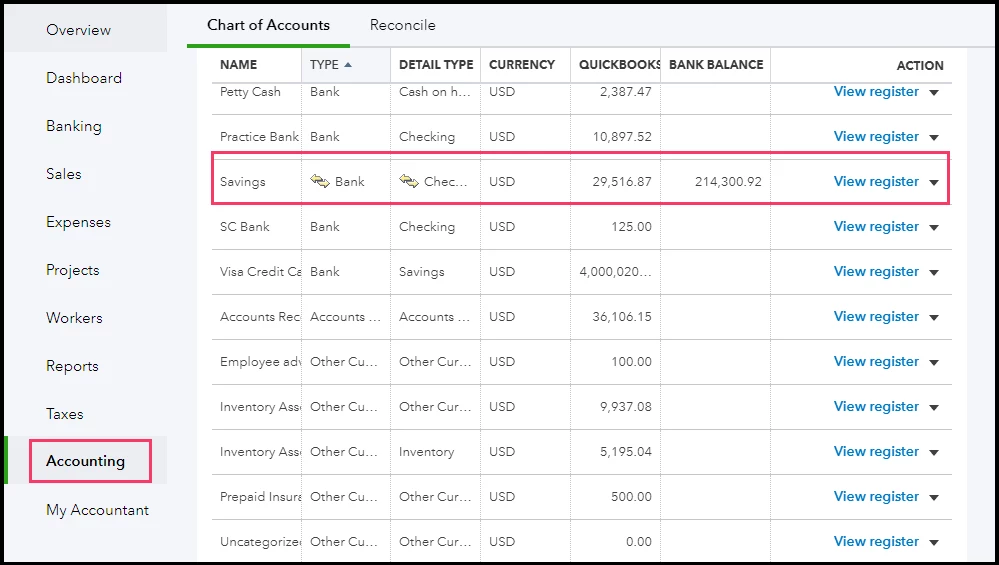
  1. Click Accounting from the left menu, then select Chart of Accounts.
  2. Select the desired bank account, then click View register
  3. Select the transaction.
  4. Select a category from the drop-down list.
  5. Once done, click Save

If you need to change the reconciliation status, you can go through these articles: How to unreconcile a transaction or undo a reconciliation.


Should you have any other concerns, you can always start a thread by posting here in the Intuit Community. Thank you and have a wonderful day.

1 reply

MaryLandT
MaryLandTAnswer
March 21, 2019

Welcome to the Intuit Community, @jujuinman.


You'll be glad to know that you can change the category of the reconciled item. No worries. This doesn't affect the balance in your bank register.


Here's how:
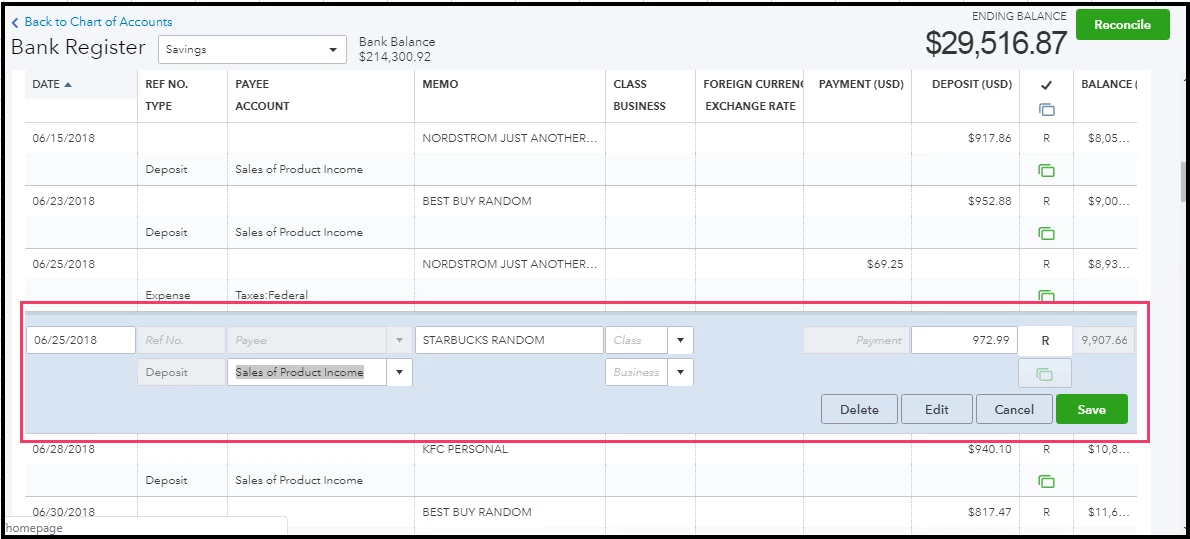
  1. Click Accounting from the left menu, then select Chart of Accounts.
  2. Select the desired bank account, then click View register
  3. Select the transaction.
  4. Select a category from the drop-down list.
  5. Once done, click Save

If you need to change the reconciliation status, you can go through these articles: How to unreconcile a transaction or undo a reconciliation.


Should you have any other concerns, you can always start a thread by posting here in the Intuit Community. Thank you and have a wonderful day.

jujuinmanAuthor
March 28, 2019

Thanks! This really helped.

MaryLandT
March 28, 2019

That's fantastic to hear, @jujuinman.


If there's anything else I can help you with today, please let me know by replying to this thread.


I'm always around here in the Intuit Community whenever you need help.


Have a wonderful day ahead!