

October 9, 2022
Question

Cannot Download Chase Checking Transactions into Quickbooks Desktop 2021

  • October 9, 2022
  • 1 reply
  • 0 views

To refresh the connection for Expressed Verbal Connect with my Chase account by 09/27/2022, I had to inactivate the bank feeds/online settings of my 2 checking and 2 credit card accounts. I deactivated all the bank feeds and then reactivated bank feeds again. Out of the 4 Chase accounts, I can reactivate 3, but I am having trouble activating 1 of my checking account. It is not accepting my Account Customer ID, and it keeps giving me the error message "your federal employer identification number (EIN) is not valid. Please use the format ##–######." I went into the company info, and my employer ID number there is correct. I called QuickBooks customer support, and after spending 2 hours, he could not figure out the problem and told me to send in the screenshots and that he will call me back with a solution, but it has been more than a week, and no callback. To me, it appears that the QuickBooks 2021 desktop needs an update to fix this bug. Can anyone help me?
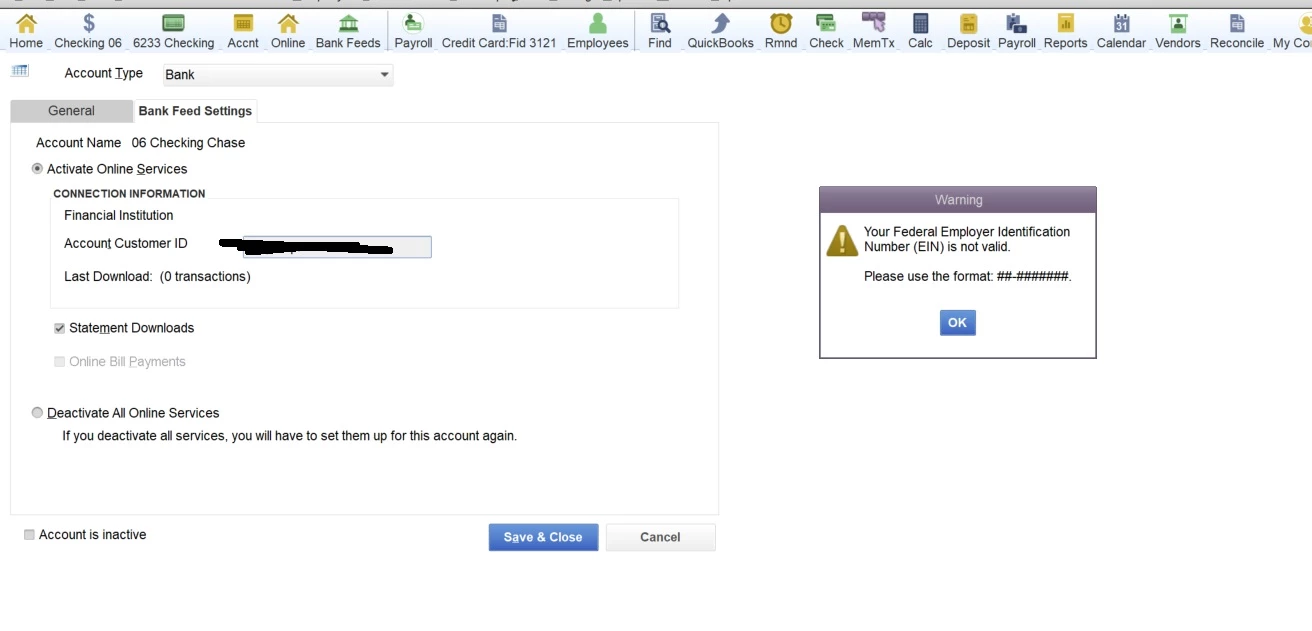
1 reply

AlcaeusF
October 9, 2022

Hello @Sanjeevp,


Thank you for adding a screenshot and posting detailed information about your banking concern. I can help you fix the error so you can download bank transactions in QuickBooks Desktop.


This error occurs even with having the correct EIN details under the company info. It usually happens when you have a damaged bank account in your chart of accounts.


There are troubleshooting steps I want to share to get you back on track. Before we start, I suggest you start by creating a back up file and updating QuickBooks Desktop to the latest release.


Aside from improving the performance of the software, this process also fixes common and complicated errors. Here's how:


  1. Click the Help tab in the upper-right corner, then select Update QuickBooks Desktop.
  2. Go to the Update Now tab.
  3. Select the updates you want to include.
  4. Put a checkmark on the box beside Reset Update.
  5. Hit Get Updates. Download and install automatic QuickBooks Desktop updates
  6. Close and re-open QuickBooks.


After following the steps above, let's proceed with running the Verify Data and Verify Rebuild tools. These features will help self-identify data issues within a company file and self-resolve them using Rebuild Data. 


To run Verify Data:


  1. Click the File tab at the top menu bar.
  2. Hover your cursor to Utilities.
  3. Select Verify Data.


Next, please run the Rebuild Data option through these steps:


  1. Click the File tab at the top menu bar.
  2. Hover your cursor to Utilities.
  3. Select Verify Rebuild.


Once done, please restart your QuickBooks and see if the error still show. If the issue persists, let's create a new bank account in the chart of accounts and merge it to the old one. This method resolves damaged data from your list.


Also, most banks supports the ability to download transactions from their websites. For additional reference on how to upload bank data manually, I've attached this link: Download bank feed transactions in QuickBooks Desktop.


Get back to me if you need further help resolving the EIN error in bank feeds. I'll keep an eye on your response. Have a great day.

SanjeevpAuthor
October 11, 2022


Thanks for your help!


I tried all of the steps above except creating a new account and merging accounts.


The link that you provided does not have instructions to merge accounts. It only talks about merging entries.


https://quickbooks.intuit.com/learn-support/en-us/help-article/customer-list/merge-list-entries-quickbooks-desktop/L4MX2KlUy_US_en_US?uid=l94ab0xv


October 11, 2022

Thanks for getting back here in the thread, @Sanjeevp. I've got your back, and I'll help you out on how to merge accounts in QuickBooks Desktop (QBDT).


Before anything else, I'd like to thank you for taking the time to perform the steps provided by my colleague. To merge an account in QBDT, know that you'll have to go to the Lists tab and select Chart of Accounts. Here's how:


  1. Access your QuickBooks Desktop company.
  2. Go to the Lists tab, and then select Chart of Accounts.
  3. Take note or copy the name of the account you want to keep.
  4. Right-click the entry you don't want to use, then select Edit.
  5. Paste the name you copied, and then select Save & Close.
  6. Click Yes to merge the entries.


A reminder, if you get the message, "You cannot merge an account that has online information associated with it into another account”, you have an active bank feed on one of the accounts. See this article to learn how to turn off bank feeds: turn off bank feeds.


Visit this page for more information: Merge list entries in QuickBooks Desktop.


In addition, I've got you this article about adding and matching bank feed transactions in QBDT: Add and match Bank Feed transactions in QuickBooks Desktop.


You can also visit this article in case you'd like to reconcile an account in QBDT: Reconcile an account in QuickBooks Desktop.


@Sanjeevp, it's a pleasure to have you in the Community today. In case you have any additional QuickBooks-related concerns or need help performing specific tasks in QuickBooks. Know that you can always get back to me. It'll be my joy to help you out again. Take care, and have a good one.