jco-remodel
May 8, 2024
Solved

Duplicate Deposits - One as Payment and One as Deposit

  • May 8, 2024
  • 1 reply
  • 0 views

Hello all,


I'm very new to Quickbooks, and so this may be something simple I'm missing but I can't, for the life of me, figure out what's happening here or why.


Little bit of context: we do all of our project mangement (estimates, invoices, POs, COs, etc., etc.) outside of QBO via a software called Houzz which is geared more towards construction/remodel project management and fits our needs better. I do not have Houzz integrated with QBO as Houzz was wanting me to disable several settings in QBO that have been enabled and in use (this is a whole nother topic I don't want to get into). So, our workflow looks like this:

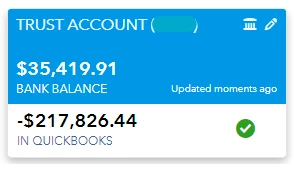
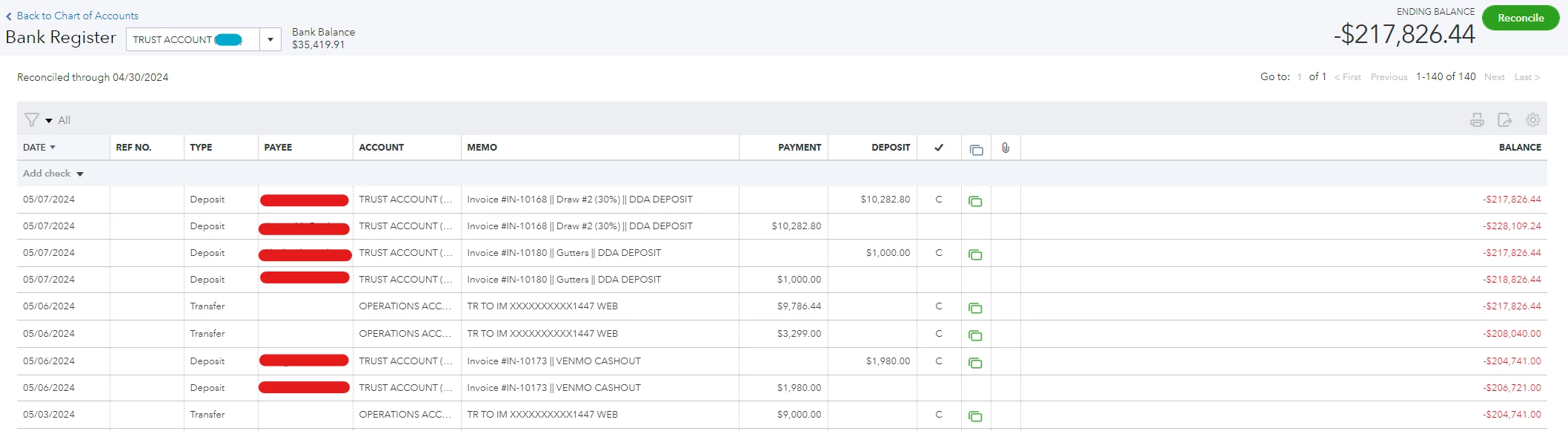
Create Invoice in Houzz>Send to client>Client pays via check>Mark as paid in Houzz>Deposit said check into our bank account (which is linked with QBO). I then will go into QBO and got to Bank Transactions>Locate deposit under the "For Review" tab>Add the important details (Invoice #, assign to customer/project, etc.)>Then click "Add". I only do this once. I also ensure that the amount is correctly showing under the "Received" column, but our Bank balance vs. our "In Quickbooks" balance are wildly different. Upon further investigation, it appears that for whatever reason the deposit I just added is being recorded twice; once as a Payment and once as a Deposit. This basically zeros out the deposit I've just recorded and so now the only transactions counting towards our balance are expenses.


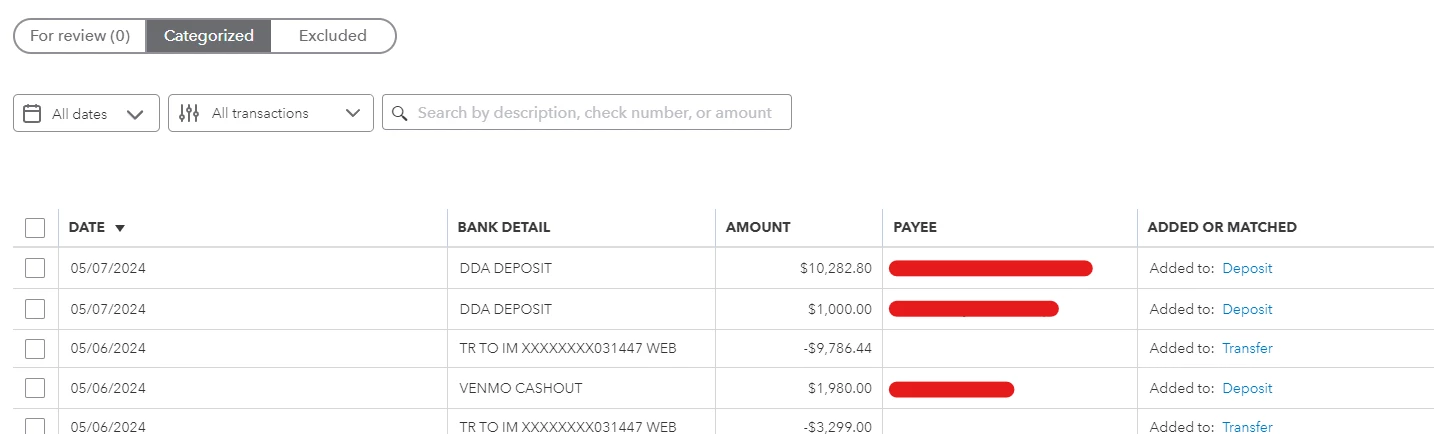
These "duplicates" do not show up under the "Categorized" tab; only when I go to reconcile or view the Bank Register do they appear.

Does anyone know why it's doing this and how I can stop it/correct it? I've attached a screenshot for futher reference.
 

Best answer by Kevin_C

Let's get this resolved, @jco-remodel. I can provide details to fix this duplicate issue with your bank deposits and ensure your register shows the correct amount.


Usually, the payments will be reflected in the Deposit column of the account register when categorizing them from the For review tab. Since the deposits are also shown in the Payment column, it could be due to the Account you selected when you categorized them.


You'll want to ensure you've selected the correct income account for your deposits and not the bank account to which you will put the transactions. This way, it will not be duplicated in your account register. See the screenshots below for your visual reference:


Since it was already added to your register, you'll have to undo it from the Categorized tab so it will reappear in your For review tab. Here's how:


  1. Go to the Banking menu and choose the Banking tab.
  2. Select your bank account, then go to the Categorized tab.
  3. Select the transaction you want to undo, then click Undo under the Action column.
  4. This will move the transactions back to the For Review tab. Use the correct income account when categorizing them, then click Add.


Additionally, you can check out these resources as your guide to view various procedures that will help you reconcile your online transactions:


You can count on me if you have other concerns about handling your bank deposits in QBO. I always have the resources and information to share. Simply hit the Reply button below. Keep safe.

1 reply

May 8, 2024

I appreciate your detailed context when managing duplicate deposits in your file, jco-remodel. I'll help ensure these transactions always match your financial statements so your books stay accurate.


In QuickBooks Online, some factors affect the balances of your bank accounts. Among these factors are mainly your downloaded bank transactions. The QuickBooks balance is affected by all the transactions in your register, including the ones you haven't reviewed yet. However, the Bank balance is determined solely based on the transactions on the register. 


To help you fix and make sure they're equal, let's ensure to add all entries in QuickBooks based on your connected banking account and consider categorizing these data based on your bank statements. Refer to this guide for more detailed insight: Categorize transactions in QuickBooks Online.


In addition to that, one possible reason why these entries are duplicates is that the imported deposits from your bank are added instead of matching them to the transactions already recorded in QuickBooks. To help you rectify this, refer to these steps:


  1. Go to the Banking or Transactions menu and select Banking
  2. Choose the tile of your bank and go to the Categorized tab.
  3. Find the transactions and click Undo.
  4. Under the For Review tab, locate the entry and tick the Find match button. 
  5. From the Match transactions page, search and choose the duplicate entry, then select Save.


If you need to exclude transactions, tick the corresponding boxes in the For Review tab.


Moreover, if these duplicates are in your banking registers, we can manually delete them to avoid doubling the income. To do this:


  1. From the  Accounting menu, select Chart of Accounts. 
  2. Find the bank account and click View Register.
  3. Find the transactions, then hit Delete.


Once everything looks good, you can start reviewing and reconciling your accounts to make sure they match your bank and credit card statements.


I'm all ears to any additional queries you may have when duplicate deposits and other transactions are in your file. Feel free to reply to this post, and I'll make sure to get the help you need Take care and have a good one!

jco-remodel
May 8, 2024

Thank you for your detailed response! I may be misunderstanding your comment, but it seems the solutions you've provided are for when deposits are simply being duplicated. As shown in my screenshots Quickbooks is "duplicating" the deposit, but making the "duplicate" a payment as opposed to another deposit.


For example:

DateTypePayeeAccountMemoPaymentDepositStatus
05/07/2024DepositCustomer ATRUST ACCOUNTInvoice #1234 $1,000.00C
05/07/2024DepositCustomer ATRUST ACCOUNTInvoice #1234$1,000.00  


Everything's exactly the same aside from the amount being put under the "Payment" column instead of the "Deposit" column, as well as the reconciliation status shows the actual deposit as "Cleared - Tentatively reconciled" while the "duplicate" payment transaction has no reconciliation status.


I hope this makes sense!

Kevin_CAnswer
May 8, 2024

Let's get this resolved, @jco-remodel. I can provide details to fix this duplicate issue with your bank deposits and ensure your register shows the correct amount.


Usually, the payments will be reflected in the Deposit column of the account register when categorizing them from the For review tab. Since the deposits are also shown in the Payment column, it could be due to the Account you selected when you categorized them.


You'll want to ensure you've selected the correct income account for your deposits and not the bank account to which you will put the transactions. This way, it will not be duplicated in your account register. See the screenshots below for your visual reference:


Since it was already added to your register, you'll have to undo it from the Categorized tab so it will reappear in your For review tab. Here's how:


  1. Go to the Banking menu and choose the Banking tab.
  2. Select your bank account, then go to the Categorized tab.
  3. Select the transaction you want to undo, then click Undo under the Action column.
  4. This will move the transactions back to the For Review tab. Use the correct income account when categorizing them, then click Add.


Additionally, you can check out these resources as your guide to view various procedures that will help you reconcile your online transactions:


You can count on me if you have other concerns about handling your bank deposits in QBO. I always have the resources and information to share. Simply hit the Reply button below. Keep safe.