Thanks for posting here, @nova art,
Allow me to share some steps on how to categorize your transactions properly.
You can exclude the deposit if it is a duplicate of another bank transaction. Otherwise, if it needs to be included in the reconciliation, you can simply match the bank entry with the net deposit after fees in QuickBooks.
Here is the complete process of recording a bank deposit with the credit card fee so you can match it with the bank entry:
- On the invoice, click the Receive Payment button.
- Select the correct invoice on the Receive Payment screen.
- In the Deposit to field, choose Undeposited Funds.
- Click Save and close. (See screenshot attached)

Enter a Bank Deposit for the credit care fee to relieve the balance from Undeposited Funds account.
- Click the QuickBooks Plus (+) icon then select Bank Deposit.
- Mark the sales receipts from the Select the payments included in this deposit section.
- Expand the Add funds to this deposit section to add a new line item.
- In the Account column, add an expense account for the fee.
- For the Amount field, enter a negative amount for the credit card fee.
- Make sure the deposit matches the net bank deposit amount.

- Click Save and close.
You can now match the transaction to the online banking transaction. Here are the steps with sample screenshot:
- Go to the Banking menu and select the account where you receive the deposit.
- Click the transaction to expand the options, then tap the Match radio button.
- You will see the Find other records button from there.
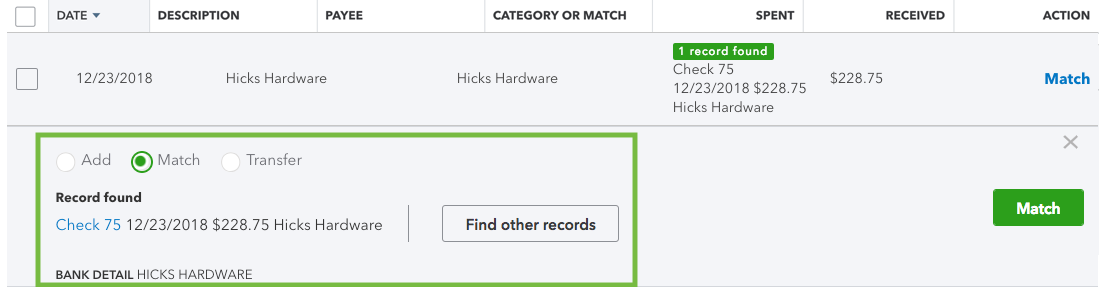
- Find the invoice and the other transactions related to the deposit in the Records found.
- Select the link next to each record to get more details.
- Check the Deposit to field, then select Match.
See this article to learn more about managing bank transactions in QBO: Categorize and match online bank transactions in QuickBooks Online.

If you need anything else, please let me know in the comment below. I'll be right here to help categorize your bank transactions. Have a good one!

