

October 10, 2021
Question

Error Message when trying to match bank transactions to payments

  • October 10, 2021
  • 2 replies
  • 0 views

I have been getting this "error" for a while now, and I have no idea how to fix it. We didn't realize we could have Paypal go directly to QB for a little bit, so we were just manually marking the sales as paid. Now, I'm trying to match up the Paypal amounts to the payments in QB. I have to manually match them, because the auto match has issues looking for payments rather than open invoices. Anyways, when I find the correct payment for the Paypal amount and click "Save", I get an error at the top saying "Select a bank account for this deposit" (see photo), but nowhere on the page is there a place to assign a bank account? I don't have any issues if I'm matching an open invoice and a Paypal payments, it's just matching these "manual payments" that we did. Thanks for the help! (Also, don't worry about the reference number, we were using is to coordinate invoices and Paypal payments, rather than check numbers like you are supposed to use it.)
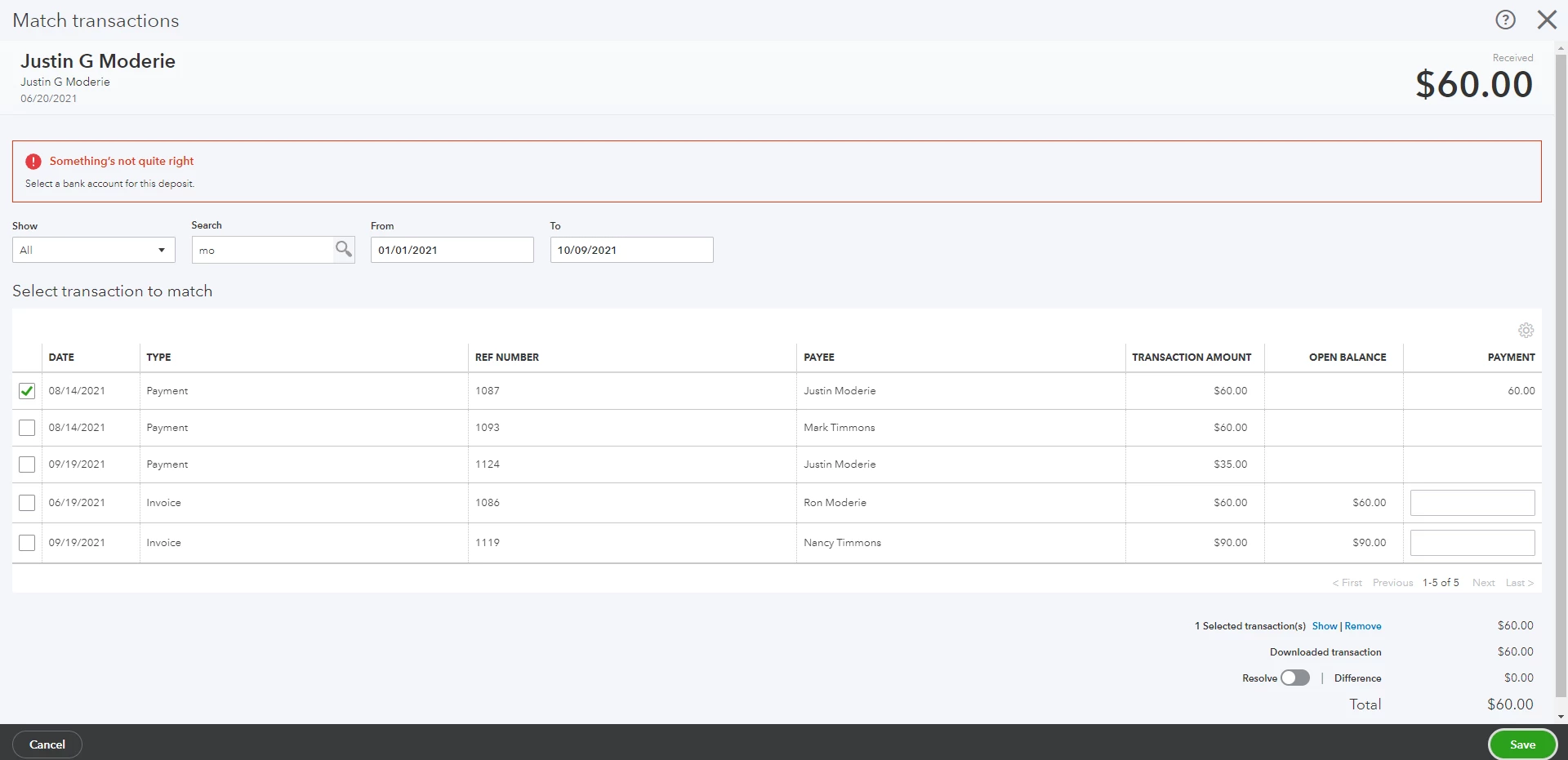
 

2 replies

October 10, 2021

Hello there, @MacleayMedia.


I appreciate you for sharing enough details of your concern and providing a screenshot.


The error sometimes occurs when these transactions have to be categorized as a bank account from the Banking page. You'll want to click the X button to close the Match transactions page for a while. Then, click the Category drop-down arrow and change it to your bank account.


I've added a sample screenshot for additional reference:


I've collected some articles that you can check for additional resources when handling your bank transactions in QuickBooks Online (QBO):


If you have follow-up questions or need further assistance as you go along with the process, please add another post below. I'll be around to help you figure them out. Take care and stay safe, MacleayMedia.

October 11, 2021

I'm still a little confused. I went through and categorized the sale, but it looks like now I can't match it. When I pressed confirm after I selected the proper bank account, it took the sale out of "For Review" and put it in "Categorized", which makes sense. But now from the "Categorized" tab all I can do is undo the categorization... Is there a way to match the payment after it's categorized? Or even better, a way to do both at once?

October 11, 2021

I recognize the hurdle you've been through fixing your bank transactions, @MacleayMedia.


Let me provide some insights about categorizing and matching transactions.


You'll have to manually Undo the category transaction because the match option is only visible in the For Review tab. The transaction can then be matched. I'll show you how to do it:

  1. Go to the Banking menu.
  2. Select the Categorized tab and Undo the transaction.
  3. Go to the For Review tab, then select the transaction to match.
  4. Find a match and click on Match.


For more information about managing transactions in your bank feed, read this article: Categorize and match online bank transactions in QuickBooks Online.


Also, check out this guide to add the right bank account to your deposits: Record and make bank deposits in QuickBooks Online.


You can always get back to us by leaving a comment on this thread. We're already ready to help with any QuickBooks and banking concerns you have. Stay safe.


June 3, 2025

We can troubleshoot to help determine if this resolves the issue with matching your transactions, worth24.


First, let's start by clearing your browser cache. This step can help resolve any issues related to browser functionality that may affect the performance of QuickBooks Online's (QBO) bank feed feature. Also, please make sure that your browser is updated to ensure optimal performance with the software.


If clearing your cache didn't resolve the error, I recommend contacting our live support team. They are better equipped to diagnose and address the specific issue you are facing in a secure manner. To contact them, here's how:


  1. Log in to your QuickBooks Online account.
  2. Go to the (?)Help button.
  3. You can utilize the QB Assistant by entering your question or topic or using the Search tab to input a keyword for your concern.
  4. After entering your question or issue, the Contact Us option will show.
  5. Then, click the Contact Us button and choose your preferred method to connect with us.


For now, you can consider manually clearing the transaction from your Chart of Accounts to correct the entry categorizations and address discrepancies that occur when transactions don't manually match. To do so, please follow the steps below:


  1. Go to the Gear icon, then select Chart of accounts.
  2. Search for your bank in the field provided.
  3. Once you're on the Bank Register page, find the transactions that won't match.
  4. Then, navigate to the checkmark column and click the box until it shows C.
  5. After that, click Save.


To ensure your accounts match your bank and credit card statements, here's an article that offers guidance: Reconcile an account in QuickBooks Online.


You're always welcome to post or reply in this forum if you have more questions.