December 11, 2024
Solved

How do I remove unprinted checks (not paychecks) from print queue in desktop?

  • December 11, 2024
  • 1 reply
  • 0 views
Original commenter did not share additional details

    Best answer by RhoiceW

    Hi, Homebuilder3. You can manually uncheck the Print Later option when writing a check to remove any unprinted checks from your print queue. I'd be happy to show you how to do this.


    If you don't want to add these checks to your print queue, make sure to uncheck the Print Later option. For checks that you have already created, you’ll need to manually open them and uncheck the Print Later feature.


    Here's how:
     

    1. Go to Vendors, then select Vendor Center.
    2. On the Vendors tab, locate the vendor with an assigned check you want to remove.
    3. Right-click the check and click Edit transaction.
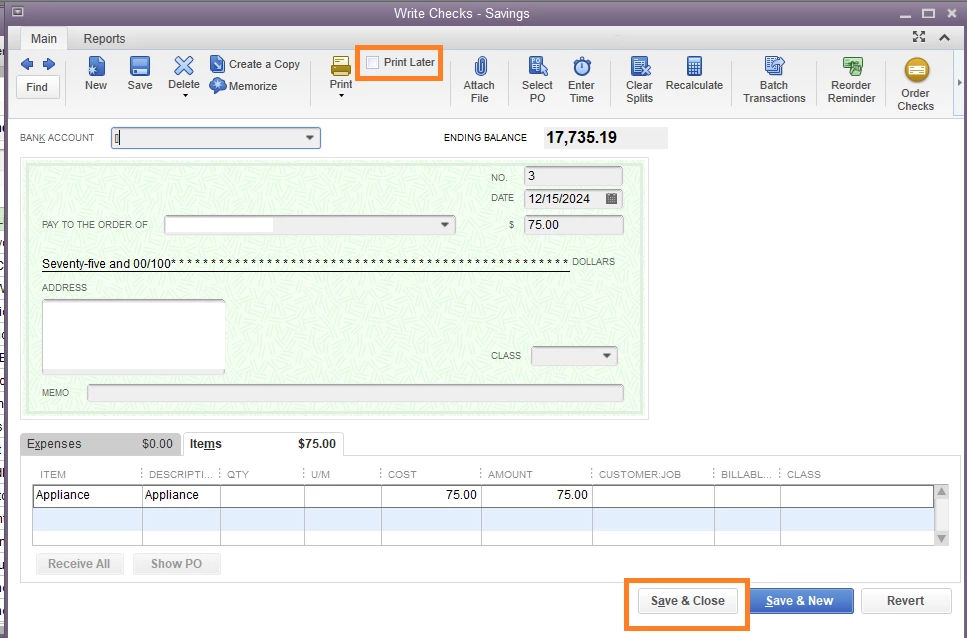
    4. On the top portion of the Write check window, uncheck the box for Print Later.
    5. Once done, click Save & Close.


    Furthermore, you can delete your checks in QBDT in case you've entered incorrect information when processing it.


    Additionally, you can save time by creating an automatic recurring payment check for your vendors. This way, you won't have to manually create a check every time you process one.


    Let me know if you still have concerns about your checks. I'm always here to help.

    1 reply

    RhoiceWAnswer
    December 11, 2024

    Hi, Homebuilder3. You can manually uncheck the Print Later option when writing a check to remove any unprinted checks from your print queue. I'd be happy to show you how to do this.


    If you don't want to add these checks to your print queue, make sure to uncheck the Print Later option. For checks that you have already created, you’ll need to manually open them and uncheck the Print Later feature.


    Here's how:


    1. Go to Vendors, then select Vendor Center.
    2. On the Vendors tab, locate the vendor with an assigned check you want to remove.
    3. Right-click the check and click Edit transaction.
    4. On the top portion of the Write check window, uncheck the box for Print Later.
    5. Once done, click Save & Close.


    Furthermore, you can delete your checks in QBDT in case you've entered incorrect information when processing it.


    Additionally, you can save time by creating an automatic recurring payment check for your vendors. This way, you won't have to manually create a check every time you process one.


    Let me know if you still have concerns about your checks. I'm always here to help.
