March 25, 2019
Solved

How do I select all transactions at once from the list under Reclassify Transactions?

  • March 25, 2019
  • 1 reply
  • 0 views
I do not see a checkbox at the top of the leftmost column.  I tried clicking there, but it doesn't do anything.  I'm sure there must be a way to select all transactions because the alternative is to individually click through a list of dozen or even hundreds of items.
Best answer by MaryLandT

Hello there, @dan-m-cohn,


Let me help determine why you're not able to reclassify when selecting all transactions.


We're unable to change transactions with an empty red circle. That's why you're not able to click anything on this page. 
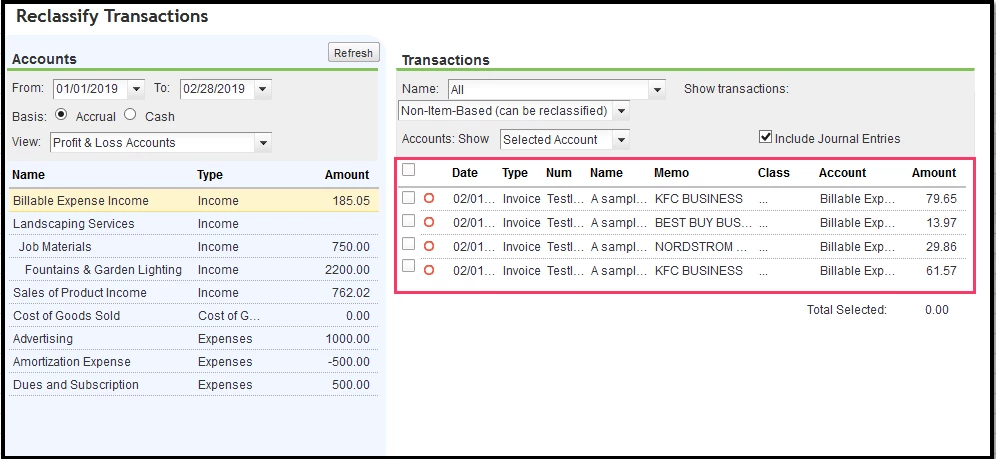
 

You can select all transactions with a filled green circle and click the select all function. 
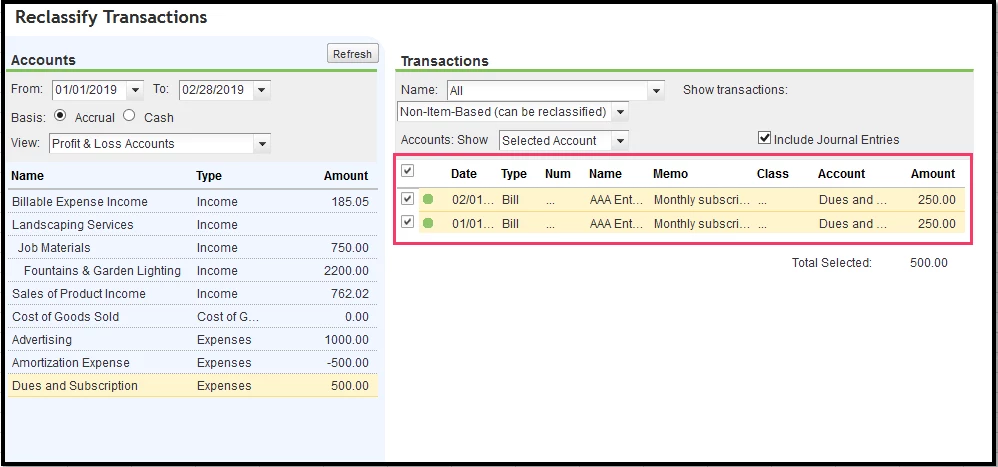
 

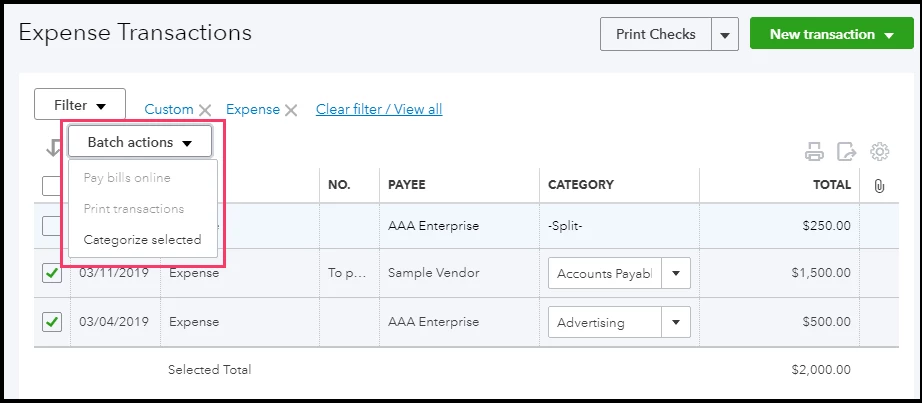
Since you're not seeing the checkbox on the Reclassify Transactions page, as a workaround, you can select all transaction through the Expense tab. However, the Categorize selected under Batch actions will be grayed out if there are split transactions. Split transactions have multiple categories, and that's why we're unable to reclassify them in batches. 


What you need to do is exclude split transactions so you can continue reclassifying other items.


To reclassify category:

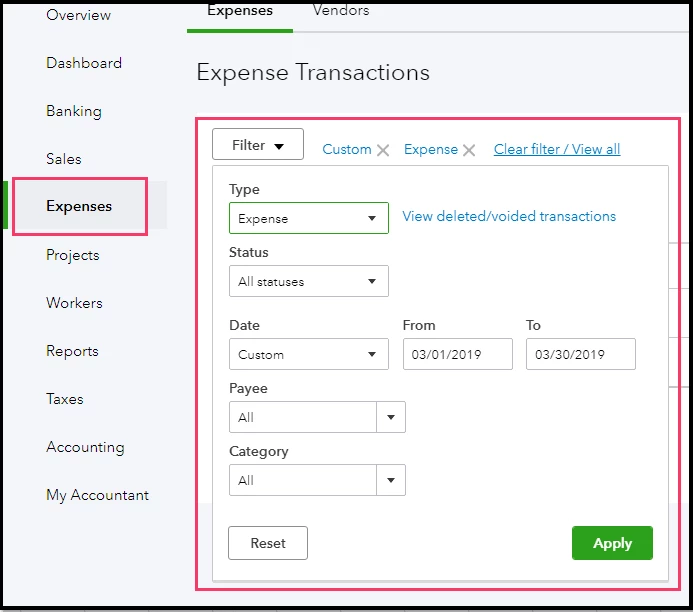
  1. From the left menu, select Expenses.
  2. Filter transactions under Type, then click Apply
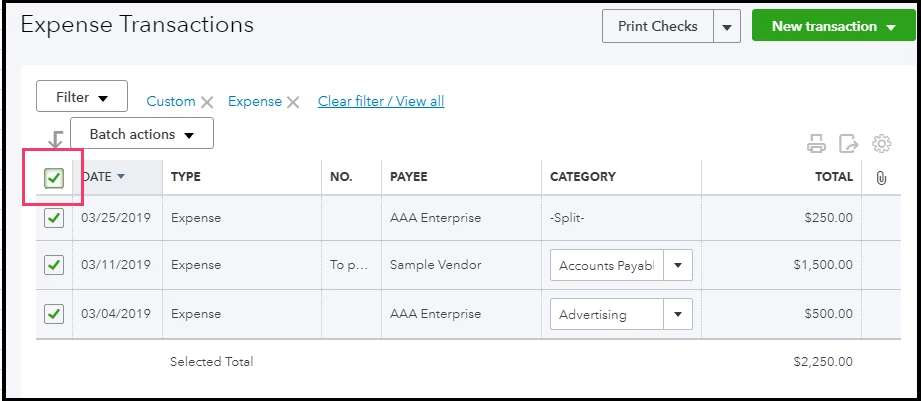
  3. Select all transactions.  
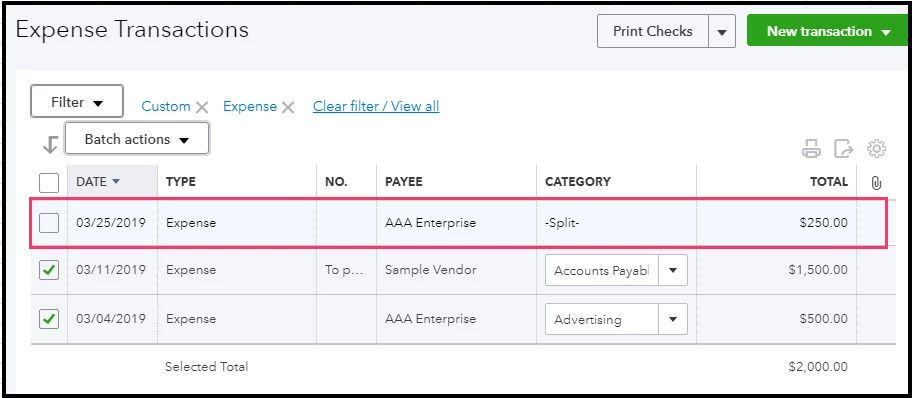
  4. Locate and uncheck split expenses. 
  5. Once done, go back to Batch actions, then select Categorize selected

For more details about the reclassify transactions tool, you can open this link: How to use the reclassify transactions tool in QuickBooks Online Accountant.


That answers your concern for today. Keep in touch if there's anything I can help you with QuickBooks Online. I'm always around whenever you need help.


1 reply

Ar99s
March 25, 2019

Hello!
Please check the status of that txns, the deal is that you can choose them only if they are 'green'.

March 25, 2019

100% of the items were green. What I’m telling you is there is no select all box visible, nor is it possible to select all, even though every item in the list was green. I actually went through and manually selected each one and had no problem reclassifying them. 

MaryLandT
MaryLandTAnswer
March 25, 2019

Hello there, @dan-m-cohn,


Let me help determine why you're not able to reclassify when selecting all transactions.


We're unable to change transactions with an empty red circle. That's why you're not able to click anything on this page. 


You can select all transactions with a filled green circle and click the select all function. 


Since you're not seeing the checkbox on the Reclassify Transactions page, as a workaround, you can select all transaction through the Expense tab. However, the Categorize selected under Batch actions will be grayed out if there are split transactions. Split transactions have multiple categories, and that's why we're unable to reclassify them in batches. 


What you need to do is exclude split transactions so you can continue reclassifying other items.


To reclassify category:

  1. From the left menu, select Expenses.
  2. Filter transactions under Type, then click Apply
  3. Select all transactions.  
  4. Locate and uncheck split expenses. 
  5. Once done, go back to Batch actions, then select Categorize selected

For more details about the reclassify transactions tool, you can open this link: How to use the reclassify transactions tool in QuickBooks Online Accountant.


That answers your concern for today. Keep in touch if there's anything I can help you with QuickBooks Online. I'm always around whenever you need help.