November 16, 2017
Solved

How do you disable bank feeds on an account on QB Desktop???

  • November 16, 2017
  • 3 replies
  • 0 views

Everything I seached for online only gives instructions for quickbooks online. The options to select that are mentioned are not availble for my application.


    Best answer by vpcontroller

    @AlwaysNew00


    Deactivating Bank Feeds in QuickBooks desktop requires no transactions waiting to be added to that account. As long as there are still downloaded transactions in your Bank Feeds that are not yet added to QB register, deactivating that account from Bank Feeds is not possible.

    You have two options to remove those transactions.

    1. Add the downloaded transactions first
    2. Delete all the downloaded transactions

    If you opt to delete the downloaded transactions, then, you can mark it all and hit ignore. You can also switch to Register Mode and delete it from there. You can do that by selecting the downloaded file and delete it.


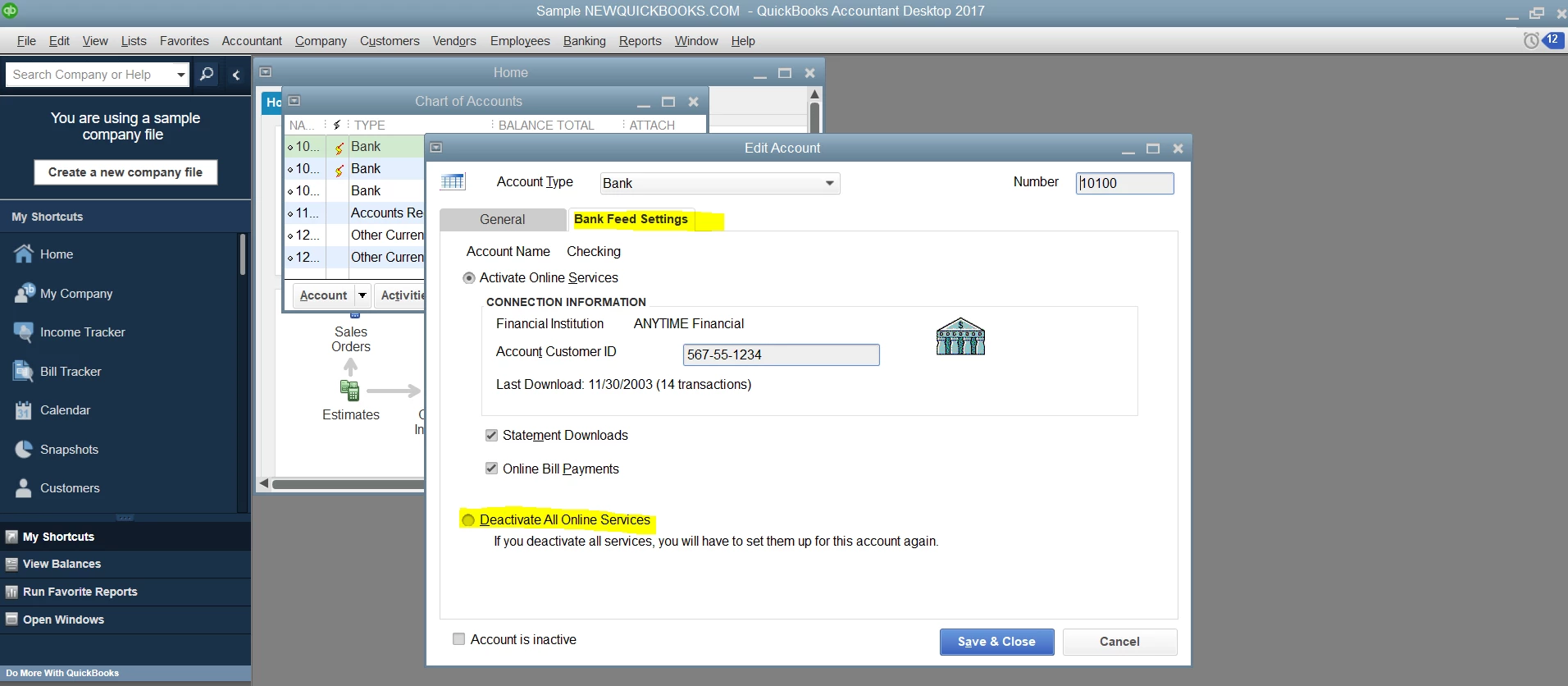
    Deactivate Bank Feeds for an account


    1. From the Lists menu, select Chart of Accounts.
    2. Right-click the account that needs to be deactivated then click Edit Account.
    3. Go to the Bank Feed Settings tab.
    4. Click Deactivate all online services. You should get a confirmation that you have just disabled one or more online services for the account but it does not cancel the services with the bank. Click Ok.
    5. Click Save & Close.

    *****

    3 replies

    vpcontroller
    November 16, 2017

    @AlwaysNew00


    Deactivating Bank Feeds in QuickBooks desktop requires no transactions waiting to be added to that account. As long as there are still downloaded transactions in your Bank Feeds that are not yet added to QB register, deactivating that account from Bank Feeds is not possible.

    You have two options to remove those transactions.

    1. Add the downloaded transactions first
    2. Delete all the downloaded transactions

    If you opt to delete the downloaded transactions, then, you can mark it all and hit ignore. You can also switch to Register Mode and delete it from there. You can do that by selecting the downloaded file and delete it.


    Deactivate Bank Feeds for an account


    1. From the Lists menu, select Chart of Accounts.
    2. Right-click the account that needs to be deactivated then click Edit Account.
    3. Go to the Bank Feed Settings tab.
    4. Click Deactivate all online services. You should get a confirmation that you have just disabled one or more online services for the account but it does not cancel the services with the bank. Click Ok.
    5. Click Save & Close.

    *****

    November 16, 2017

    Hey Thanks for the information about deleting the transactions.


    Unfortunately, I do not have a bank feed settings tab for that account for some reason. Some accounts have it, some do not. I created a new Credit card account and connected the bank feed and it worked fine. Even gave me the tab you're referring to with the options to edit the bank feeds.


    But the one I need to stop does not have that tab in the edit account screen. It is a bank account. Not sure if that makes a difference or not.

    vpcontroller
    November 16, 2017

    If there is no bank feed settings tab, maybe it's imported web-connect file only.

    bahamabreeze
    February 27, 2020

    Had to send in file to QB tech support to fix account number error. Took them less than 48 hours and I had the file back and it works just fine now.

    June 3, 2023

    using QB desktop 2020 Pro.  trying to deactivate online services for all bank and card accounts.  Successful on some, but a couple refuse to deactivate, say try again later. why?