

November 28, 2023
Solved

How to record credit card transactions in QB Online

  • November 28, 2023
  • 2 replies
  • 0 views

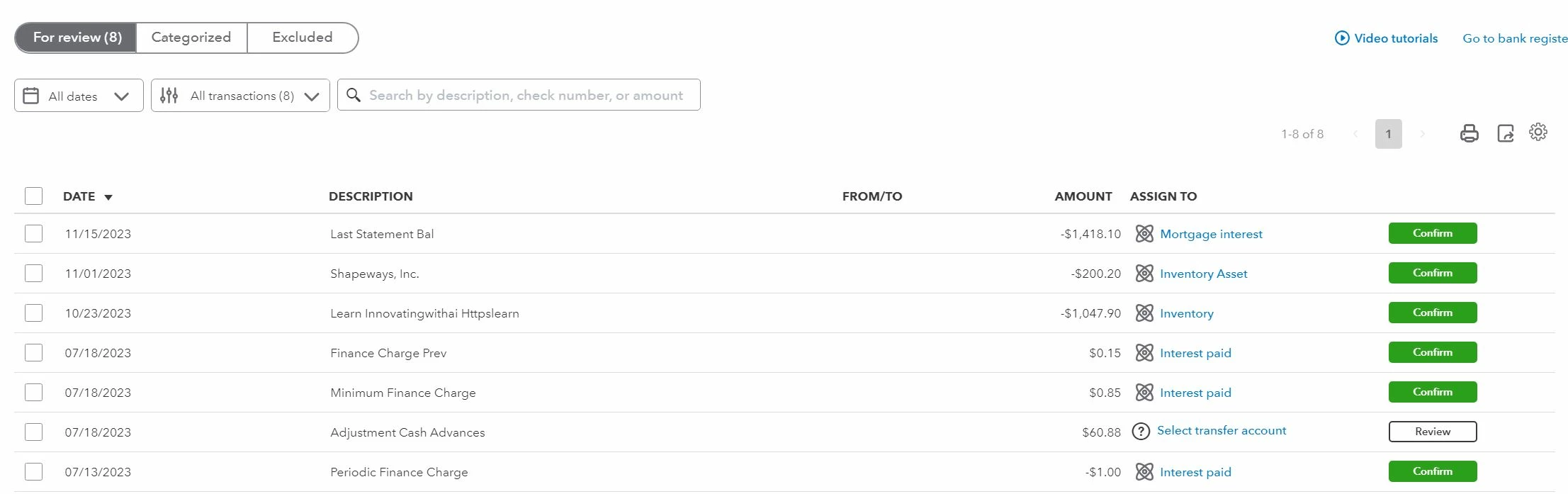
I'm setting up Quickbooks Online as a newb, though I've used Quickbooks Desktop lightly for years.  I noticed that, in the For Review table under Bank Transactions (I've linked my checking and credit card accounts), several of my upcoming individual credit card charges are listed for confirmation.  Also listed, however, is the total for the month ($1,418.10 in the image below), which is scheduled for payment in a few days. 


On the Desktop, I had so few transactions I'd enter them manually, reconcile, then QB would offer to print a check for the total (which I'd switch to an electronic funds transfer transaction).  Online, I'm not sure how to categorize the total. 


Intuit kindly provided 45 minutes of live phone support to get me started, but that person didn't know either, so she passed me on to an expert.  The expert said I need to set the total up as a split and then manually re-enter each transaction.  I explained that, while I was the newb, I just couldn't believe that that's what tens of thousands of QB Online users did each month, many with dozens or hundreds of credit card charges.  She agreed, but couldn't offer any other solution.  


What's the real answer?
Best answer by ReymondO

Hello, @Involute1344. Thank you for sharing your concern in the QuickBooks Community and for including a screenshot.


I'm here to assist you with recording your credit charges in QuickBooks Online (QBO).


The way to categorize downloaded transactions depends on whether you manually recorded the transaction in QuickBooks or not. If you manually entered the credit card charges inside QuickBooks, then you can match them with the downloaded.


If you haven't created them yet, you can simply use the Split feature to split the transaction between multiple categories and make your task easier. Here's how:


  1. In the For Review tab, select the downloaded transaction to expand the view.
  2. Click the Categorize button and select Split (Accountant view) or Split transaction next to Category (Business view).
  3. In the Split transaction window, choose the categories you want to split the transaction into from Category drop-down list.
  4. Enter an Amount for each split.
  5. Select a Vendor or Customer name for each split.
  6. When you're done, click Apply and accept.


For additional reference, you can check out this article: How to review downloaded bank and credit card transactions.


Please let me know if you have further questions about recording downloaded credit card charges in QuickBooks. I'd be happy to help.

2 replies

ReymondOAnswer
November 28, 2023

Hello, @Involute1344. Thank you for sharing your concern in the QuickBooks Community and for including a screenshot.


I'm here to assist you with recording your credit charges in QuickBooks Online (QBO).


The way to categorize downloaded transactions depends on whether you manually recorded the transaction in QuickBooks or not. If you manually entered the credit card charges inside QuickBooks, then you can match them with the downloaded.


If you haven't created them yet, you can simply use the Split feature to split the transaction between multiple categories and make your task easier. Here's how:


  1. In the For Review tab, select the downloaded transaction to expand the view.
  2. Click the Categorize button and select Split (Accountant view) or Split transaction next to Category (Business view).
  3. In the Split transaction window, choose the categories you want to split the transaction into from Category drop-down list.
  4. Enter an Amount for each split.
  5. Select a Vendor or Customer name for each split.
  6. When you're done, click Apply and accept.


For additional reference, you can check out this article: How to review downloaded bank and credit card transactions.


Please let me know if you have further questions about recording downloaded credit card charges in QuickBooks. I'd be happy to help.

November 28, 2023

Thanks.

November 29, 2023

Thank you for taking the time to post here in Community space, @Involute1344.
 

I'm glad to hear that the instructions provided by my colleague ReymondO have helped you to record credit card transactions.

Here in the Community forum, we always ensure to address and provide accurate solutions to every customer's concern. 
 

Let me know if you have additional concerns, and I'll get back to you as soon as I can. Have a good one!