June 27, 2024
Solved

How to undo a bank reconciliation?

  • June 27, 2024
  • 1 reply
  • 0 views
Original commenter did not share additional details

Best answer by Nicole_N

I have all the steps to help you undo a bank reconciliation in QuickBooks Online (QBO), @andiie46.


You can undo a reconciled transaction one at a time. If you need to start over, I recommend contacting your accountant. They can reverse the entire reconciliation using their QuickBooks Online Accountant (QBOA). You can invite them by following these steps:


  1. Open your QBO account.
  2. Click the Gear icon in the upper-right of your screen, and choose Manage Users.
  3. From the Accounting Firms tab, click the Invite button.
  4. Enter the accountant's information, then Save.
  5. Let your accountant undo the entire reconciliation.


If you'd rather handle it yourself, follow these steps to undo reconciled transactions individually:
 

  1. Click the Gear icon in the upper-right of your screen, and choose Chart of Accounts.
  2. Find the account and select View register.
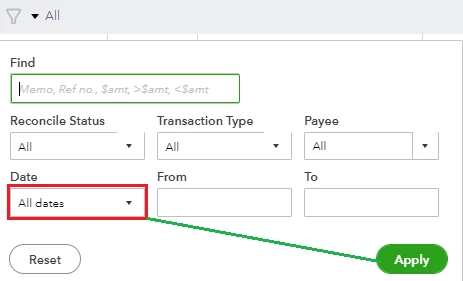
  3. To help you focus on this task, filter the register to only include the last 60 days of transactions.


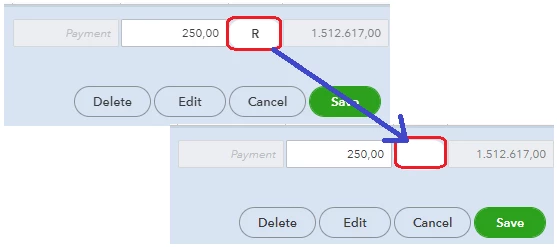
  4. Select the transaction and review the check column. If the transaction is reconciled, you’ll see an “R.”
  5. Keep clicking the box until it's blank. It removes the transaction from the reconciliation.


  6. Hit Save. Then close your register.


You may visit this article that can help you in case you encounter reconciliation issues in the future: Fix issues when reconciling accounts


If you have additional questions about un-reconciling accounts in QuickBooks, tag my name by replying below, and I'll provide the necessary help.

1 reply

Nicole_N
Nicole_NAnswer
June 27, 2024

I have all the steps to help you undo a bank reconciliation in QuickBooks Online (QBO), @andiie46.


You can undo a reconciled transaction one at a time. If you need to start over, I recommend contacting your accountant. They can reverse the entire reconciliation using their QuickBooks Online Accountant (QBOA). You can invite them by following these steps:


  1. Open your QBO account.
  2. Click the Gear icon in the upper-right of your screen, and choose Manage Users.
  3. From the Accounting Firms tab, click the Invite button.
  4. Enter the accountant's information, then Save.
  5. Let your accountant undo the entire reconciliation.


If you'd rather handle it yourself, follow these steps to undo reconciled transactions individually:


  1. Click the Gear icon in the upper-right of your screen, and choose Chart of Accounts.
  2. Find the account and select View register.
  3. To help you focus on this task, filter the register to only include the last 60 days of transactions.


  4. Select the transaction and review the check column. If the transaction is reconciled, you’ll see an “R.”
  5. Keep clicking the box until it's blank. It removes the transaction from the reconciliation.


  6. Hit Save. Then close your register.


You may visit this article that can help you in case you encounter reconciliation issues in the future: Fix issues when reconciling accounts


If you have additional questions about un-reconciling accounts in QuickBooks, tag my name by replying below, and I'll provide the necessary help.

andiie46Author
June 27, 2024

Thank you for this detailed response. I've done the process and successfully undo it though it's very time consuming since i dont have accountant. But gonna invite one soon. Yes I'm gonna be reconciling some accounts again. I'm saving your reference for this. Thank you so much. 

June 27, 2024

You're welcome, @andiie46.
 

We're glad to know that the information provided by my colleague help you with your concern. Please know that assisting and providing resolution for our valued customers is our top priority.
 

If you have any questions about managing your bank reconciliation in your QuickBooks, you can always drop by and post your concerns. We'll make sure to address that as soon as we can.
 

Take care and have a good one!
