February 28, 2021
Solved

I just connected the wrong bank account to my online QuickBooks account. How do I delete that account and all of the entries that were imported?

  • February 28, 2021
  • 1 reply
  • 0 views
Original commenter did not share additional details

Best answer by ReyJohn_D

I know how to delete the incorrect bank account in QuickBooks Online (QBO), @allison-orchardh.


You can disconnect your online banking account to remove it. This way, QuickBooks will stop downloading new transactions. Also, this will help delete all imported entries in the For Review tab.


If you've already categorized those transactions, you can undo them instead. This way, they'll go back to the For Review tab and remove them as well.


To undo your entries:
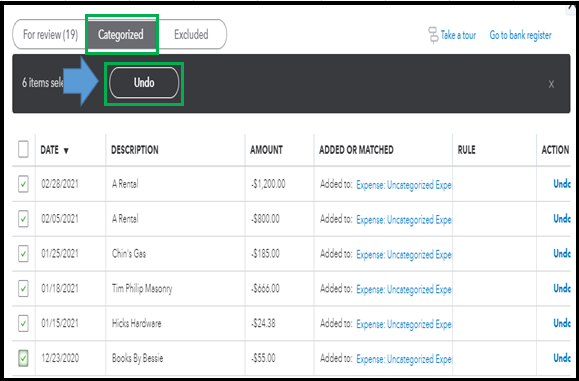
 

  1. Go to the Banking menu, and then choose the Categorized tab.
  2. Select all the transactions to undo.
  3. Click the Undo button when you're ready.


After that, it's time to disconnect your bank account. Let me guide you how:


  1. Navigate through the Banking menu.
  2. Select the tile for the wrong bank account.
  3. Click the pencil ✎ icon, and then choose Edit account info.
  4. Select the Disconnect this account on save checkbox. 
  5. Click Save and close.


If you want to delete the account in your Chart of Accounts (COA) list instead, you can refer to this article as your guide: How to delete an account in COA.


When you're all up and running again, you can now connect the right bank account to QBO. Then, you'll want to categorize and match your entries to organize them and ensure they're well accounted for.


Fill me in if you've got other banking concerns. I'd be happy to give a guide or two for you.

1 reply

ReyJohn_DAnswer
February 28, 2021

I know how to delete the incorrect bank account in QuickBooks Online (QBO), @allison-orchardh.


You can disconnect your online banking account to remove it. This way, QuickBooks will stop downloading new transactions. Also, this will help delete all imported entries in the For Review tab.


If you've already categorized those transactions, you can undo them instead. This way, they'll go back to the For Review tab and remove them as well.


To undo your entries:


  1. Go to the Banking menu, and then choose the Categorized tab.
  2. Select all the transactions to undo.
  3. Click the Undo button when you're ready.


After that, it's time to disconnect your bank account. Let me guide you how:


  1. Navigate through the Banking menu.
  2. Select the tile for the wrong bank account.
  3. Click the pencil ✎ icon, and then choose Edit account info.
  4. Select the Disconnect this account on save checkbox. 
  5. Click Save and close.


If you want to delete the account in your Chart of Accounts (COA) list instead, you can refer to this article as your guide: How to delete an account in COA.


When you're all up and running again, you can now connect the right bank account to QBO. Then, you'll want to categorize and match your entries to organize them and ensure they're well accounted for.


Fill me in if you've got other banking concerns. I'd be happy to give a guide or two for you.

February 28, 2021

Thanks so much for your help, I really appreciate it. That worked!

February 28, 2021

You're most welcome, @allison-orchardh!


I'm glad to know that I was able to help you resolve your concern. Please know that I'm always here to back you up if ever you need more QuickBooks help.


Meanwhile, you can visit our Resource Center for more QuickBooks tips.


Take care and have a great day ahead!
