February 19, 2023
Solved

Is there no way to exclude part of a split transaction in Quickbooks Online?

  • February 19, 2023
  • 1 reply
  • 0 views
I have an Amazon purchase that included both a personal item and an item for my business.

Best answer by MadelynC

I’ve come to show the way how to properly manage split transactions in QuickBooks, cebak3r.


Excluding part of a split transaction in the Banking section isn’t possible. But I know a workaround to help you get going. In this case, you can manually add part of the transaction directly to your account register. Just make sure to exclude the Amazon purchase from your Banking page to prevent duplicates. I’m glad to show you the complete process:
 

  1. Go to your Accounting menu, then select Chart of accounts.
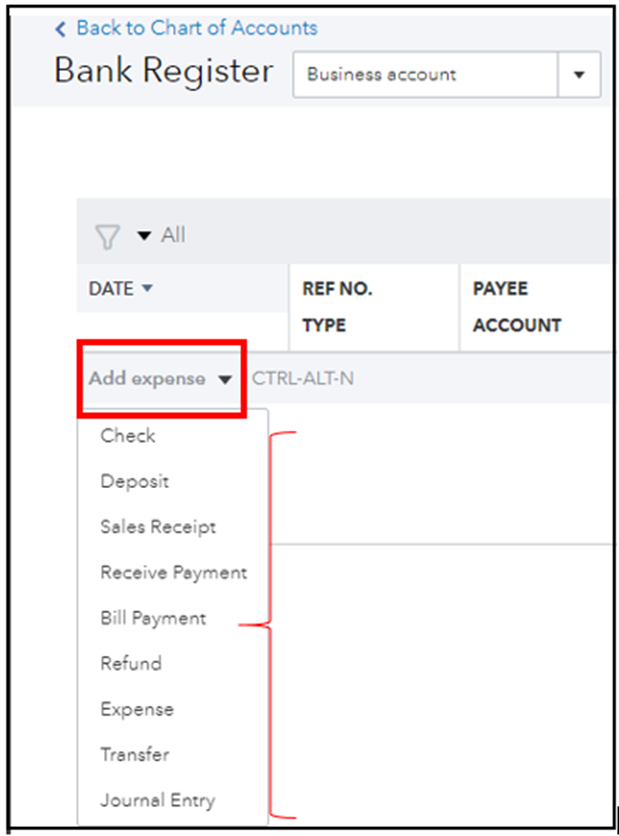
  2. Select the account (Personal/Business), then click View register.
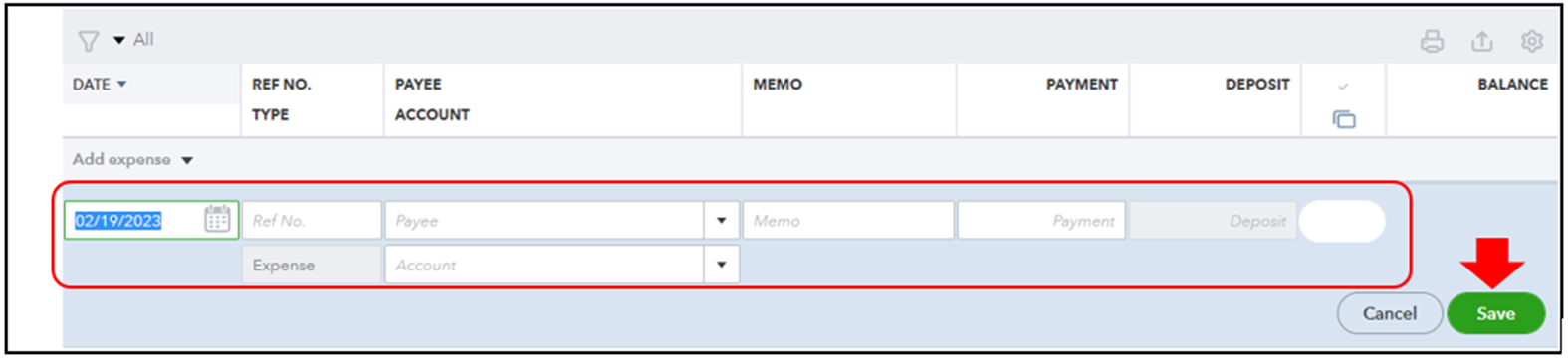
  3. In the Add check or Add expense  dropdown, choose a type of entry.
  4. Enter the details and save.
  5. Once done, go to your Banking page.
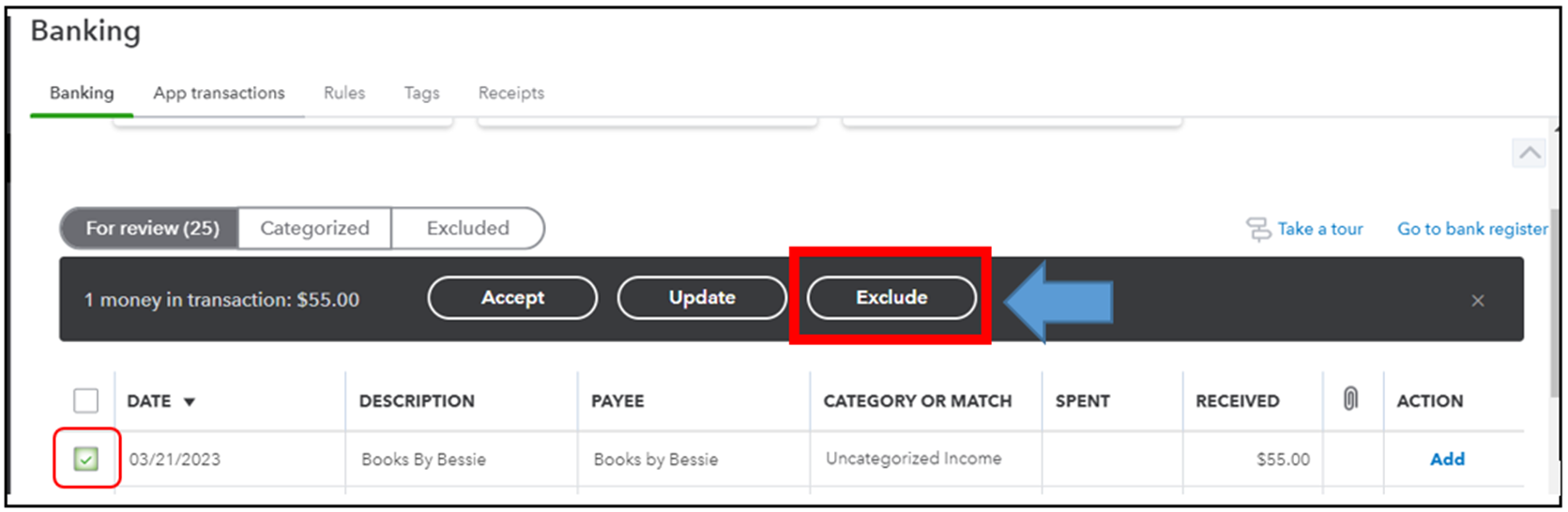
  6. Locate the transaction (Amazon purchase) in the For review tab.
  7. Put a checkmark on the box, then select Exclude.


When settled, you can use this guide to ensure books are matched, accurate, and balanced: Learn the reconcile workflow in QuickBooks. It also includes steps to modify reconciled accounts and ways to resolve issues.


If you’re interested in learning more about QuickBooks, especially managing personal and business transactions, please feel free to mention me at any time. I’m always here to help. Have a good one!

1 reply

MadelynCAnswer
February 19, 2023

I’ve come to show the way how to properly manage split transactions in QuickBooks, cebak3r.


Excluding part of a split transaction in the Banking section isn’t possible. But I know a workaround to help you get going. In this case, you can manually add part of the transaction directly to your account register. Just make sure to exclude the Amazon purchase from your Banking page to prevent duplicates. I’m glad to show you the complete process:
 

  1. Go to your Accounting menu, then select Chart of accounts.
  2. Select the account (Personal/Business), then click View register.
  3. In the Add check or Add expense  dropdown, choose a type of entry.
  4. Enter the details and save.
  5. Once done, go to your Banking page.
  6. Locate the transaction (Amazon purchase) in the For review tab.
  7. Put a checkmark on the box, then select Exclude.


When settled, you can use this guide to ensure books are matched, accurate, and balanced: Learn the reconcile workflow in QuickBooks. It also includes steps to modify reconciled accounts and ways to resolve issues.


If you’re interested in learning more about QuickBooks, especially managing personal and business transactions, please feel free to mention me at any time. I’m always here to help. Have a good one!