I know the possible reason why your bank feeds screen doesn't have an area where you can set up rules, AITAL. I'll also enlighten you on where you can select different preferences.
Based on the screenshot you provided, you're in Classic Mode. It's the reason why the rule button doesn't show up. You'll need to be in Express Mode or Advanced Mode for it to be visible and use this functionality. I'll add visual references below for your convenience.
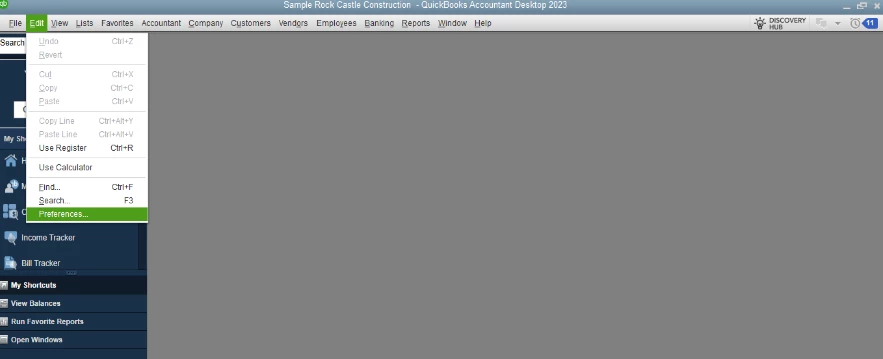
Here's how to edit your preferences and enable rules in your Bank Feeds Center:
- Click Edit and choose Preferences.
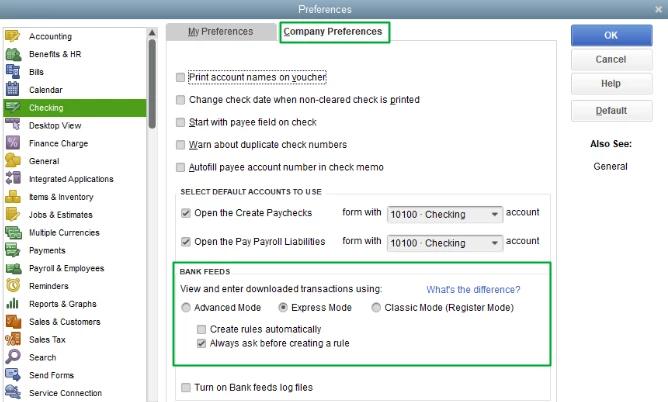
- Select Checking. Then, tap the Company Preferences tab.
- In the BANK FEEDS section, tick either Express Mode or Advanced Mode.
- You can Create rules automatically and Always ask before creating a rule. Just tick the checkbox before it.
- Hit OK. Then, Go to Banking.
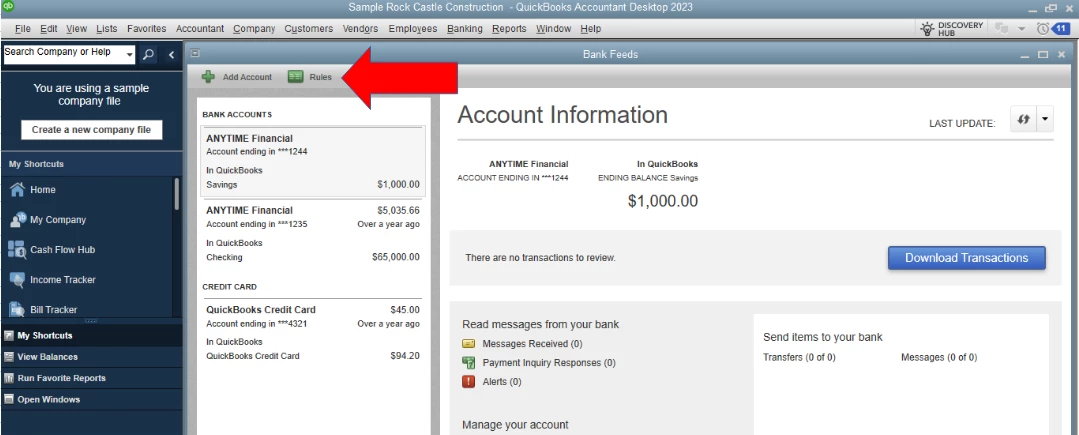
- Click Bank Feeds and then Bank Feeds Center. You'll now have the Rules button on the upper left.
- Click the Rules button to start creating rules.
For further information about creating rules in QuickBooks Desktop (QBDT), check out this link: Create rules to categorize transactions in QuickBooks Desktop.
Moreover, here's a resource to help you review your accounts and ensure they match your bank and credit card statements: Reconcile an account in QuickBooks Desktop.
I'd be glad to help you out again if you need assistance creating rules or selecting different preferences in QBDT. Just drop your reply below. Have a great day!

