Hello @GolfNut72, great to connect with you! I'm here to help you efficiently manage your transactions so you can focus on your business.
You'll have to categorize or add the individual transactions on the PayPal side as transfers. Then, the single transaction in the bank can be matched with the individual transactions or transfers that you've added.
Here’s a guide to help you categorize and match the transactions accurately in QuickBooks:
- Go to the Transactions menu and select your bank account.
- Locate the total payment transaction.
- Click on it and choose "Find match".In the next window, you’ll see all uncategorized transactions.
- Select all the individual PayPal transactions that together equal the bank payment amount.
- After selecting the necessary transactions, confirm the match.
This action links the single bank payment to the multiple PayPal transactions, illustrating that the funds transferred to PayPal were utilized to pay several vendors.
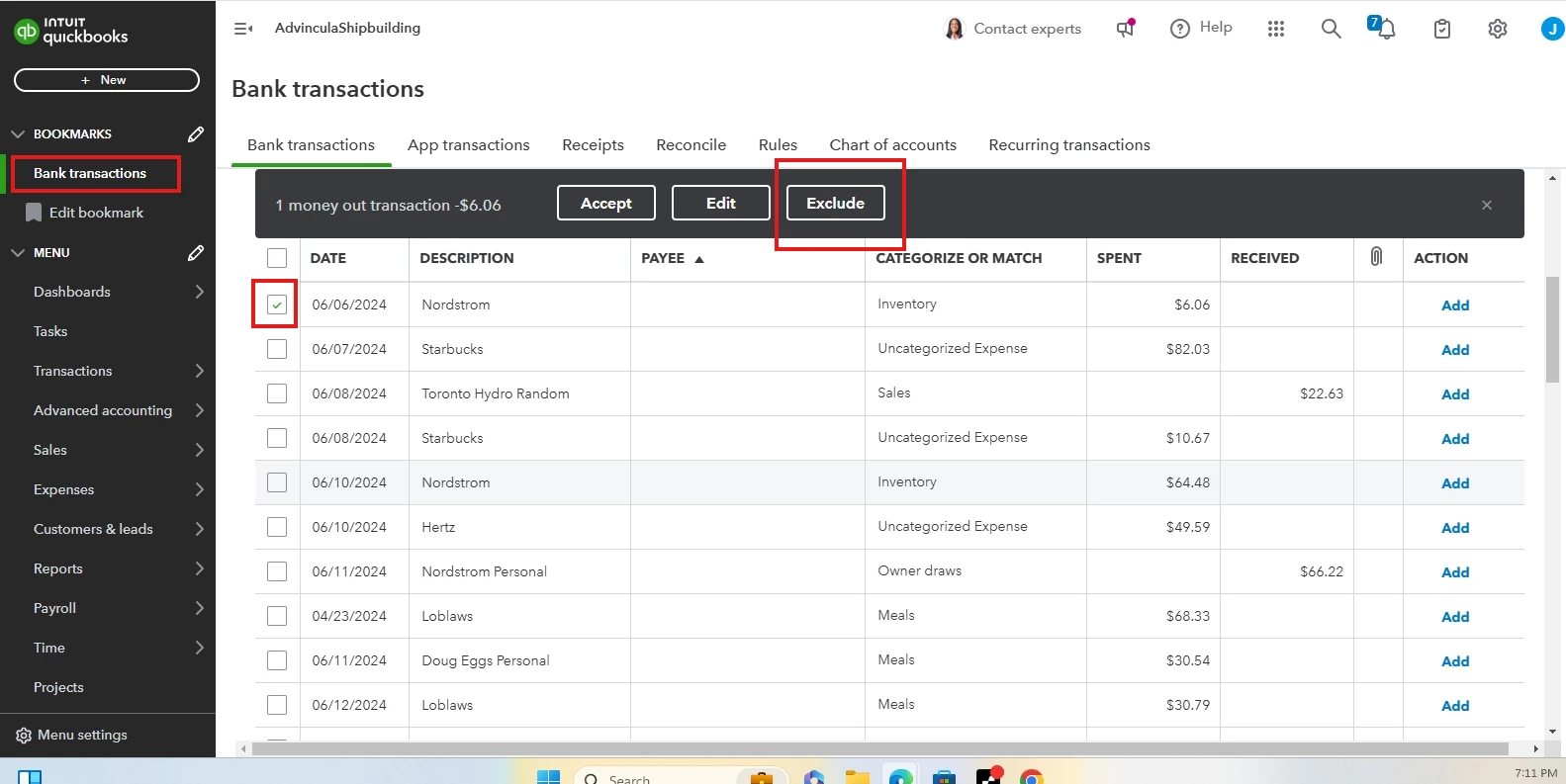
Yes, you can exclude the canceled payment requests that were paid directly instead of through PayPal.
Take a look at this screenshot:
Additionally, you can manually enter the bill payment into the system.
To record a bill from a supplier in QuickBooks, follow these steps:
- Click + New.
- Select Bill.
- Choose a supplier from the Supplier dropdown.
- Select the payment terms from the Terms dropdown.
- Input the Bill date, Due date, and Bill no.
- In the Category details section, select the appropriate expense account from the Category dropdown and add a description.
- (Optional) For itemizing the bill, use the Item details section. Enable this by going to Settings ⚙, selecting Account and settings, then Expenses. Click the pencil icon and turn on Show Items table on expense and purchase forms.
- Enter the Amount and add any sales tax.
- If the expense is billable to a customer, check the Billable box and enter their name in the Customer field.
- Click Save and close when finished.
For your complete guide click this article: Match online bank transactions in QuickBooks Online.
This article might be helpful when you reconcile an account in QuickBooks Online.
If you have any more questions about managing transactions in QuickBooks Online, please let us know. We're eager to hear from you.

