

May 30, 2022
Question

Receipt Matching, Search Manually doesn't show all transactions for review

  • May 30, 2022
  • 2 replies
  • 0 views

I understand that QBO doesn't always automatically match receipts to imported transactions.  I've read the tips on adding receipts after the transaction has been uploaded from the bank.  I've also read how using the manual search to find a transaction won't work when the transaction has already had a receipt attached or isn't open, or is over 180 days old, etc.  I'm pretty sure none of those is my issue and I don't find any discussion where there is a resolution.


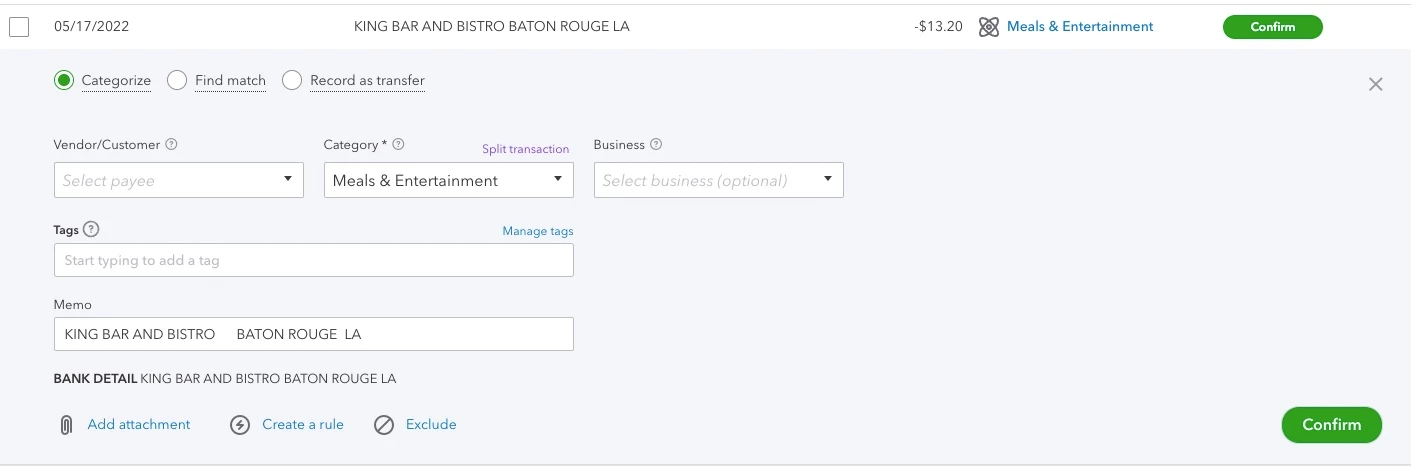
Here's an open transaction needing a receipt.
 

Here's my search looking for the transaction, which isn't found.
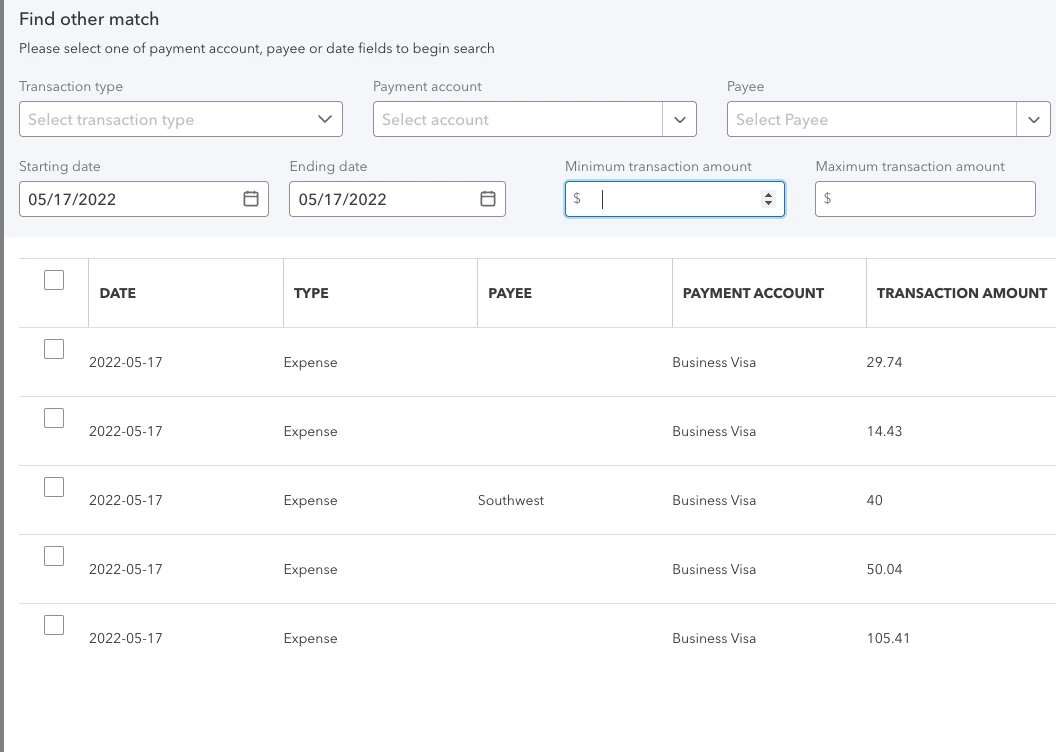
 

This problem is constant and probably about 10% of my transactions.  So I end up taking a screenshot of the uploaded receipt, saving it to my desktop, then uploading it manually into the transaction.


Thanks for your assistance.

2 replies

May 30, 2022

Thank you for the screenshot you've provided as this helps me identify the issue, @Rolar. I’m here to clarify and help you sort this out. 


I appreciate you putting an effort and time to get a resolution in matching receipts with transactions. Since the system is unable to search for the transaction, your workaround is right where we can manually upload the receipt into it. 


QuickBooks Online reads receipts, extracts data, and matches them to transactions automatically. Unless a receipt or banking transaction is added, QuickBooks will not automatically match them from the banking page to the receipt.


We have to review if they have the same date and amount. We’ll need to check to see if the QuickBooks Online transaction has already been matched to another one. Please also know that the program can only link the same type of transactions. 


Yes, you can upload receipts to the banking center. This is where QuickBooks read them and either match them to a current transaction or allow you to create a new one.


When you import receipts and bills into QuickBooks, they appear in the For Review tab. From there, you can review, update, and match transactions. You can also manage your expense receipts and bills under the receipts tab.


You can read more of these articles about matching and managing receipts: Capture and categorize receipts and bills.


I’m always ready to assist you if you have any other questions or concerns about managing your bank transactions in QuickBooks Online. Tag me in your reply and I’ll sprint back into action.

RolarAuthor
June 2, 2022

I think the main issue is when I'm reviewing my receipts, I can rarely ever select the transactions.  I've gone through the reasons a transaction might not show, but none of those reasons seem to apply.


Is this a known bug.  Seems very much like one.

June 2, 2022

Thanks for getting back to us, @Rolar.


I'll share some information about matching receipts. Let's run some basic troubleshooting steps to fix this. 


Open QuickBooks Online (QBO) account using an incognito mode or private browsing. This is to determine if it's cache-related or not. The webpage is preventing the program from selecting or matching the receipts. Let me guide you how.


  • Chrome: Ctrl + Shift + N.
  • Mozilla Firefox: Ctrl + Shift + P.
  • Microsoft Edge: Ctrl + Shift + N.
  • Safari: Command + Shift + N.

After that, go back to the Receipts tab and try matching or selecting your receipt again. If it's working fine, you'll want to go back to your regular browser and clear the cache. Performing this process will help optimize the QBO performance. If you continue to get the same result, use a supported browser and match the receipts from there. 


On the other hand, you can also contact our Customer Care Support, so we can create a ticket for you and assist you further. Use this link to reach out: QuickBooks Online Support.


I'm also adding this link in case you need help with reconciling your account. It has detailed steps to guide you along: Sales and Customers.


Please let me know if you have follow-up questions or concerns with receipts. I'll be around for you. Take care and have a great day ahead.


November 17, 2022

I am having a similar problem. If you want to manually match a receipt to an existing expense, there are filtering controls that should be more than helpful. However there are multiple issues with them:


  • There's no 'Apply' or similar button. The account drop-down list seems to apply as soon as you click an entry. But the other controls don't all appear to respond when you tab or even hit Enter. Even if this functionality is there, it's really smart to have an 'Apply' button so the user knows their input is being accepted.
  • The date select boxes are extremely cumbersome on iOS Chrome, if not other platforms. Just make it a text box FFS.
  • When you enter dates in the date boxes, they don't respond appropriately. It looks like it's maxing out on pulling only the past few month's of records. I tried refreshing the page, wondering if it was stuck on another filtering attempt, but no dice. It's just broken or possibly cached. If the latter, that needs to be fixed on QB's end, not requiring the user to refresh their cache or something.

Overall, it has the feel of something that was hastily deployed. Don't get me wrong-- I love it! But maybe admit that it's in beta mode or something. Or just fix it asap.


August 1, 2023

I am experiencing the same problem. Appears I can only attach receipts to an expense or bill but no other actions. I have a credit/refund from an equipment rental. The receipt is uploaded and has the same amount, acct, date and description of the transaction, yet I cannot attach the receipt to the transaction. unable to do it manually. I also do not show how I can download the receipts image and then manually upload it. Why cant we attach receipts to any/all transactions? 

August 1, 2023

I understand the importance of attaching the receipt to all your transactions, mrprecision.


We can only add receipts to money-out transactions (bills and expenses) in QuickBooks Online. In the meantime, you'll want to record the refund manually. Then, attach the file to the Attachments section.


Beforehand, make sure that the receipt's format is supported. Check the acceptable file types in this article: Attachments in QuickBooks Online.


Once ready, you can follow these steps to record the transaction:


  1. Go to + New and then select Vendor credit.
  2. Select the name of your vendor.
  3. Choose Category details or Item details
  4. Add the other necessary details to complete the transaction.
  5. Scroll down to go to the Attachment section.
  6. Click Save and close.


For visual reference, I've added a screenshot below.


Once done, exclude the bank transactions to avoid duplicates.


Moreover, there are several ways to add receipts to your money-out transactions. To learn more about this, I suggest browsing this article: Upload your Receipts and Bills.


Additionally, I've added this article to help you review the downloaded bank and credit card transactions and put them in the correct accounts: Categorize Online bank Data.


Please keep us posted if you need help tracking or managing vendor transactions. I'll do my best to provide you with the assistance you need. Keep safe!