September 15, 2024
Solved

Tried to import transaction CSV for 3 missing months of 2023 it says "We've filtered out 269 transactions that we already got through your bank connection."

  • September 15, 2024
  • 2 replies
  • 0 views
Had to reconnect the account today, there are no transactions in QB since Sep 2023

Best answer by GebelAlainaM

I can help you import the transactions successfully in QuickBooks Self-Employed (QBSE), @webattack2015.

You have missing transactions due to the disconnected connection between your bank and QBSE. To successfully retrieve those entries, select the Include all transactions option and continue with the process when importing your CSV file.

Here's how:
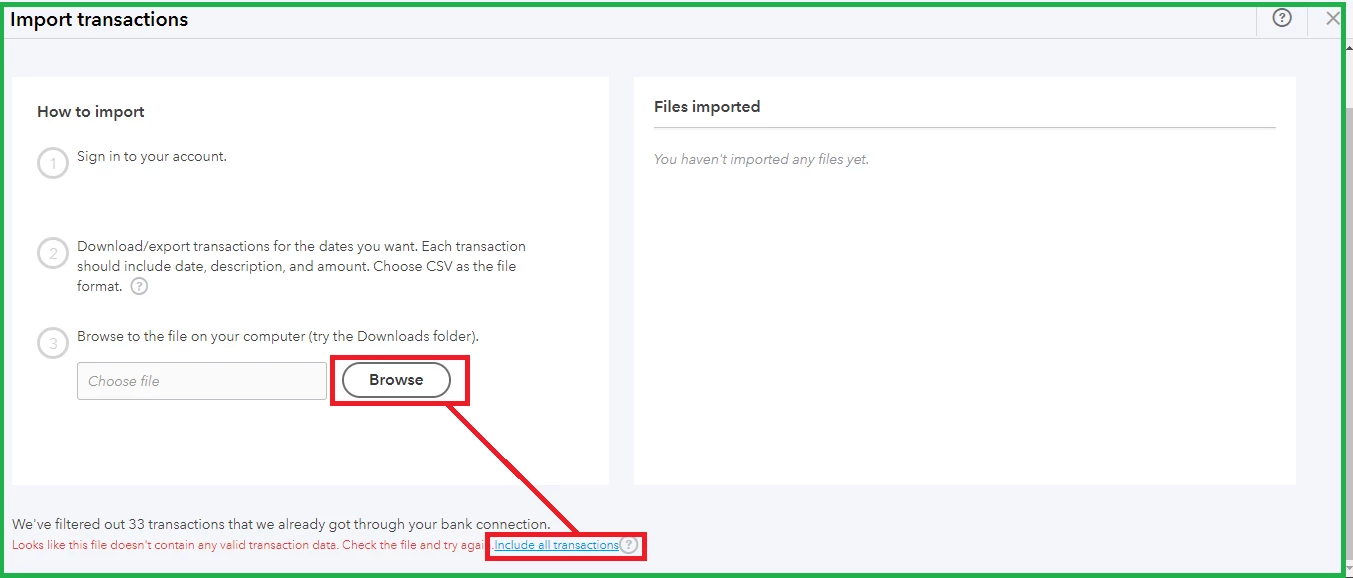
 

  1. Go to the Gear icon and then select Import transactions.
  2. Find your bank account and choose Import older transactions under the Action column.
  3. Click Browse and select the CSV file you want to import.
  4. You'll be routed back to the Import transactions window. From there, select the Include all transactions option.
  5. Follow the onscreen steps to upload the CSV file.
  6. Then, hit Continue.
     

You can check out these articles for more details on importing bank transactions in QBSE:
 

Once the missing transactions are imported, you can categorize them. You can read this article for future reference: Categorize transactions in QuickBooks Self-Employed.

If you need help with importing your bank transactions or have any other QuickBooks-related questions, feel free to hit the Reply button. I'm always here to help you out!

2 replies

September 16, 2024

I can help you import the transactions successfully in QuickBooks Self-Employed (QBSE), @webattack2015.

You have missing transactions due to the disconnected connection between your bank and QBSE. To successfully retrieve those entries, select the Include all transactions option and continue with the process when importing your CSV file.

Here's how:
 

  1. Go to the Gear icon and then select Import transactions.
  2. Find your bank account and choose Import older transactions under the Action column.
  3. Click Browse and select the CSV file you want to import.
  4. You'll be routed back to the Import transactions window. From there, select the Include all transactions option.
  5. Follow the onscreen steps to upload the CSV file.
  6. Then, hit Continue.
     

You can check out these articles for more details on importing bank transactions in QBSE:
 

Once the missing transactions are imported, you can categorize them. You can read this article for future reference: Categorize transactions in QuickBooks Self-Employed.

If you need help with importing your bank transactions or have any other QuickBooks-related questions, feel free to hit the Reply button. I'm always here to help you out!

September 16, 2024

That worked, thank you!

September 16, 2024

Thank you for updating us, @webattack2015.

On behalf of my colleague, GebelAlainaM, you're welcome.


I'm happy to know that my peer's knowledge answered your concerns about importing your bank transactions. Please know that assisting and providing resolution for our valued customers is our top priority.


Additionally, you'll want to check out this resource about obtaining the quarterly and annual tax info in QBSE: Get quarterly and annual tax info from QuickBooks Self-Employed.


If you have any questions about managing your bank entries in QuickBooks, you can always drop by and post your concerns. We'll make sure to address that as soon as we can. Have a good one!
