July 12, 2024
Solved

We can’t get transactions from Capital One - Credit Cards

  • July 12, 2024
  • 1 reply
  • 0 views

receiving error message

"We can’t get transactions from Capital One Credit Cards"


transactions have not been imported - register balances are not updated

Best answer by ErwinQ

I know the importance of your bank transactions will be in sequence and the running balance will display in QuickBooks Online (QBO), @dannyred27.


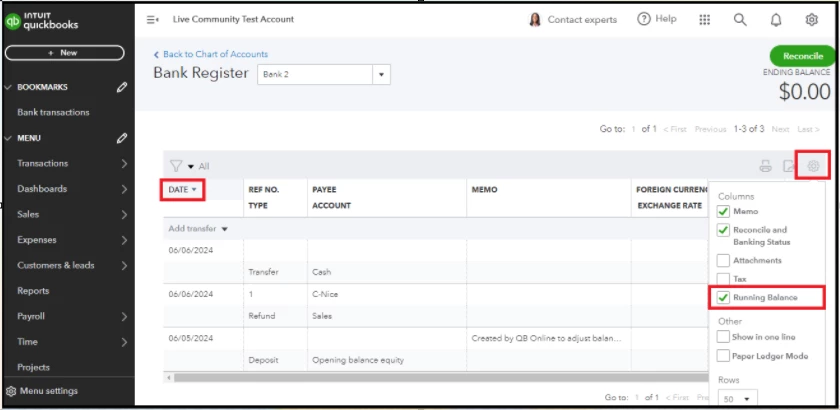
In QuickBooks Online, it's essential to sort transactions by date and remember to enable the Running balance in the Gear icon to ensure it will display the correct balance on your account.


On the funnel icon beside the Date, choose the dropdown arrow to arrange your transactions from latest to oldest or from oldest to newest by pointing the arrow upward.


I'll show you how:


  1. Access your QBO account.
  2. Navigate to Bank transactions.
  3. Select Chart of Accounts.
  4. Choose View register.
  5. Then click the arrow next to the Date based on your preference.


Then click the Gear icon to tick the Running balance.


I'll add a screenshot for visual reference:
 

If you need to categorize and match transactions after this, let me add these articles as future guides:


We'll be here in the Community if you have further questions about managing bank transactions in QBO. We'll do our best to assist.


1 reply

July 12, 2024

I recognize the significance of keeping your bank transactions up to date in QuickBooks Online, Bennys. Let's work together to resolve this and get you back to focusing on your business, @dannyred27.


First, I recommend manually updating your bank to refresh its connection with QuickBooks Online.


Here's how:


  1. Go to the Banking menu
  2. Select the Banking tab.
  3. Click the Update button.


For more details about this process, please visit this article: What to do if you get a bank error or can't download transactions in QuickBooks Online.


It's also a good idea to check for issues brought on by a full cache when browsing anonymously because doing so prevents the cache from recording your browsing data. You may also try to use other browsers.


  • Chrome: Press Ctrl + Shift + N
  • Internet Explorer and Mozilla Firefox: Press Ctrl + Shift + P
  • Safari: Press Command + Shift + N


If the steps above will not work, you can use supported browsers as an alternative.


For future reference, you can read this article about categorizing transactions in QuickBooks Online: Categorize online bank transactions in QuickBooks Online.


Let me know if you have questions about managing bank transactions in QuickBooks Online. I'm always here to help. Have a great day.

July 14, 2024

The transactions did update themselves. However, a new issue came up - all the bank and credit card registers no longer show their running balances - I have not entered anything since I discovered this for fear of screwing up something behind the scenes. There was also something strange - I found some transactions from a different date sequence mixed in with the regular transactions for the period
