


Does your business issue invoices and take deposit? Here’s a guide to manage it in QuickBooks.
Many of our QuickBooks customers issue invoices to their customers and take deposit, but wasn't quite sure how they can map their processes into QuickBooks. Here's a guide on how some of customers run their businesses on QuickBooks, let us know if it helps you!
Step 1: Set up invoice to receive deposit
- Click on the + sign on the top right corner, then select Invoice.
- Click on the Gear icon in the invoice, tick Deposit and X on the top right to close.
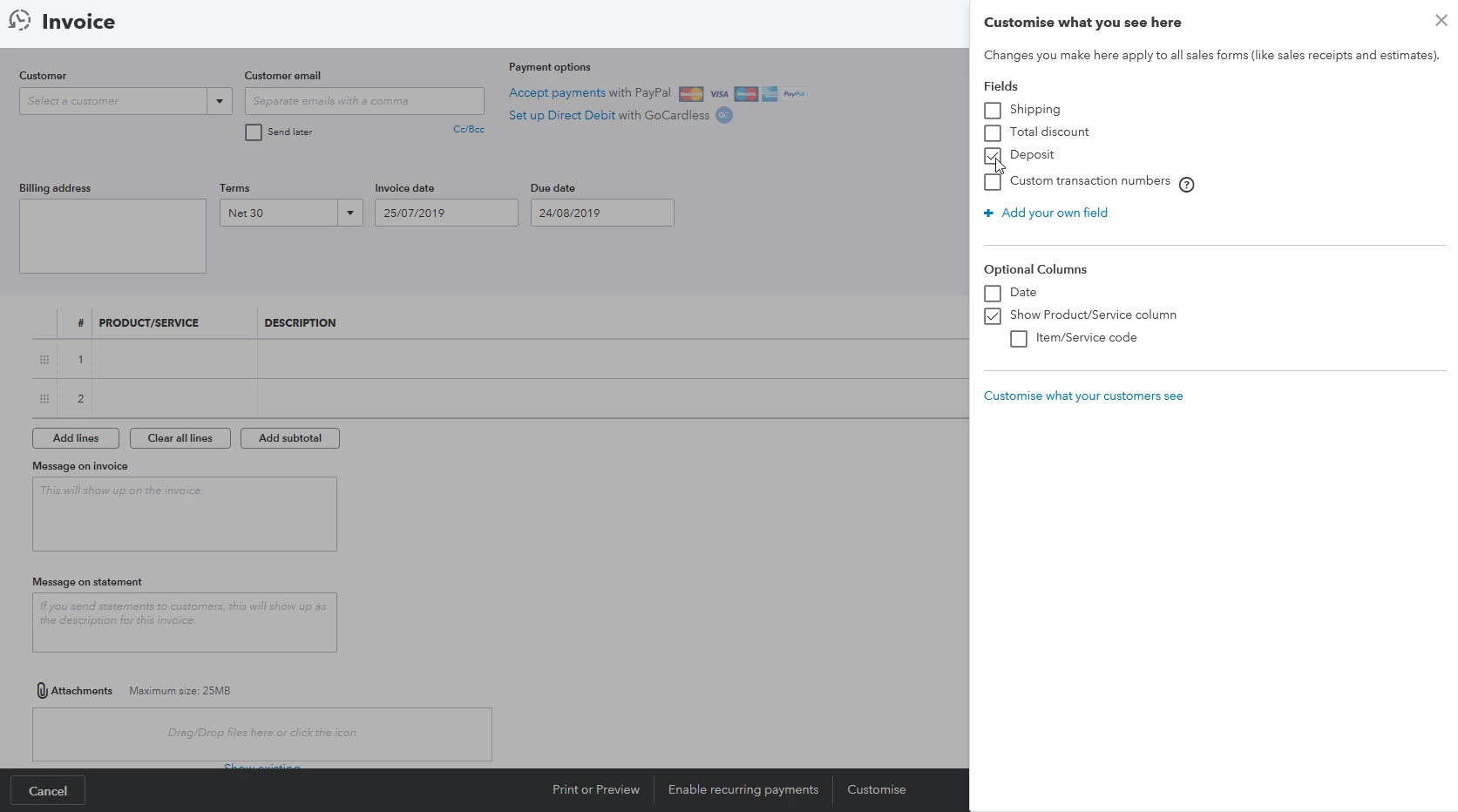
Step 2: Create the invoice and send to your customer
- Now, create your invoice by following these steps.
- You can save and send this invoice to your customer.
Step 3: Receive and account for deposit
Deposit is paid by cash and banked into bank account
- If you have received deposit for an invoice, click on the magnifying glass icon on the top right of QuickBooks to search for the invoice in question.
- On the invoice, enter the details below:
- Deposit field: your deposit amount
- Payment method field: cash
- Deposit to: undeposited funds if you have not yet banked your cash deposit to the bank
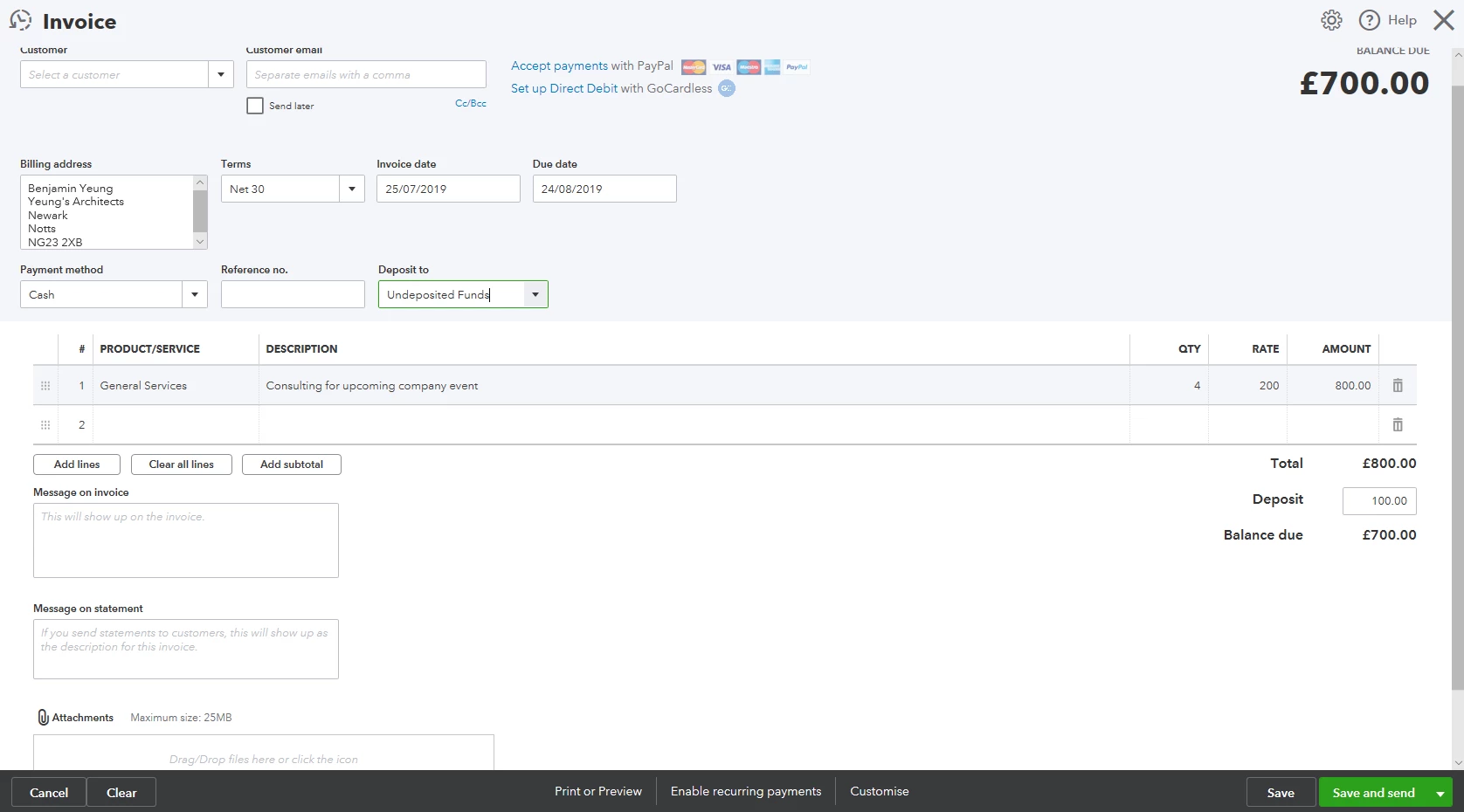
- Click Save to save the changes.
Once you have deposited the amount in your bank account, enter the record in QuickBooks.
- Go to the Plus sign on the top right in QuickBooks, select Bank Deposit.
- Select the bank account in which you deposited the cash to.
- Your customer's name will appear under the Select the payments included in this deposit section.
- Select the one you’re receiving the deposit for and Save.
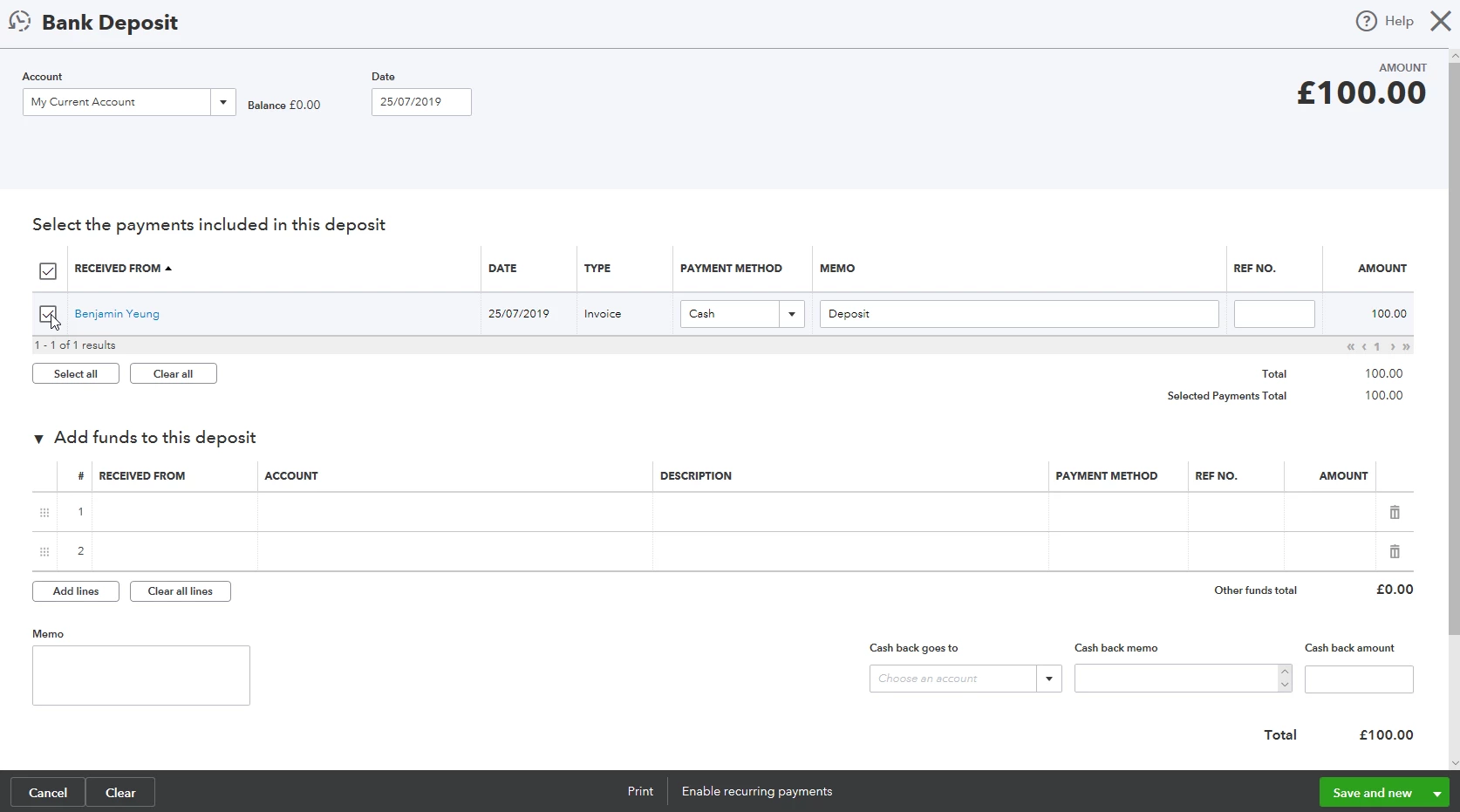
There is one more step to account for your deposit correctly in QuickBooks - match your bank transaction to deposit transaction in QuickBooks.
- Go to the Banking menu on the left. Select the bank account you deposit your cash into. Click on Update to download your latest bank transactions into QuickBooks. If you have not yet connected your bank account to QuickBooks, click on Add Account and follow the steps.
- Once your transactions have been downloaded, look for the transaction you have deposited under the For Review tab.
- When you found your transaction, click on it to expand.
- Click on Find Match. Look for an Invoice Deposit transaction that matches your amount, select it and save.
Deposit is paid by bank/credit card payment
- If you’re receiving a deposit by bank/credit card payment, connect to your bank account in QuickBooks if you haven’t already done so, and update your bank connection to download all your transactions.
- Under the For Review tab in Banking page, look for your transaction and click on it to expand.
- Click on Find Match. Look for the Invoice with outstanding amount, and click Match.
Step 4: Receive outstanding payment for an invoice
By cash
- If you’re receiving cash payment for an invoice, go to the invoice in question and click Receive Payment.
- Enter the payment you’ve received in the Amount Received field, and save.
- Your invoice will now display the outstanding amount and link to payment that you’ve received.
By bank or credit card
- If you’re receiving a bank/credit card payment, connect and update your bank connection to download all your transactions.
- Under the For Review tab in Banking page, look for your transaction and click on it to expand.
- Click on Find Match. Look for the Invoice with outstanding amount, and click Match.
How to manage my Undeposited Funds?
If you have received cash and allocated your deposit or outstanding payment(s) to undeposited funds account, you'll need to allocate them to a bank or cash account when you're ready, for them to appear correctly in your books.