Solved
Hi, would you be able to advise how to register cash received during a trading event? I have cash and list of products sold but not name of customers. Thank you!
Original commenter did not share additional details


Good to have you back, lucia4. How are you these days?
Good work on doing the first part. I'll show you where to find the + Add New option so you can register the cash received during a trading event.
You can find it when you click the drop-down arrow (or menu) under Deposit to in the sales receipt window. Here's a screenshot:
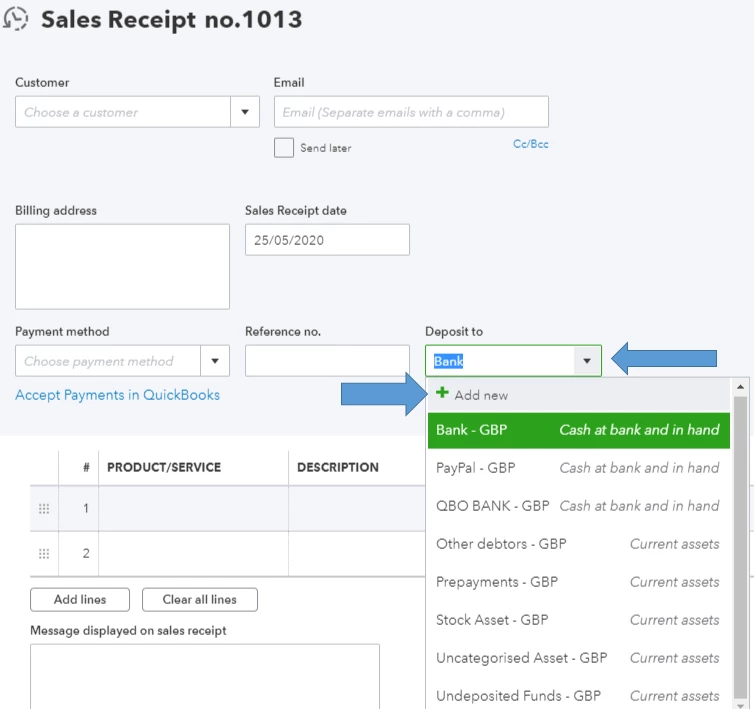
If it's not showing (or the menu partially shows the content without it), we can do the following steps to resolve it.
Try refreshing your browser by pressing the F5 key. You can also close and reopen it. In the event that it doesn't work, then it's likely a webpage issue. We can use a private or incognito window to confirm this:
Go to the login page, then sign in to your company. Once done, try opening the sales receipt again then check to see if the + Add New button appears on the Deposit to drop-down menu.
When it does, let's go back to your regular browser and clear its cache. Close and reopen it after clearing to complete the process.
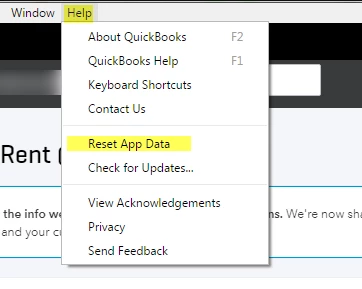
Alternatively, you can try using other supported browsers. If you happen to use the QuickBooks Online Windows or Mac app, you can click on the Help menu (the one on the taskbar), then select Reset App Data. Then, close and reopen it after.
I'm sure you're excited to know how much you've earned from the trading event. After registering the sales receipt, you can pull up a report by going to Reports from the left panel. Then, select a variety of reports from there (the Profit and Loss, for example).
You can also check these articles if you want to know how to run and customise them: Reports for QuickBooks Online.
We're always here if you need help recording other sales transactions. If you happen to have other questions or concerns with QuickBooks Online, please post them here.
Enter your E-mail address. We'll send you an e-mail with instructions to reset your password.