March 3, 2019
Solved

How do I add customer opening balances

  • March 3, 2019
  • 1 reply
  • 0 views
Go to the Payments and Billing which is between the Tax info and Attachments tabs, then enter Opening Balance and as of date (most likely the date you started your QuickBooks Online account).   I can not find this
Best answer by

Hello shazlee,


In QuickBooks Online, here's how to add an opening balance to a customer. 


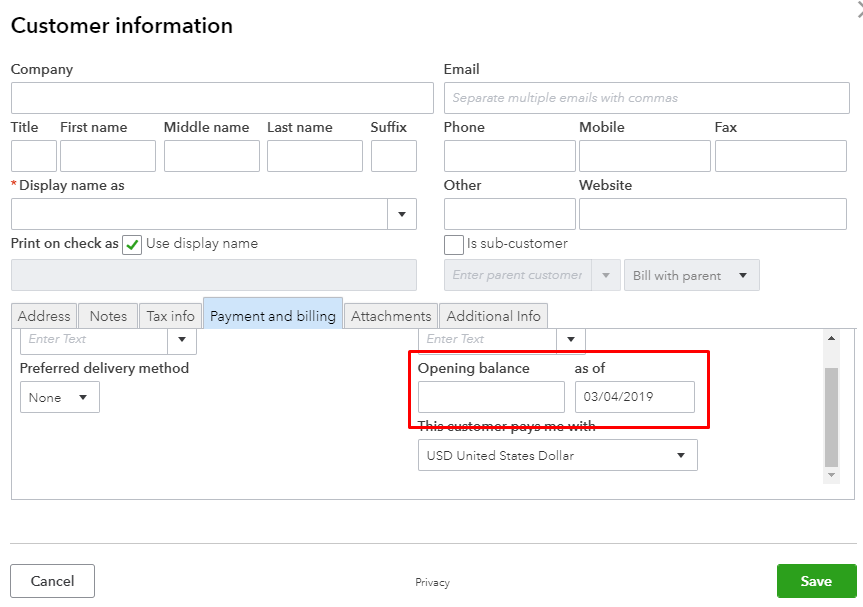
For newly added customer (no transactions yet), go to Sales and choose Customers tab. Select the customer, and click on the Payment and billing tab. Then,enter the amount in the Opening balance box. Please see the screenshot below:


For existing customers, you can't go back and add the opening balance field because it's already greyed out. You can either create a new invoice (Plus>Invoice) or add a deposit (Plus>Bank Deposit and choose Accounts Receivables in the account column). Both ways will increase the customer's balance. 


If you have any questions, please post them here. Thanks! 



1 reply

Answer
March 4, 2019

Hello shazlee,


In QuickBooks Online, here's how to add an opening balance to a customer. 


For newly added customer (no transactions yet), go to Sales and choose Customers tab. Select the customer, and click on the Payment and billing tab. Then,enter the amount in the Opening balance box. Please see the screenshot below:


For existing customers, you can't go back and add the opening balance field because it's already greyed out. You can either create a new invoice (Plus>Invoice) or add a deposit (Plus>Bank Deposit and choose Accounts Receivables in the account column). Both ways will increase the customer's balance. 


If you have any questions, please post them here. Thanks!
