Solved
How do I do batch reordering for my stock items on QBO. Every-time I select a number of items and select re-order a PO is generated for just a single item
Original commenter did not share additional details


Hello there, @ShopAdmin.
I'm here to ensure you're able to reorder your stocks by batch in QuickBooks Online (QBO). This way, you can keep your items updated and monitor your PO transactions.
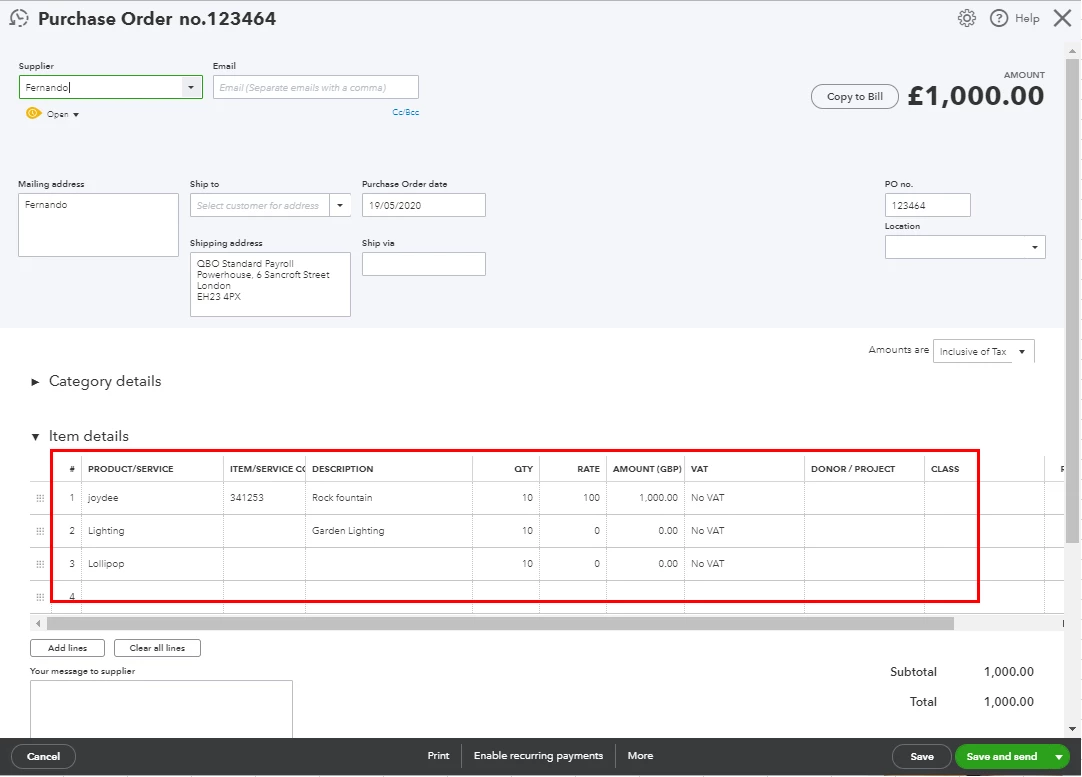
When you reorder stocks in QBO, the PO that's generated should list all the items you selected. There are times that the browser is full of frequently accessed pages, thus causing some unusual responses. You can delete the PO, then let's re-create it by logging into your QuickBooks Online (QBO) account using a private browser to isolate the issue.
Here's how:
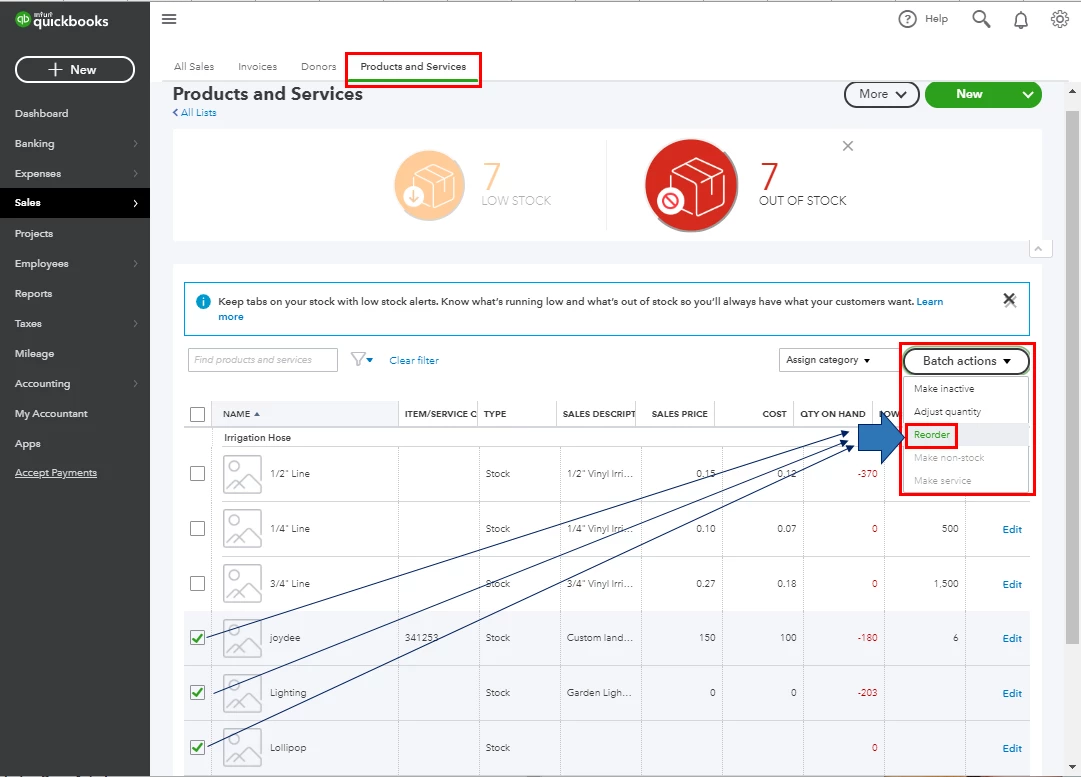
Once signed in, go to the Sales menu, select Products and Services, then re-order your stocks. After that, open the PO to verify the list of items. If it works, return to your default browser and clear its cache and cookies to refresh the system.
I've attached a screenshot below that shows the PO with the complete list of items after selecting the Reorder option in the Products and Services page.
On the other hand, if the issue persists I'd recommend using other supported browsers to order your stocks by batch.
Moreover, you can pull up the Open Purchase Detail report after creating the PO to view how many items are still on order and how many you’ve received so far.
Furthermore, you can either create a bill from the PO or create a cheque or an expense transaction to track what you receive from a supplier. For the detailed steps, kindly refer to these articles below:
Please let me know if you have other concerns. I'm just around to help.
Enter your E-mail address. We'll send you an e-mail with instructions to reset your password.