


Import your customers and suppliers list to QuickBooks
If you have a list of customers and suppliers you’d like to import, you can do so by following the steps below. This saves you from manually creating your customer and supplier records one by one.
Before you start, make sure that your excel spreadsheets are ready and in a format that is accepted by QuickBooks. You can download a sample here.
Things to look out for before you start
- The file size limit is 2MB. We found that customers have the best experience when importing no more than 400 rows at one time. If there are more than 400 rows, we recommend that you split them into multiple lists and import them individually using the steps below.
- Sub-customers can't be imported. Import sub-customers as customers and change them to sub-customers after the import.
- If the file imported incorrectly and it needs to be re-imported, it does not overwrite customer/supplier records that have been created in QuickBooks, but it will be added to your customer/supplier list again.
- The entries in the Name field must be unique. A supplier, customer, and employee can't have the same name.
- The import only supports ONE email address--you can add others later.
- Make sure that your file is in the format below:
- Your column headers are in the first row.
- Your spreadsheet is on Sheet1.
- Your spreadsheet doesn't contain any formulas, charts or blank rows.
- Your spreadsheet doesn't contain any errors (like #REF!, #NAME?, #N/A or #VALUE!).
- Names don't contain colons (:) or quotation marks (").
When you are ready
- Select the Gear icon at the top.
- Under Tools, choose Import Data.
- From the list, select Customers or Suppliers, depending on which you want to import.
- Select the Browse button.
- Select your Excel file, click Open then select Next to continue.
- Map the headers in your Excel file to the fields in QuickBooks, then click Next. Refer to Map your fields to QuickBooks fields section below for more step by step guidance.
- Adjust your data if necessary then select Import.
Map your fields to QuickBooks fields
This step is very important to make sure that you are mapping the fields in your spreadsheet to QuickBooks fields correctly.
The left column depicts the field names that QuickBooks uses and the fields in the right column is from your spreadsheet. To reduce errors, we recommend that you update the field names your excel spreadsheet before you upload your file.
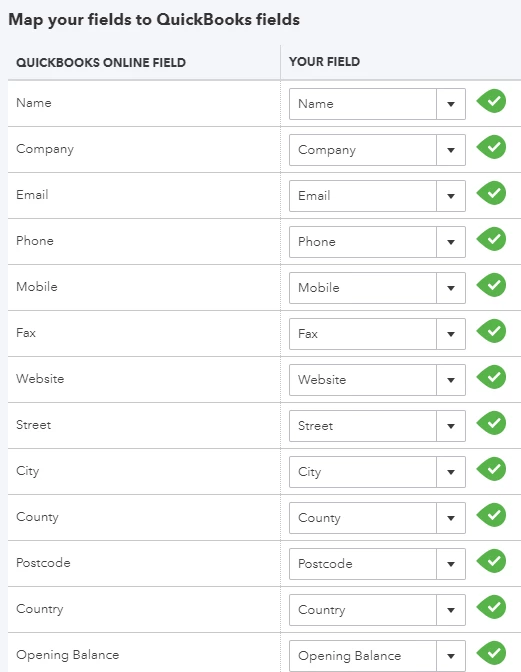
Check this list to make sure that the fields are mapped correctly. If you wish to change a mapping, click on the dropdown arrow and select the correct field.