Question
Sign up for QuickBooks Online and create a company file
Start by signing up for QuickBooks Online. If you manage stock and need to create purchase orders, we recommend QuickBooks Plus. If you want to learn more about which version suits you best, you can learn more here or contact one of our Sales representative on 0808 168 9533 who will be able to help.
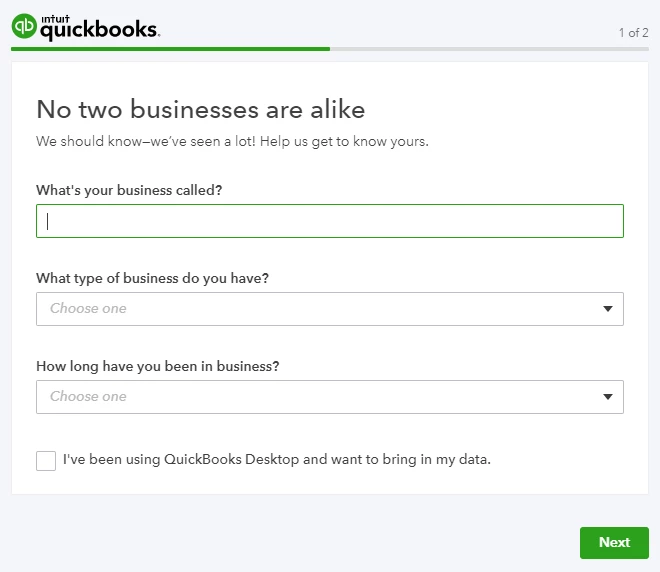
Once you are signed up to a company file, we’ll take you through the company set up experience. On this page, you are required to enter a few details to set up your company.
- Enter your company information as asked for and click Next. The business type you choose will affect the chart of accounts we create for you.
- In the next window, you can choose the features you’d like to use in QuickBooks. If your company is VAT registered, click on Track your VAT now to activate VAT in QuickBooks. Do not worry if you’re not sure which other features you need at this point, you can still enable them within the product at a later stage.
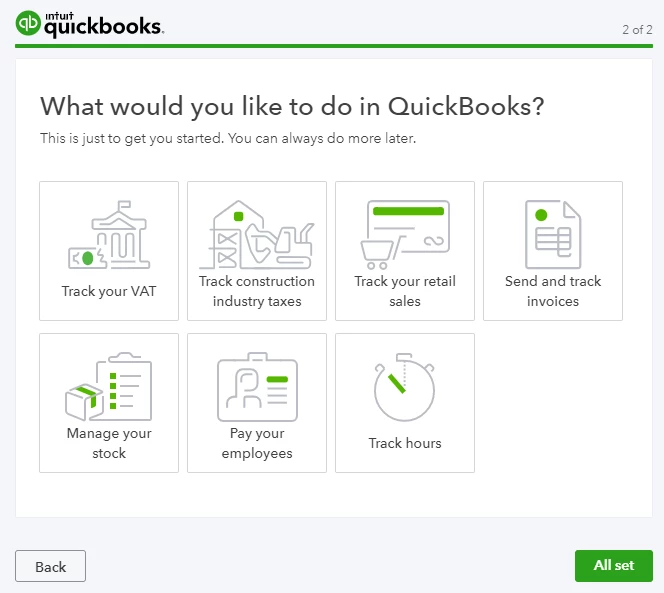
- Once you are happy with your selection on this page, click on All set.
Chart of accounts
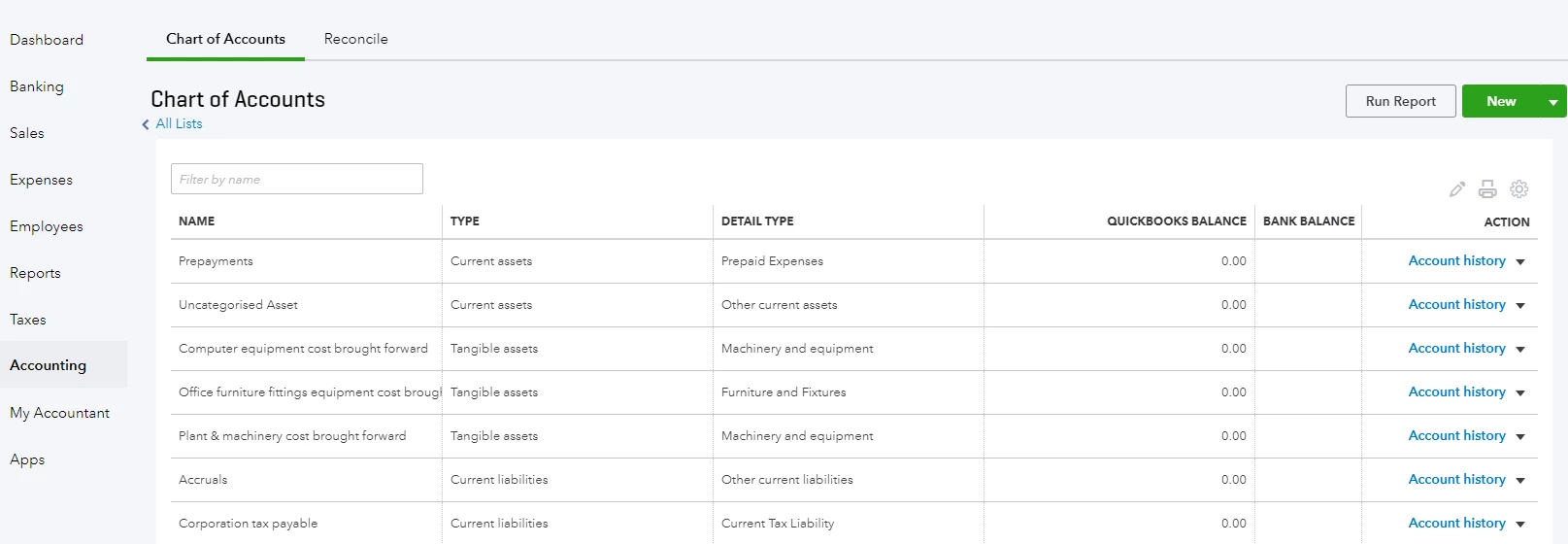
That’s all you need to do for QuickBooks to set up your chart of accounts (COA) for your company file. You do not need to set up your chart of accounts manually. To view your COA, click on Accounting on the left menu in QuickBooks.