

December 18, 2024
Question

Ask Me Anything with Product Expert, Connie

  • December 18, 2024
  • 1 reply
  • 0 views

Welcome to our Ask Me Anything event with talented product expert, Connie. Connie is excited to be here today answering your questions on QuickBooks Payroll and all of its capabilities.
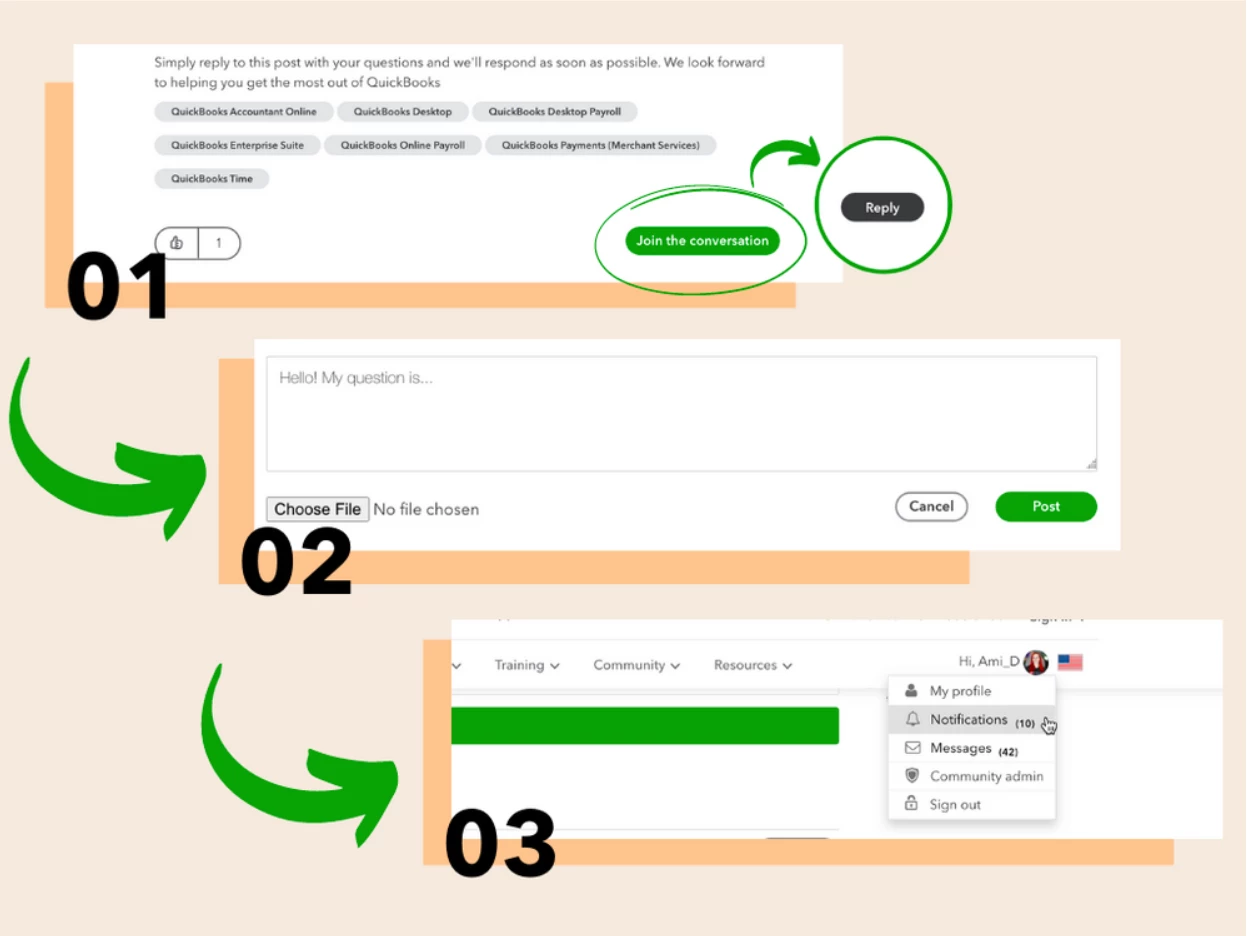
She will be here live from 10am-12pm PT answering your questions in the thread. Here’s how to participate: 


  1. Press Join the Conversation to log in to the community. Once logged in, press Reply.
  2. Write your question, feedback, or idea as your reply to the post. Press Post to submit.
  3. Keep an eye on your notifications, or simply refresh the page periodically for a response from Connie
    *We announce these events a few weeks in advance under our Webinars/Events page, so check back there for next months as well!* 

1 reply

December 18, 2024

I have Quickbooks Desktop Pro 2024. I had to purchase a new computer so when I transferred my files to the new comp when I try to open my QB it says I do not have PDF or it is not set up. I have done everything listed on the page but it won't work. So now I can't save anything to PDF.

Bryan_M
December 18, 2024

We're glad to have you in this thread, @dixieluv. Let's ensure you can open your QuickBooks Desktop (QBDT) Pro 2024 company file in your new computer.


I'd like to clarify how did you install the QBDT in your new computer as well as your process in transferring the company file. This will be a big help in identifying the root cause why you're unable to access this in the new computer.


Please know that PDF file isn't supported when opening a company file in QBDT. When you restore a QBDT file, it uses different file types depending on what you need. These are company file (.qbb), and portable file (.qbm).


Also, QuickBooks needs the backup company file to create new one. If you already have one, you can follow these steps on how you restore your company file and correct it:


  1. Go to File menu and click Open or Restore Company on the computer where you can access your QBDT.
  2. Choose Restore a backup copy and click on Next.
  3. Pick Local Backup and then Next.
  4. Browse your computer for your backup company file. It should look like this: [Your company name].qbb.
  5. Select a folder where to save your restored company file. Then, choose Open.
  6. Once ready, click on Save. If you see any messages about possibly overwriting your data, select the option that best fits your needs.


Check out this article for more information: Restore a backup of your company file.


Additionally, installing your QBDT has it's right processes to follow to successfully access it to your new computer. You can use the migrator tool to reinstall the QBDT through USB drive. Make sure that you're the company admin.


Feel free to visit this article for more details: Move or reinstall QuickBooks Desktop to another computer.


Furthermore, you can read this article as the other way to install: Install QuickBooks Desktop.


Feel free to read this article to see if the chart of accounts lists all your company's accounts and their balances are accurate after restoring file in QBDT to your new computer: Work with the chart of accounts in QuickBooks Desktop.
 

You can always get back to us if you have further clarifications about creating a new company file. We're always available to lend you a hand.

December 19, 2024

Thank you for this info. I had backed up my company info and when I put my Quickbooks on my computer I went to this page Intuit Quickbooks and downloaded my program here. Once that was done I just opened up my last download and it started working. But as I got into needing to safe invoices, it started to tell me PDF was not active. I can't change it now. Can I?