AmyBivin
November 30, 2018
Question

Getting Started with QuickBooks Payments
  • November 30, 2018
  • 5 replies
  • 0 views


Thanks for choosing QuickBooks Payments to manage your business! We put together a few steps to help you get started, send your first invoice, and get paid faster.


Integrated invoicing and cash flow management are just a couple ways you can accept payments from your customers. Let's get started.


Please note, QuickBooks customers must apply for QuickBooks Payments and be approved before they can begin to use the service.  For more information, review the Intuit Merchant Agreement, privacy policy, and pricing documents here.


Setting up for success

First things first: To take automated payments and send electronic invoices, set up your payments information. We put together a list of a few things you will need to get set up.


Company Settings

Create and Send an Invoice

Choose where to record payments and processing fees for QuickBooks Payments


Company settings


First, start by signing into your QuickBooks account. Select the Settings (Gear) icon.

 

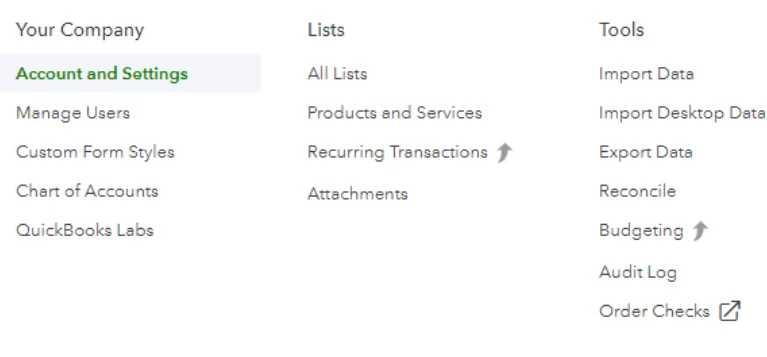
Select Account and Settings from the pop-up menu.
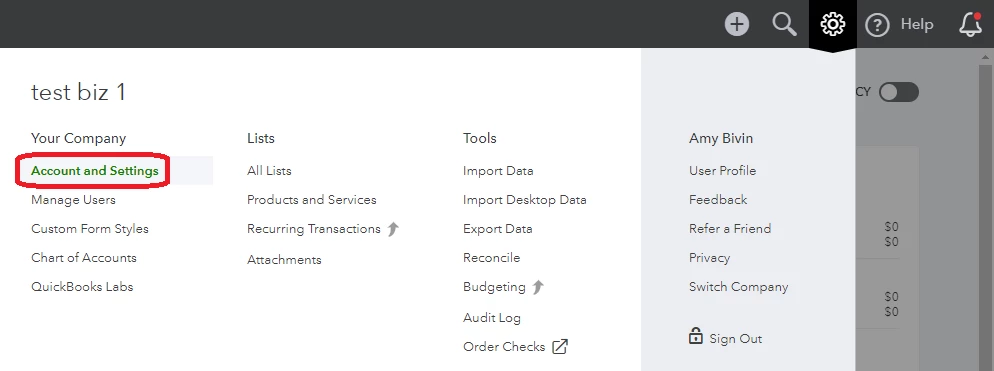


Next, review your company info for accuracy. This is what your customers will see on any invoices, credit card charges, or emails sent through QuickBooks Payments on your company’s behalf. Select the Payments tab located on the left side menu and fill out the following information:


Business

  • Business type
  • Contact email
  • Legal business name
  • Federal Tax ID (EIN)
  • Website
  • Address
  • Phone
  • Industry categories
  • Select how much you think you will process monthly using payments.


Owner/Proprietor

  • Name
  • Address
  • Phone
  • Date of birth
  • Mobile phone number
  • Last 4 digits of Social Security number


Bank

  • Routing number
  • Account number


Once you have completed the forms, select Accept and Submit.  


Note: if you have not set up Payments yet, simply click on the Learn More button and the Finish Setup button on the next screen.


Create and send an invoice


Once Payments is set up and your account is approved, you will be ready to process and send your first invoice. Begin by selecting the (+) plus sign from the top menu, then select Invoice.
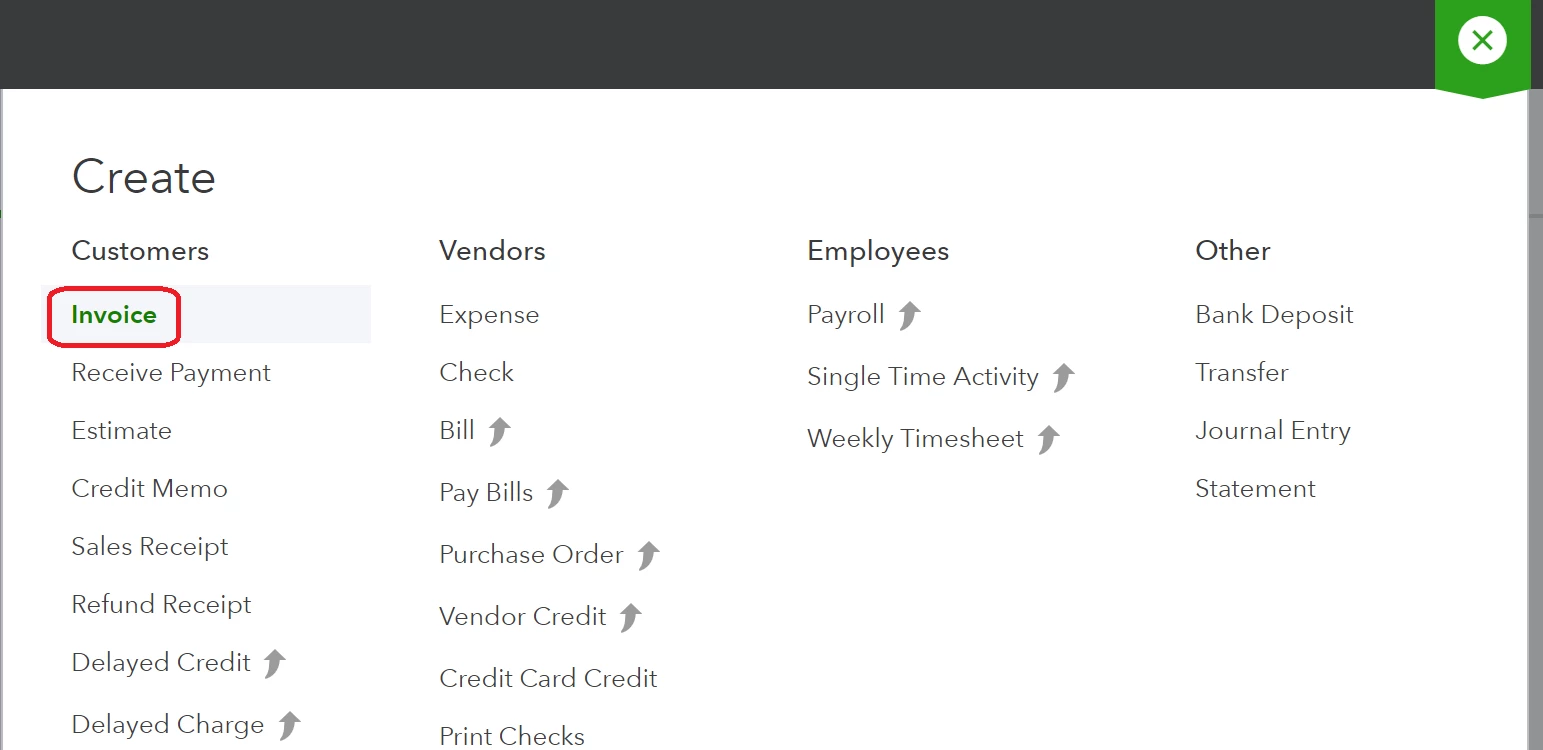


Fill out your customer’s information or choose it from the drop down, if you’ve already entered their information.  When you’re creating your invoice, be sure to select the types of payments you’ll accept.


Then select Save and Send to email the invoice to your customer.
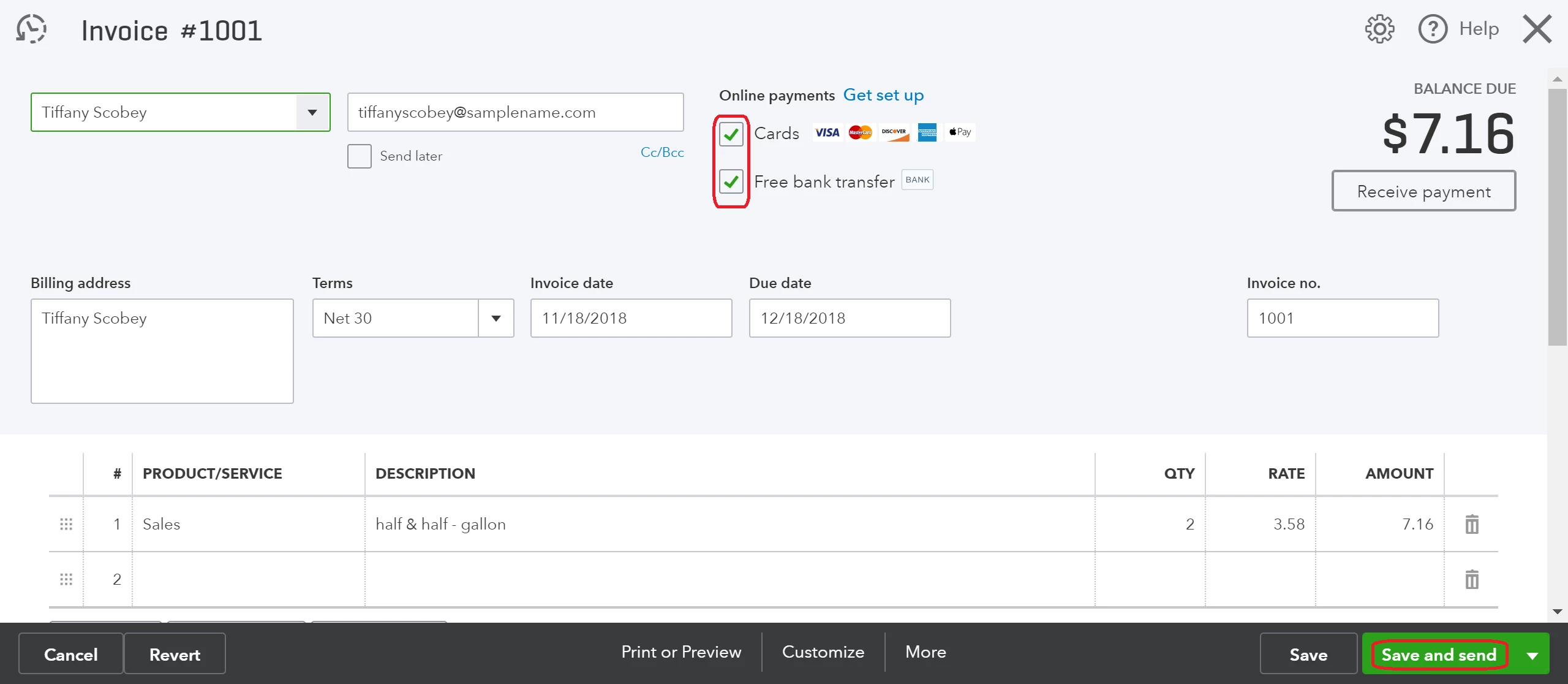


Congratulations! You have just sent your first trackable invoice with a Pay now button so your customers can pay you securely online through card or bank transfer. You’ll be able to see when your invoice is sent, viewed, and paid through QuickBooks Payments.


Once your invoice has been paid, money will be in your bank account in 2-3 business days for credit and debit cards and up to 5-7 business days for bank transfers.


Note: Stay tuned for more options with QuickBooks Payments to help you get paid faster!


Choose where to record payments and processing fees for QuickBooks Payments


QuickBooks Payments automatically records your deposits, so it is important to make sure that your payments and processing fees will be recorded to the correct accounts.


  1. Select the Settings icon, then Account and Settings.

     

  1. Select Payments from the left menu.
  2. In the Chart of Accounts section, select the pencil (edit) icon.
  3. For Where do you want to record payments? Choose the correct bank account.
  4. For Where do you want to record processing fees? Choose the proper expense account for tracking processing fees.
  5. Select Save.

What’s Next?

5 replies

December 30, 2018

Thank you for this discussion.   I however, need some more information and maybe you can help.  


Once QuickBooks Payments automatically created a bank deposit and a bank receipt the funds are showing deposited in the checking account of the client.  However, they are still showing in undeposited funds.  Why?

December 31, 2018

Hi jsanterre50,


Once you're able to set up the correct account for your payments, all deposits will go directly to the bank register. 


I just need to ask a question for clarification. When you say "they are still showing in undeposited funds," are you referring to payments that are manually received (payments that aren't paid through the Pay Now option) in your QuickBooks? 


Thanks in advance! 

December 31, 2018

Hello!  Thanks for getting back to me. 


No, when we enter payments thru other ways correctly we get rid of undeposited funds.  It's only when we use Quickbooks Payments do the payments by CC or ACH go to undeposited funds first, than the bank receipt and deposit (that are done automatically because in the invoices we see "deposit") are sent to the correct bank account.  However, we still see the amount in the undeposited funds account.  I know the "How to receive a payment" workflow.  However, Quickbooks Payments does this automatically so why is this still in undeposited funds?

April 10, 2020

I'd like to know why you don't let people know they will be charge astronomical fees for using credit card payments. I let a client pay with credit card for the last 6 months and only after digging through my bank account realized I was being charged. You should let your clients know they are being charged a fee at the time of the transaction. It's this is a great example of dark UX, it's unethical squeezing extra money out of your users like this. Very disappointed.

June 29, 2020

Hi J,
I am a longtime user of QB and although I do not use it to the extent I could and should, I just do not have the time to do much but create invoices and process payments. A couple of years ago, we decided at the beginning of the year to start accepting card payments, as more than one client had requested this option. We have a specialty in Political Media Planning & Buying and consequently, some of the political payments were extremely high. I just did not have the time to go back and double check everything for a couple of months prior to the Primary that year and could not believe how much I lost by going this route! The % varied by card, but it is embarrassing to go back to a client and tell them that we now need to charge them for the card transaction fees. One of them wanted to stay on the card method, so I had to go through the extra step to figure out what percentage to add on, so that it would net to the exact amount of the invoice, once fees were taken out. You can't just tack on the regular percentage, because it made the total invoice even higher, taking out even more in fees, so it was THIS amount that had to be figured out or lose more money again. Plus, the convenience was far outweighed by the additional charges. After about six months, we just stopped card payments altogether. We have also been asked about PayPal (more fees) or any method of payment that didn't add exhorbitant fees. I just checked out Venmo, and so far, I don't see any fees added, and it connects directly to your bank account, via the card or to the bank account, which takes a bit longer to post. All in all, good ole checks work the best, although not good for quick turnaround. A number of our political accounts also did direct deposits at one of the branches near them, as they were up and down the state of California, and this bank was large with a branch in just about every town, and that worked great, but more work on the client end. Sorry. Wish I had better news and wish you luck. Everyone wants a piece of your financial pie!

July 6, 2020

I am a little confused. Are there fees that are on top of the fees listed when you sign up to use this service? Above, J asked why users are not informed that there will be fees charged to users. I just signed up for this service but I did see that there are fees, just like any other service, so I anticipated being charged the percentages listed when I signed up. As a customer, there are several places that I have shopped that tell me there is a % charged for card processing. I figured that as a business owner, since this is not an uncommon practice for businesses to pass that fee along to the clients, it would not be unheard of to do the same if I so decided. 

So.. In reading your conversation, I have to ask, did you miss that part of the disclaimer that there were fees or are you saying there are fees on top of fees that are not disclosed?

I am sincerely asking. 

October 20, 2020

When will it be an option to send sn invoice through a cell number instead of only email?

BettyJaneB
October 20, 2020

Thank you for joining us here in the Community, @audreyb1.


The ability to send an invoice from QuickBooks Online via text message isn't available. We don't have a specific time frame as to when this feature is going to be available.


However, to make this possible, you can check out for a third-party application that supports this functionality. You may visit our Apps Marketplace to look for an app that integrates with QuickBooks.


Know that our developers are always finding considering new functionalities to be added to cope with your business needs. That said, I'd encourage you to visit our QuickBooks Online Blog site regularly to be updated with our latest news and product road-maps. 


You can always get back to me if you have any other concerns. I'll be around to assist you. Have a good one!

July 7, 2023

Just signed up today. If I take down a credit card number on the phone, how do I key it in? Some customers are old school and don't want to click on the invoice.

July 7, 2023

Just signed up today. If I take down a credit card number on the phone, how do I key it in? Some customers are old school and don't want to click on the invoice.

Angelyn_T
July 7, 2023

I appreciate you joining the thread, @dorseycat. Let me give you insights on how to input the credit card details into our system.


I understand that some of your customers don't want to open their invoices for some reason. With this, you may have to add the credit card details to their profiles at once, then enable the autopay feature so they don't need to click on the invoice or key in the account number each time. This works for both card and ACH transactions.


Here's how:


  1. Sign in to your account.
  2. Click on Sales at the left pane, then Customers.
  3. Select the customer's name, then tap on the Edit menu.
  4. Choose the Payment and Billing tab.
  5. Select the current card number below the Preferred payment method line.
  6. Select the + Add link in the upper right.
  7. Enter the new card information, then select Save.


To set up the automatic payments:


  1. Create your invoice, then select Create recurring invoice on the transaction. Or, create a recurring template through the Gear icon.
  2. Specify the frequency interval, start date, and end date of the recurring invoice. 
  3. Tap on Save template when finished.


After that, auto payments will deduct from your customer at a maximum of three days before the due date and as soon as the transaction is created for due on receipt entries.


You may review the resources from this link for more tips about the process: Set up Autopay for recurring invoices in QuickBooks Online. The same material will answer some frequently asked questions about Autopay.


Aside from that, you can also learn more about QuickBooks Payments from these links:


If you have follow-up questions while working with your invoices and other sales transactions, let me know by leaving a comment below. I'm more than happy to help you again. Have a good one!