

May 20, 2020
Solved

How to make invoice number show up in email subject line of invoice in QBO?

  • May 20, 2020
  • 2 replies
  • 0 views

How can I make the invoice number to show up automatically in the subject line when sending an invoice or estimate email to clients?

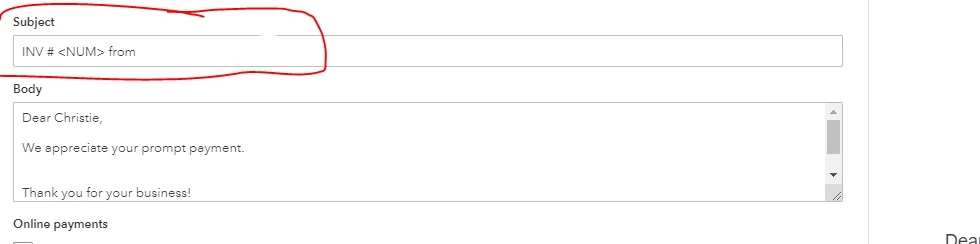
I tried to make it work by adding "<NUM>" in my subject line of my email, but it won't work. I tested it by sending an email to myself and see if it would work, but it still won't show up with the invoice number.

Please anyone who can help with this. I would appreciate it! Thank you!


Below screenshot of sending an invoice email.
 

Best answer by KathyS296

The invoice number appearing in the subject line is the default setting, so I'm not sure how this happened.  With an invoice on your screen, Go to Gear, change what your customers see, Emails, and be sure the subject line reads Invoice [Invoice no.] from or similar.


If this solves your issue please mark as solved so persons answering questions can skip this question and move on to another question where an answer is needed.. 

2 replies

KathyS296
KathyS296Answer
May 22, 2020

The invoice number appearing in the subject line is the default setting, so I'm not sure how this happened.  With an invoice on your screen, Go to Gear, change what your customers see, Emails, and be sure the subject line reads Invoice [Invoice no.] from or similar.


If this solves your issue please mark as solved so persons answering questions can skip this question and move on to another question where an answer is needed.. 

Chrissy3Author
May 25, 2020

It worked! Thank you so much!


November 19, 2021

This formum helped, thanks....does anyone know if you can use a placeholder to get the ship to address in the subject line too?

November 19, 2021

Glad to have you here in the Community, screenmedic22.


We can only have a placeholder for the invoice number and firm name at this moment. As a workaround, you might want to construct a template for recurring invoices. You can also alter the number of days to send the invoice in advance and the message.


Here's how:


1.     Click the Gear icon, then select Recurring Transactions.
2.     Select the New button and choose Invoice from the Transaction Type drop-down, then click OK.
3.     Enter the Template Name and the Number of days in advance
4.     Fill out the Interval section and the necessary information.
5.     In the Message on the invoice field, enter the message you want to show on the invoice.
Select the Save template button.


See the instructions in this post if you need to send an invoice to many email addresses.


I'll always be here if you need anything else. Have a great day!

November 19, 2021

please share the COMPLETE list of placeholders we can use.