


ScottMeisterCPA
March 23, 2018
Solved

Learn How to Create a Copy of a Check in QuickBooks® Pro, Premier, and Enterprise.

  • March 23, 2018
  • 4 replies
  • 0 views

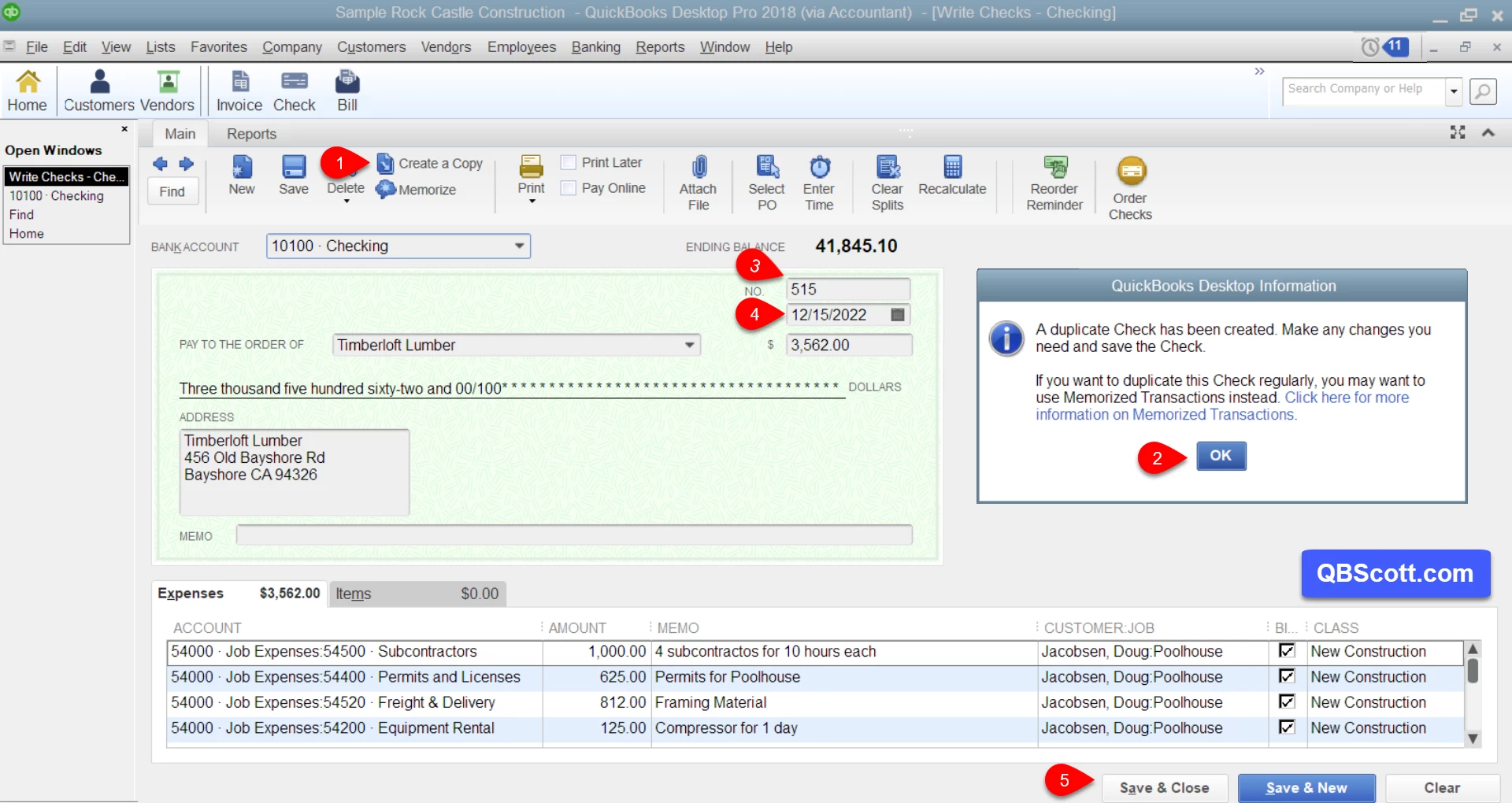
There’s a neat feature in QuickBooks that allows you to create a copy of a previous check. This comes in handy if you have a check with a lot of check detail and you need to use the same detail (or similar detail) on a new check. As you can see in the screenshot below, I have 4 lines of voucher info displayed and more voucher lines are hidden. Without this feature I’d have to retype this information for each check I need to create. Instead of doing that time-consuming activity, I can simply use the Create a Copy button.


To do this, open the previously written check and click the Create a Copy button (1). From there a QuickBooks Information window will appear, read the info and click the OK button (2). Next, change any of the fields that require changes; usually at least the Check No. field (3) and Date field (4).  Additionally, you can change any other field as well (Bank Account, Check Amount, Pay to the Order of, Memo, Account, Amount, Voucher Memo, Class, etc.). Once all the changes are made, click the Save & Close button (5) and you’re set. The updates to the copied check have been saved.

Click on the screenshot below for a larger view.

Hope this helps!

Scott
 

    Best answer by

    @ScottMeisterCPA,


    This is great, thank you! These quick tips are really useful for getting folks back on their feet. 


    Is there a limit to how many checks someone can make? And where can I see how many duplicates of each check I've made? 

    4 replies

    Answer
    April 3, 2018

    @ScottMeisterCPA,


    This is great, thank you! These quick tips are really useful for getting folks back on their feet. 


    Is there a limit to how many checks someone can make? And where can I see how many duplicates of each check I've made? 

    February 28, 2019

    When I attempt to copying a check, everything looks good until I change the recipient (Pay to the Order Of).  Once I make a change to the recipient, the previous information that was in the amount field and in the Expenses tab disappears.  Is this a bug or is there a setting that I need to modify in order to change this behavior?  I am currently using QB Desktop Pro 2017 but I had same issue in earlier versions.


    Any suggestions to resolve this issue would be greatly appreciated.


    Thanks...Jonathan

    February 28, 2019

    You'll have to disable the automatic recall information from the setting, jonathancw.


    Here's how to get there:

    1. Click Edit.
    2. Click Preferences.
    3. Click General, then click the My Preferences tab.
    4. Remove/Uncheck the Automatically remember account or transaction information box.
    5. Uncheck the Automatically recall last transaction for this name.
    6. Click OK.

    If you have any questions in mind, please leave a comment anytime.


    February 28, 2019

    Sheila,


    Thank you for your reply and suggestion.  While the changes you suggested did not solve my specific problem, it got me to thinking about other similar settings that might be causing this issue.


    It turns out the issue was caused by a vendor setting.  The resolution is to:

    1. Open Vendor Center
    2. Select and double-click vendor to go into Edit mode
    3. Select "Account Settings" tab
    4. Click on the "Clear All" button
    5. Click on the "OK" button to save


    Thank you again for your quick response and suggestion!

    AlcaeusF
    February 28, 2019

    Hello there, @Jonathan_20.


    It's nice to see you again here in the Community.


    I appreciate you trying the steps provided by my colleague, and for sharing this wonderful resolution. Information like this will definitely help other users that may encounter the same issue.


    Post again or leave a comment on this thread should you need further assistance. I'd be glad to answer if you have any follow-up questions or concerns. Cheers!

    February 19, 2022

    For me, the Create a copy and Memorize options are disabled. How can they be fixed?

    February 19, 2022

    I'll make sure you're able to utilize the Create a copy and Memorize options in QuickBooks Desktop (QBDT), @HappyBooks.


    Based on your description above, it seems that you have a minor data issue with your company file. With this, I'd recommend utilizing the Rebuild Data tool. It's a built-in tool that can help automatically fix data issues with your company file. To do this, here's how:


    1. Go to the File menu.
    2. Select Utilities, then choose Rebuild Data.
    3. On the QuickBooks Information window, select OK. Follow the onscreen steps to save a backup.
    4. Let the tool repair your file. It may take some time. 
    5. When the tool finishes, select OK.
    6. Go to the File menu.
    7. Select Utilities, then choose Verify Data.
    8. Let the tool check your file for data issues.


    In case the issue persists, continue performing the recommended solutions in this article, starting with Solution 2Fix data damage on your QuickBooks Desktop company file.


    Also, to further guide you in creating and managing repeating transactions in QBDT, I'd recommend checking out this article: Create, edit, or delete memorized transactions.


    Please don't hesitate to let me know if you have other concerns about copying and memorizing transactions in QBDT. You can drop a comment below, and I'll gladly help. Take care, and I wish you continued success, @HappyBooks.

    February 19, 2022

    Those steps were followed and data was verified. There were no issues. The problem is still there. 


    Some transactions do show the create a copy and memorize. It is only disabled for paychecks. Is it related to some settings?