


Understand the navigation menu in QuickBooks Online
The latest QuickBooks Online navigation gives you quick access to your day-to-day tasks like invoicing, banking, and more. This condensed experience uses the terms and concepts that you use to run your business. We'll show you what tasks you can do in each menu tab, and how you can customise the menu to best meet your business needs.
Overview of the navigation menu
Get things done is the starting point for the basic tasks at the core of your business. This includes linking bank accounts, creating invoices, categorising transactions and tracking receipts.
Business overview groups cash flow, reports, and projects to help you organise finances with a clear view of profits.
.gif)
Get paid & pay has your sales and expense actions. Send invoices, pay suppliers and monitor your money and when it’s in the bank.
Customers & leads is where you set up and track customers, and market to customers with access to Mailchimp.
Employees is where you manage employees and contractors.
Bookkeeping helps you keep your accounting on-track, reconcile your bank accounts and even invite your accountant to work on your books.
VAT helps you set up automatic tax calculations to keep you tax compliant when the rates change.
Apps is where you find other QuickBooks products or third party apps for everything from tracking mileage to buying office furniture.
Customise your view with bookmarks
Now you can customise the navigation to feature the options you use most, reducing steps to your most frequent QuickBooks activities.
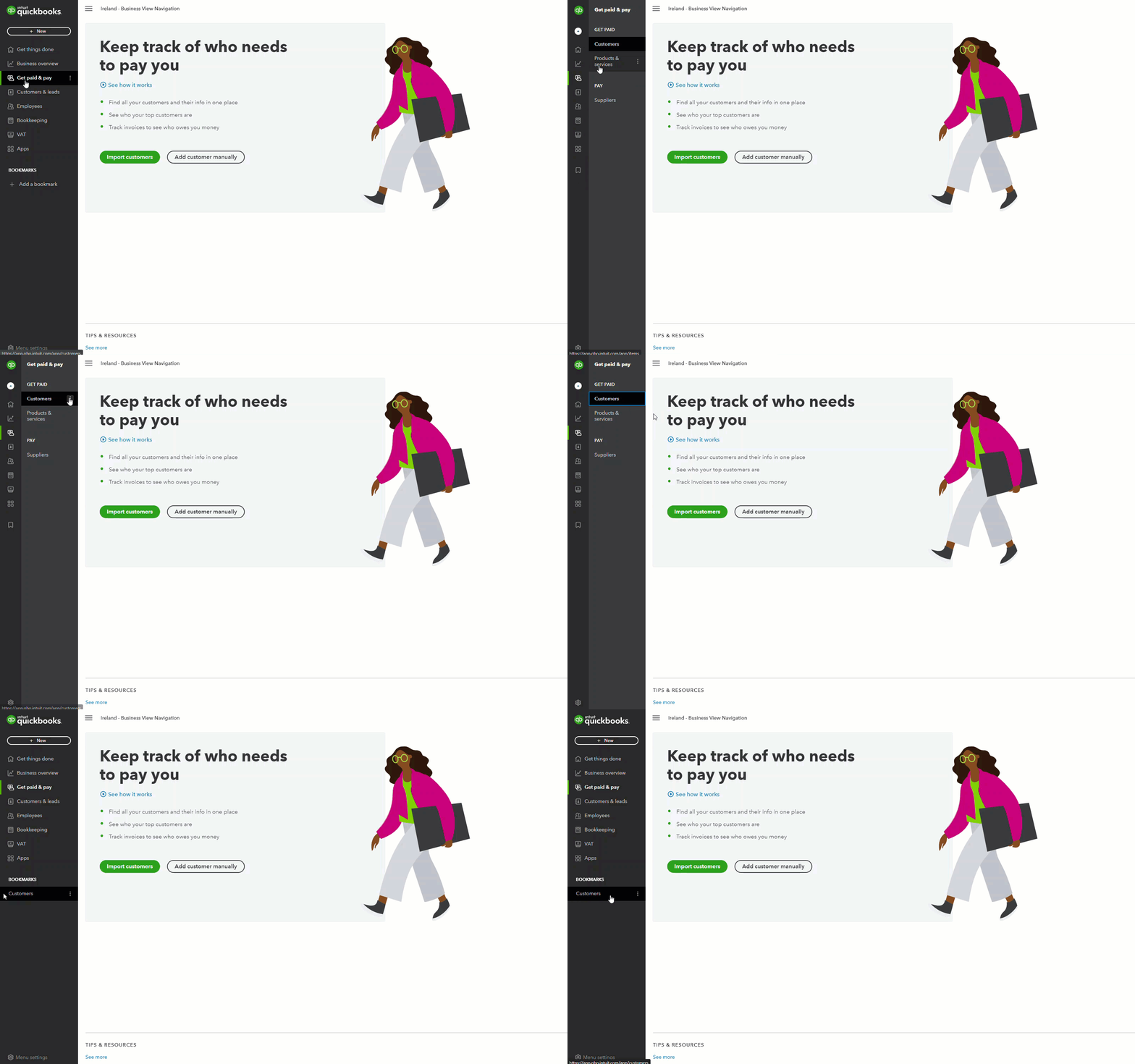
- Select Add a bookmark.
- Select which items you want to appear under Bookmarks.
- Select Save.
To remove a bookmark:
- Hover over one of your bookmarked items and select 3 dots icon.
- Select Remove bookmark.
If you have questions or feedback, sign in to QuickBooks, scroll down, select Menu settings and Give feedback.