Learn how to manage your QuickBooks plan to add more or have fewer accounting features.
We want to help you find the best accounting tools for your business. As your business grows, QuickBooks grows with you. When you're ready for more features, you can to upgrade your subscription. Or, if your current subscription isn't a good fit, we can help you switch to a different plan.
Here's an overview of the key differences between each subscription plan: 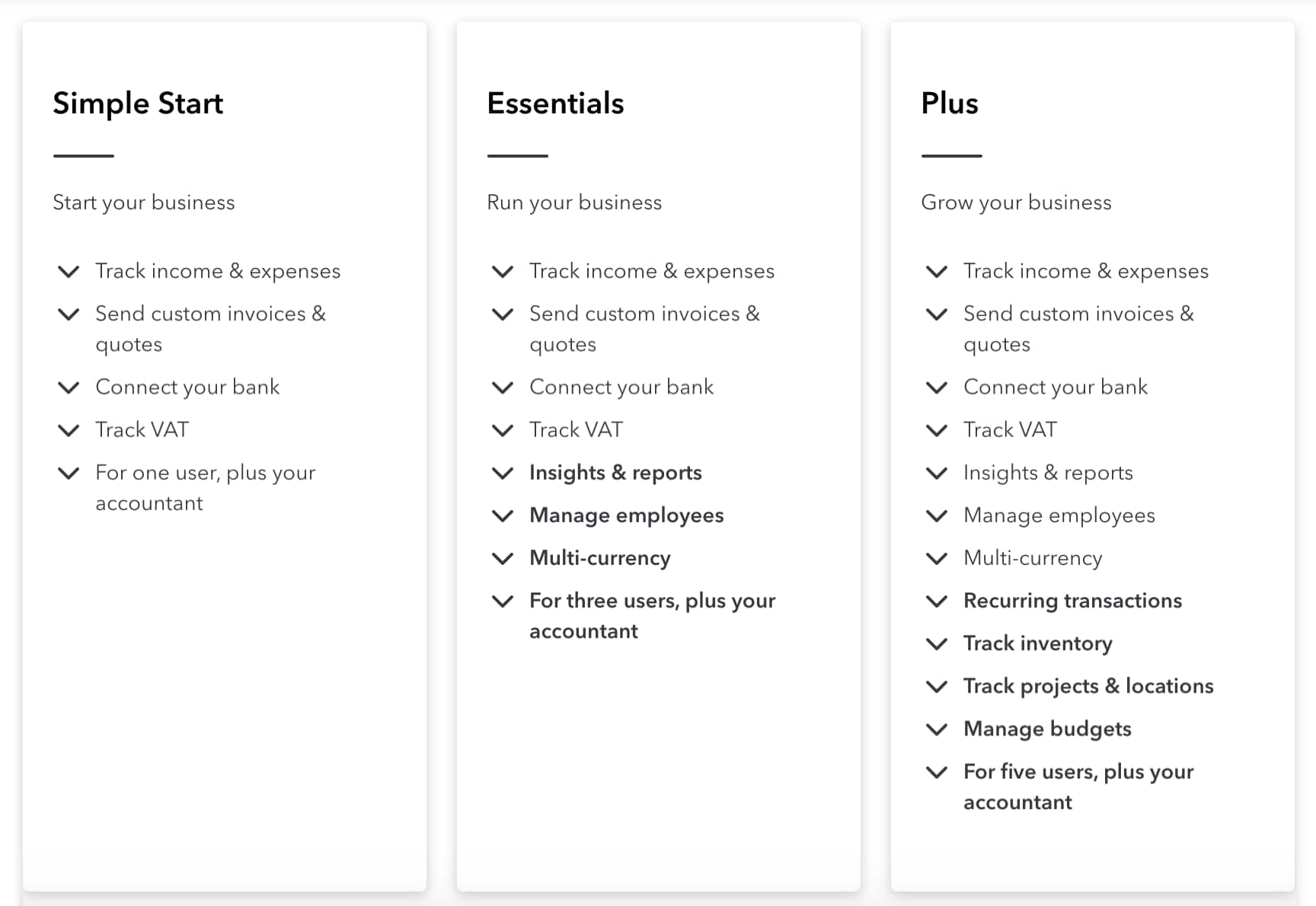
Here’s how to upgrade or downgrade your QuickBooks Online subscription.
Note: If you’re an accountant, learn how to upgrade or downgrade your client’s QuickBooks Online subscription.
Upgrade your subscription
Step 1: Choose a new plan
Check out the available pricing plans to see which subscription level is right for you.
Step 2: Upgrade your subscription
- Sign in to QuickBooks Online as a primary or company admin.
- Select Settings ⚙ and then Account and settings.
- Select the Billing & subscription tab.
- Make sure your payment info is up-to-date.
- In the QuickBooks Online section, select Upgrade your plan.
- Review the available plans and then select Choose plan.
- Follow the on-screen steps to upgrade your plan.
Downgrade your subscription
Before you downgrade, make sure you aren't losing any essential features. Also keep in mind that downgrading removes any discounts on your current plan.
Note: Before you downgrade, you may need to turn off some features in your current plan that won't carry over to your new plan. This is because each plan has its own set of features. You may find this information listed in Step 2 below.
Step 1: Choose a new plan
Check out the available pricing plans to see which subscription level is right for you.
Step 2: Turn off features in your current plan
Before you downgrade, you may need to turn off some features. If you use any of these features, follow the steps in the section:
Pause recurring transaction templates
If you need to switch to QuickBooks Online Simple Start, turn off your recurring transaction templates first. This plan doesn’t support recurring transactions:
- Go to Settings ⚙ and select Recurring transactions.
- Select a template. Then select the Edit ▼ dropdown.
- Select Pause and then Pause again to confirm.
Turn off stock
If you need to switch to QuickBooks Online Simple Start or Essentials make your stock items inactive. These subscription levels don't support stock tracking. Only QuickBooks Online Plus lets you track stock.
Step 1: Save your financial reports
Run a report of all your products or services so you have a record of your current quantities on hand:
- Go to Business overview and select Reports (Take me there).
- Search for and open the Product/Service List report.
- Select Customise.
- Select the Filter ▼ section.
- In the Deleted ▼ dropdown, select All.
- Select Run report.
- Print or export your report.
Step 2: Deactivate your stock
When you downgrade, your stock items’ quantities reset to zero. Your items stay in QuickBooks, but you won't track the quantity on hand anymore:
- Go to Get paid & pay and select Products and services (Take me there).
- Select the Filter icon.
- In the Status ▼ dropdown, select All.
- In the Type ▼ dropdown, select Stock.
- Select Apply. This shows all your stock items and hides the non-stock items you'll keep.
- Select the checkbox next to the Name column. This selects all the stock items on the list.
- Select Batch actions ▼ dropdown and then select Make inactive.
- Select Yes.
Your stock items are now inactive and won't show up on your Product and Services list anymore.
Step 3: Downgrade your plan
Once you have turned off any features, you can downgrade your subscription:
- Sign in to QuickBooks Online as a primary or company admin.
- Select Settings ⚙ and then Account and settings.
- Select the Billing & subscription tab.
- Make sure your payment info is up-to-date.
- In the QuickBooks Online section, select Downgrade your plan
- Review the available plans and then select Choose plan.
- Follow the on-screen steps to downgrade your plan.
Switch back to your previous subscription
If you decide to go back to your old subscription level, remember to turn features back on. Your stock and recurring transaction templates won't turn on automatically.
Or if you need to cancel your account, learn how to cancel your QuickBooks Online subscription.
Frequently Asked Questions


