


Mark-Firefinch
June 15, 2023
Question

Problems with deposits after issues with FNB supposedly resolved

  • June 15, 2023
  • 1 reply
  • 0 views

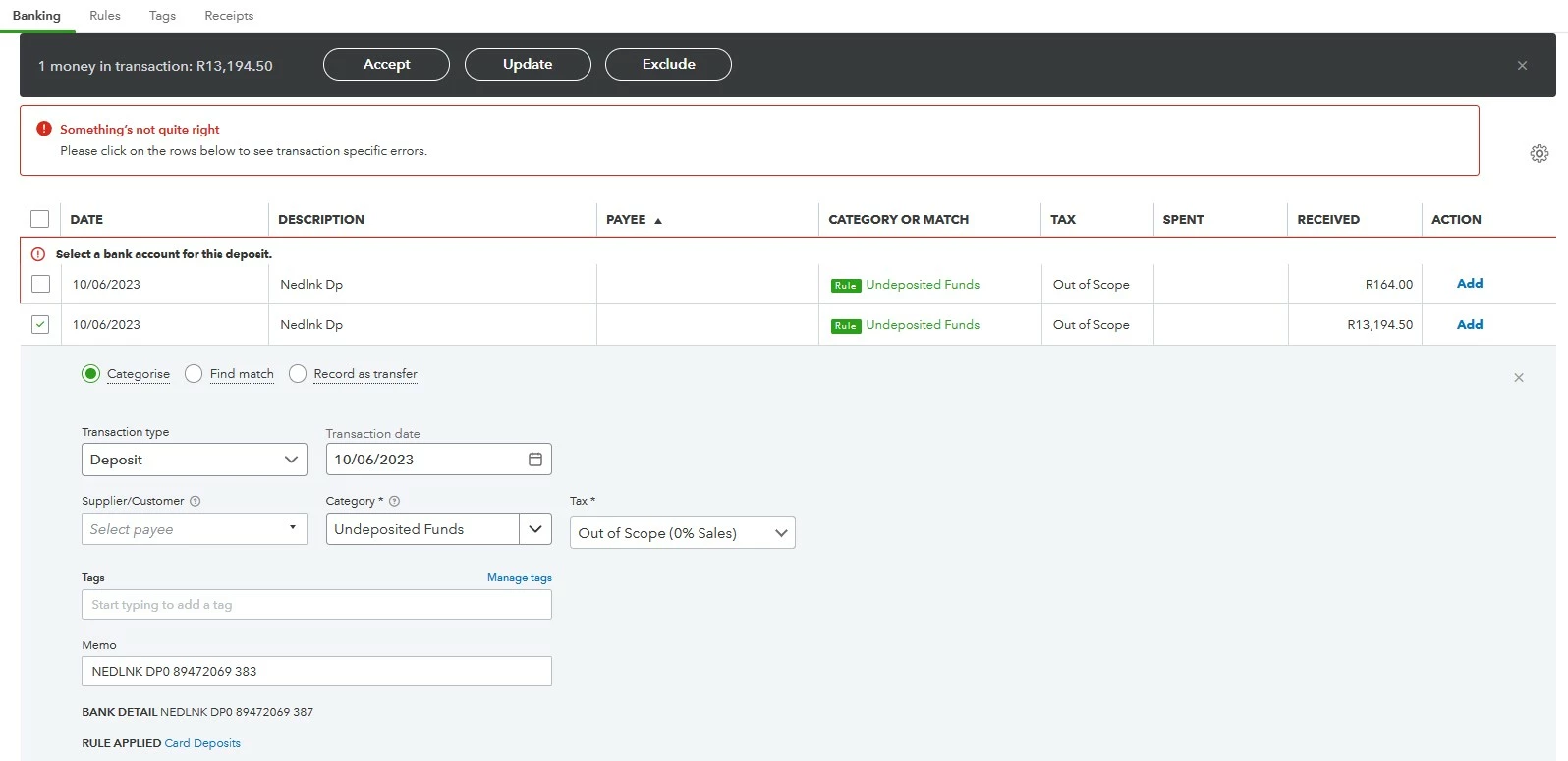
When reviewing transactions to FNB account (this after the issues with FNB and after re-linking my accounts) QBO will not categorise deposits from Undeposited funds - it keeps asking me to "select a bank account for this deposit". When the connectivity issue with FNB was "resolved" I had to re-link my bank accounts. When I ran the update it pulled through transactions all the way back from April, although April and May were already reconciled. It seems QBO is not recognising the bank account as the same account that is linked. Has anyone else experienced this problem and were you able to fix it?
 

1 reply

Bryan_M
June 15, 2023

Hello there, Mark.


Let me help you clear things up. Since the account is from your real-life bank, it's not considered undeposited, you need to select an account in the Category field to put the transaction on the correct one. 


Moreover, looking at your screenshot, the amount falls into the Receive column. You can place this transaction into an income account as an example. However, for accuracy purposes, I recommend reaching out to your accountant. 


If you want to learn how to review downloaded bank and credit card transactions and put them in the correct accounts, feel free to read this article: Categorize and match online bank transactions in QuickBooks Online.


It's great to have you here. If you have additional questions, please come back here. I'll be happy to lend a hand. Take care, and have a blissful week!

Mark-Firefinch
June 15, 2023

Thank you for the response Bryan but that is not correct. The funds are going from Undeposited Funds to the bank account. All sales receipts (we are a restaurant, so we do not invoice - it's cash or credit card) go into Undeposited Funds as they are made up of cash and credit card payments. Cash goes to Cash on Hand as a deposit (we do not deposit cash into our bank account as we use it to pay suppliers) and credit cards go straight into the bank account. I have always done it this way and it worked fine until the issue with our bank.

DivinaMercy_N
June 15, 2023

Hello there. I'm here to share additional information about your depositing your transactions to QuickBooks Online (QBO).


In QBO, the option to categorise the sales receipt transactions to the Undeposited Funds account on the Banking page is unavailable. You'll have to record it first inside the program and match it after.


To do so, when recording the sales receipt, ensure that it is assigned to the Undeposited Funds account in QBO. Here's how:


  1. Select the +New menu and choose Sales receipt.
  2. Next, enter the customer's name and fill in the needed details (Make sure that the date and amount match the transaction on the Banking page.).
  3. Then, ensure to select the Undeposited Funds account under the Deposit to field.
  4. Click Save and close when done.


After that, let's match the transactions. I'll guide you on how:


  1. Click the Banking menu and select the Banking tab.
  2. Choose your FNB bank account.
  3. From there, locate the sales receipt you want to assign to the Undeposited Funds account (make sure it has the same date and amount).
  4. Select it and choose Find Match.
  5. Next, look for the sales receipt you record in QBO.
  6. Check the box and select Save.


Once done, we can now check the sales receipt and verify that this is allocated to the Undeposited funds account. Refer to the steps below:


  1. Select the Magnifying glass icon located at the upper right corner of the screen.
  2. Look for the Sales receipt transaction.
  3. Click it to open and verify the account under the Deposit to field. 


It's also recommended to perform the reconciliation process regularly to make sure the balance of your QBO account matches your real-life bank statement. 


I'm always here ready to lend a hand if you have other concerns managing your bank transactions in QuickBooks. Have a good one, and stay safe.