I'm here to clear things out for you, PastProductionsEducationLTD.
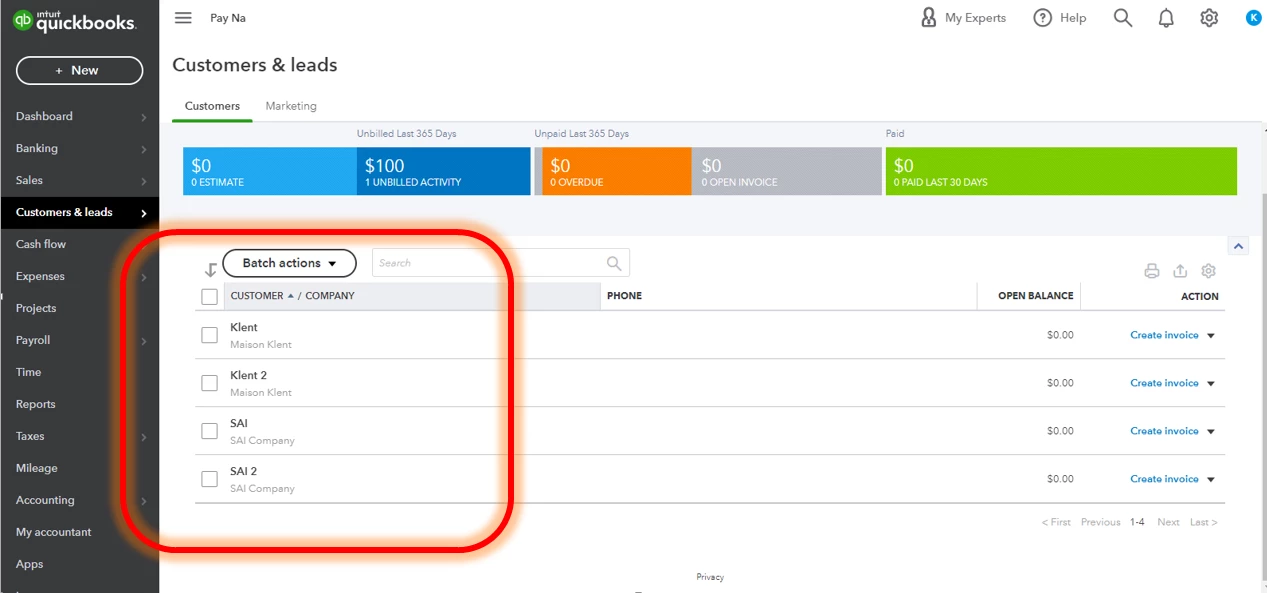
I understand that you're working with different educational institutions. Please know that QuickBooks Online allows multiple customer companies to have the same name. You'll just have to make sure that the display name is slightly different from each other to avoid errors and confusion. Here's how;
- Select Customers & leads from the sidebar menu.
- Head to the Customers tab, then click the New customer button.
- Enter the complete company name in the Company name field.
- Make the customer display name slightly different. You may add a number after the name.
- Enter the complete name again in the Name to print on checks field.
- Fill in the other necessary information.
- When you're done, click Save.
For additional reference, you can take a look at my screenshot below:
I'm also adding this article to learn how to delete, reactivate, and merge customers; Add and manage customers in QuickBooks Online.
Don't hesitate to add a comment below if you have any other concerns about using the different QuickBooks features. Have a pleasant day ahead.

