January 5, 2023
Solved

Customization of General Ledger

  • January 5, 2023
  • 1 reply
  • 0 views

Dear QB Team,

Good day.

I have an issue regarding saving the customization that i do for a single ledger. Like i want to the ledger to be displayed in Dr and Cr format only no need for other headings and the same i applied so many times but when i visit next time the customization is not saved. I want to save my customized format as a default and avoid updating the format again and again.

Looking for a solution.

Regards

QBO Plus User 

Best answer by KlentB

I've got the perfect solution for that, SOUND ON STAGE EVENTS.


You'll want to memorize your General Ledger report to save its current customization settings. Here's how to do it:


  1. Go to the Reports menu.
  2. Under For my accountant, choose General Ledger.
  3. Click the Customize button, then set the appropriate reporting period and accounting method.
  4. Select the Change columns link and add the Debit and Credit options.
  5. Remove the other columns as needed, then hit Run report.
  6. Tap Save customization and enter the report name.
  7. Follow the onscreen instruction to complete the process.
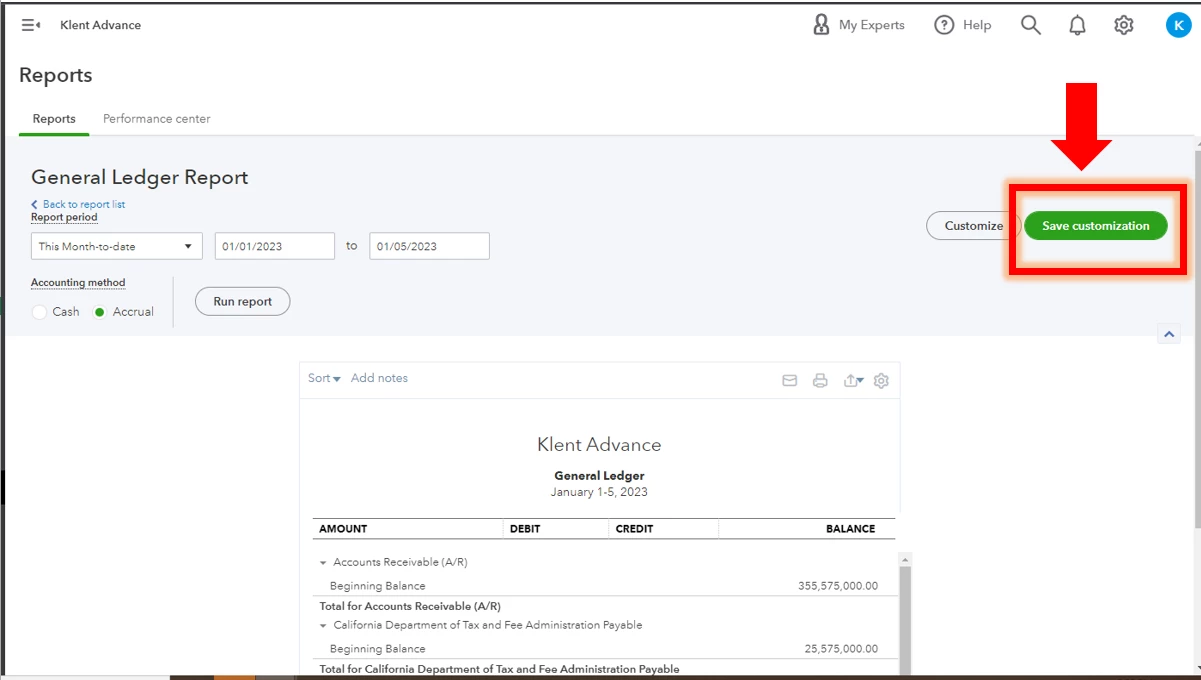


Moving forward, you'll have to access it in the My Custom Reports tab. Take note that if you update the layout or design, you need to save it again to preserve the changes.


To ensure that you'll get the most out of QuickBooks Online's reporting capabilities, I recommend reading these articles:


You're more than welcome to drop by here if you have further questions about reports. I would also love to help you in other areas of QBO. Looking forward to assisting you again!


1 reply

KlentB
KlentBAnswer
January 5, 2023

I've got the perfect solution for that, SOUND ON STAGE EVENTS.


You'll want to memorize your General Ledger report to save its current customization settings. Here's how to do it:


  1. Go to the Reports menu.
  2. Under For my accountant, choose General Ledger.
  3. Click the Customize button, then set the appropriate reporting period and accounting method.
  4. Select the Change columns link and add the Debit and Credit options.
  5. Remove the other columns as needed, then hit Run report.
  6. Tap Save customization and enter the report name.
  7. Follow the onscreen instruction to complete the process.


Moving forward, you'll have to access it in the My Custom Reports tab. Take note that if you update the layout or design, you need to save it again to preserve the changes.


To ensure that you'll get the most out of QuickBooks Online's reporting capabilities, I recommend reading these articles:


You're more than welcome to drop by here if you have further questions about reports. I would also love to help you in other areas of QBO. Looking forward to assisting you again!