Pleased to have you here, @johnjdipco.
With the right tools, any business small business owner can take charge of their finances and accounting information. I’d like to provide some details on how you can send multi-currency estimates through QuickBooks Online.
First, you’ll have to make sure that the multi-currency feature in your QuickBooks is turned on. Also, you can assign a specific supplier or customer to a specific currency. Here’s how:
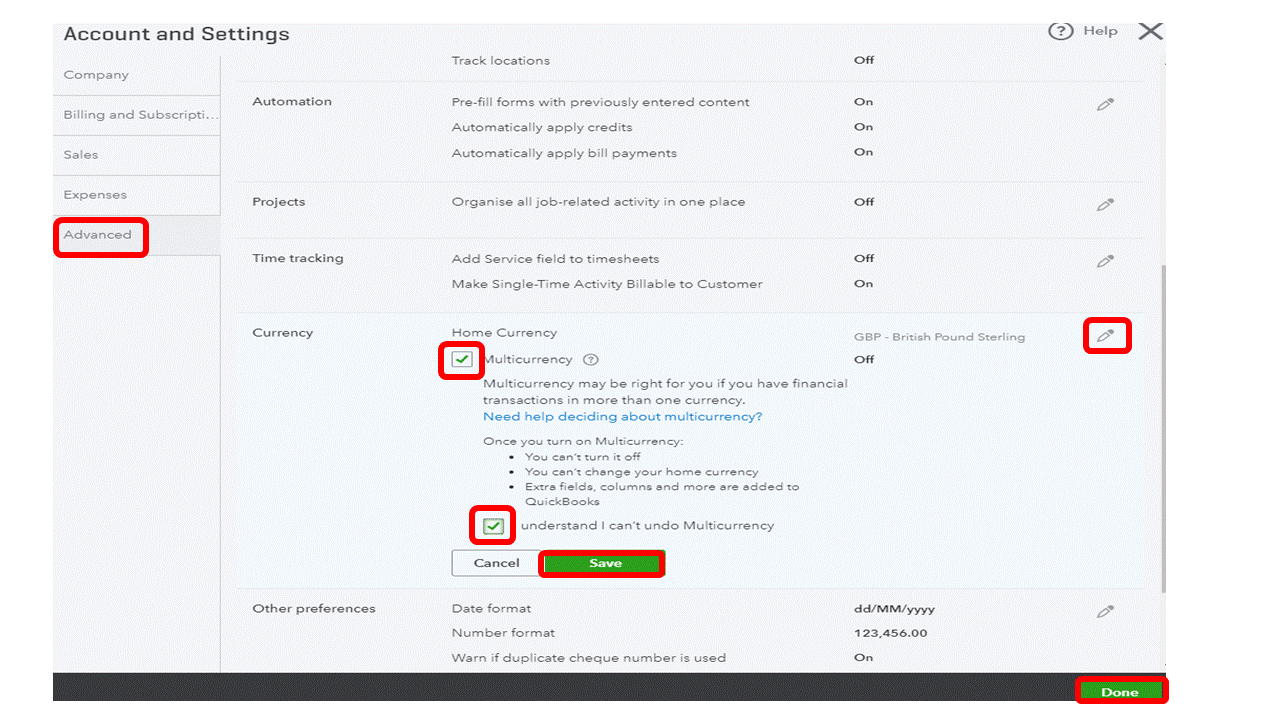
- To enable Multi-Currency Feature.
- Go to the Gear Icon.
- Choose Account and Settings.
- Select Advanced tab.
- Click the pencil icon in the Currency section.
- Put a check mark on the following:
- Multi-Currency
- I understand that I can’t undo Multi-Currency.
- Click Save.
- Hit Done.
- Add Euro to Currency List.
- Click the Gear Icon.
- Select Currencies.
- Go to Add Currency button.
- Look for EUR-Euro.
- Click Add.
- Assigned currency to your Supplier or Customer.
- For Customer:
- Go to Sales tab.
- Choose Customers.
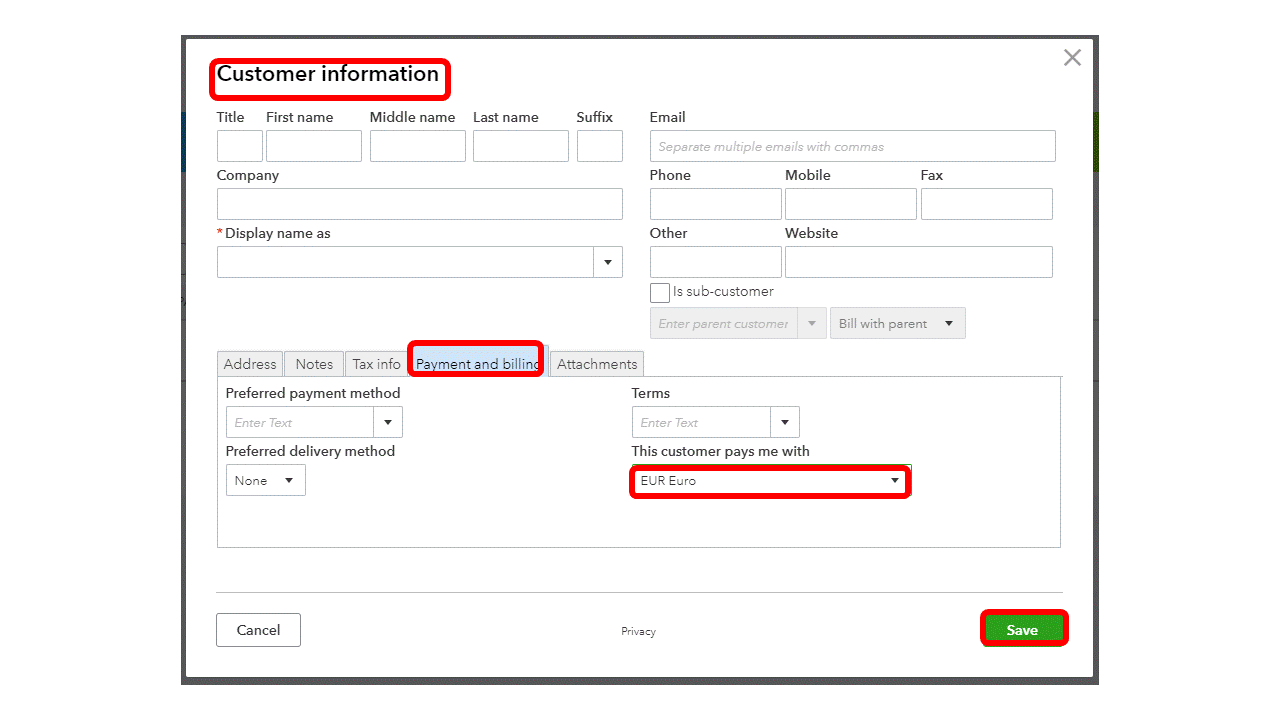
- Click Add New Customer or Edit your existing customer’s information.
- Select the Payment and Billing tab.
- Choose EUR Euro in the “This customer pays me with” drop-down.
- Click Save.
- For Supplier:
- Click the Expenses tab.
- Choose New Supplier or Edit your existing supplier’s information.
- Select EUR Euro in the “I pay this supplier with” drop-down.
- Click Save.
- Assigned a Preferred Supplier to your product/services.
- Go to Sales tab.
- Choose Products and Services.
- Click New or Edit.
- Complete the product or service detail.
- Click the Preferred Supplier drop-down arrow.
- Choose the name of the specific supplier with Euro as currency.
- Click Save and Close.
That should do it! By assigning a preferred vendor to your Products and Services, you can record it using a specific currency on a specific account on the chart of accounts. You can now proceed with creating an estimate for your customers.
You can always visit the Community page if you have other questions about managing your multi-currency transactions. I’m always here to help.

