Thanks for reaching out to the QuickBooks Community, @GIE.
I want to share some insights about adding and paying credit card charges in QuickBooks.
The regular workflow when you use the Pay Bills option, is creating a bill first with a supplier name on it. Bills are Account's Payable entries which requires assigning a vendor name when used, otherwise it the system won't save a purchase. This is also the reason why you're unable to find a transaction without a supplier name when paying bills.
In your case, you can just enter a credit card charge without a supplier name, and pay it using a cheque transaction. Follow the steps I've listed for you below.
Enter credit card charge:
- Click on the Banking menu, then Enter Credit Card Charges.
- Leave the Purchased From drop-down blank.
- Pick the credit card account from the Credit Card ▼ dropdown.
- Select Purchase/Charge is the default.
- Add the date on when the transaction happened.
- On the Expenses or Items tab, enter the expense or item you paid.
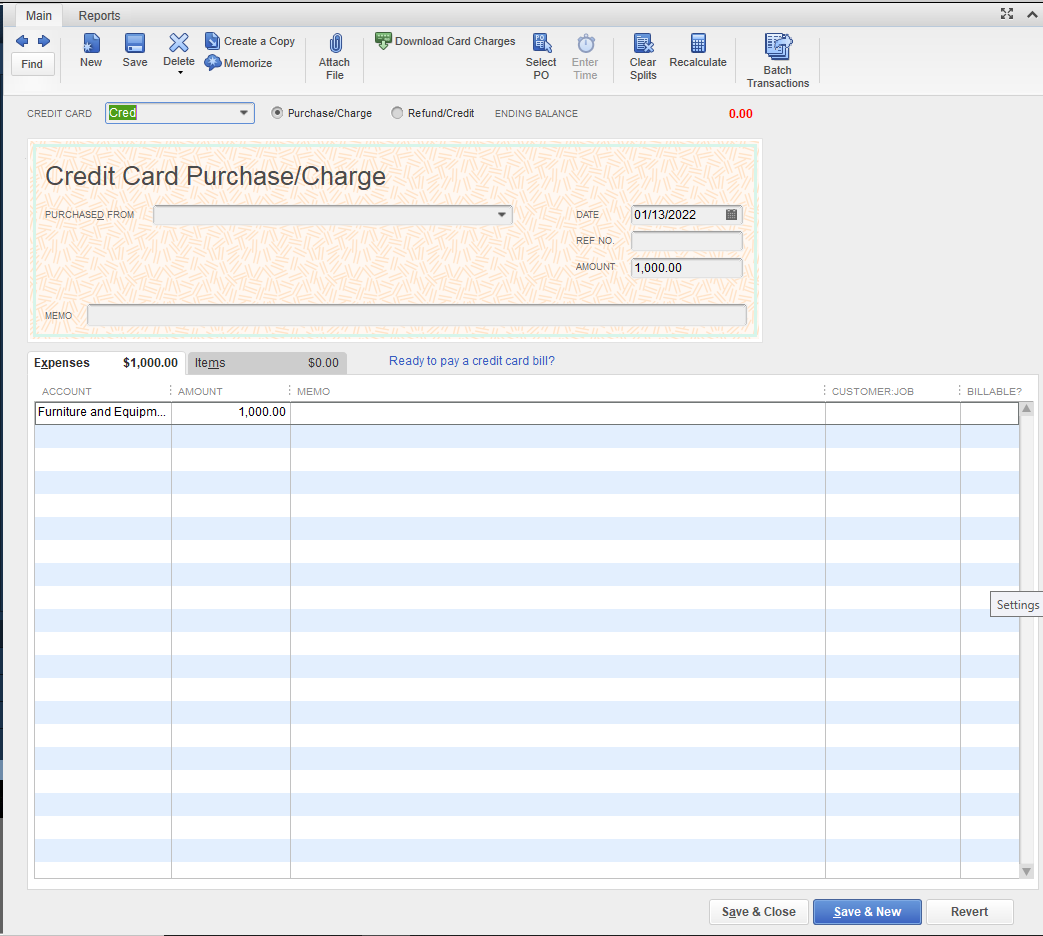
- Press Save & Close.
Pay the CC charge:
- Go to the Banking menu, and then select Write Cheques.
- Select the paying bank account you want to use from the Bank account ▼ dropdown.
- Add a transaction date.
- Leave the Pay to the order of ▼ dropdown blank.
- Enter the amount of your payment.
- Select the Expenses tab.
- On the Account ▼ dropdown, select your credit card account.
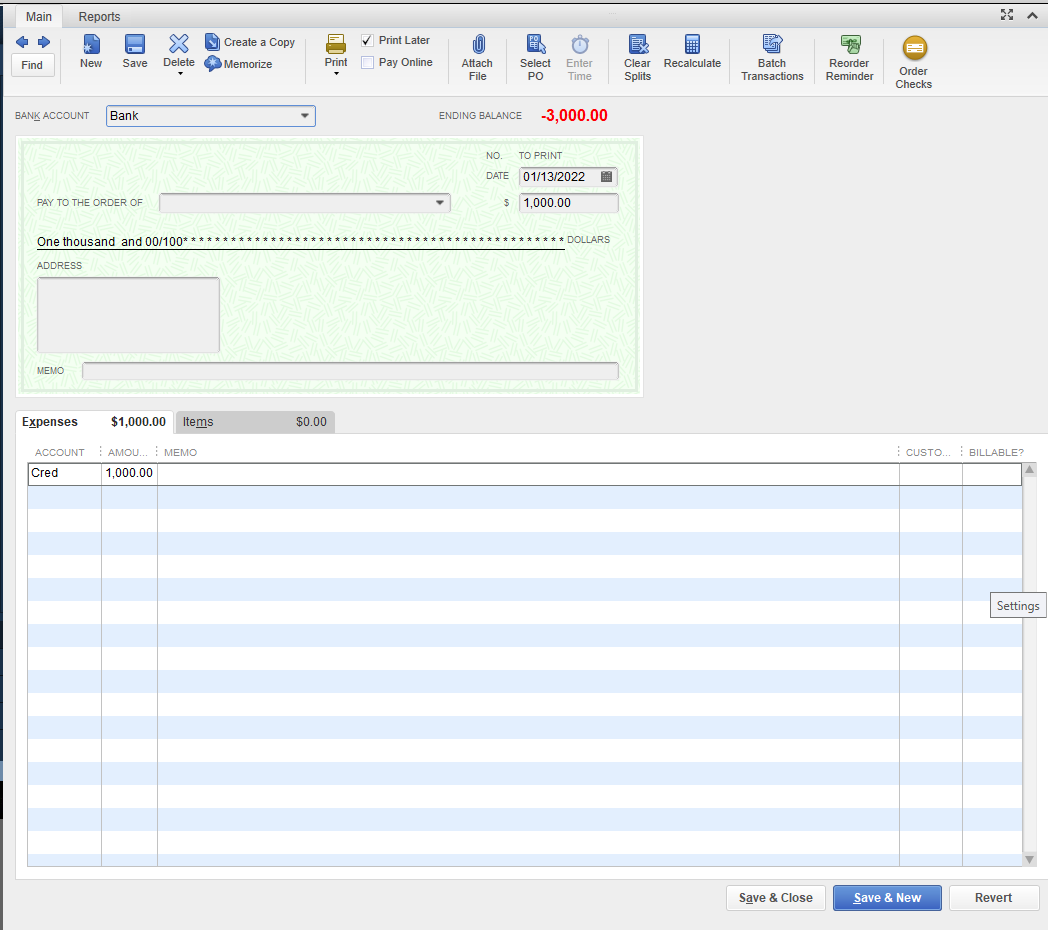
- When done, click Save & Close.
See this register view to illustrate how this process works:
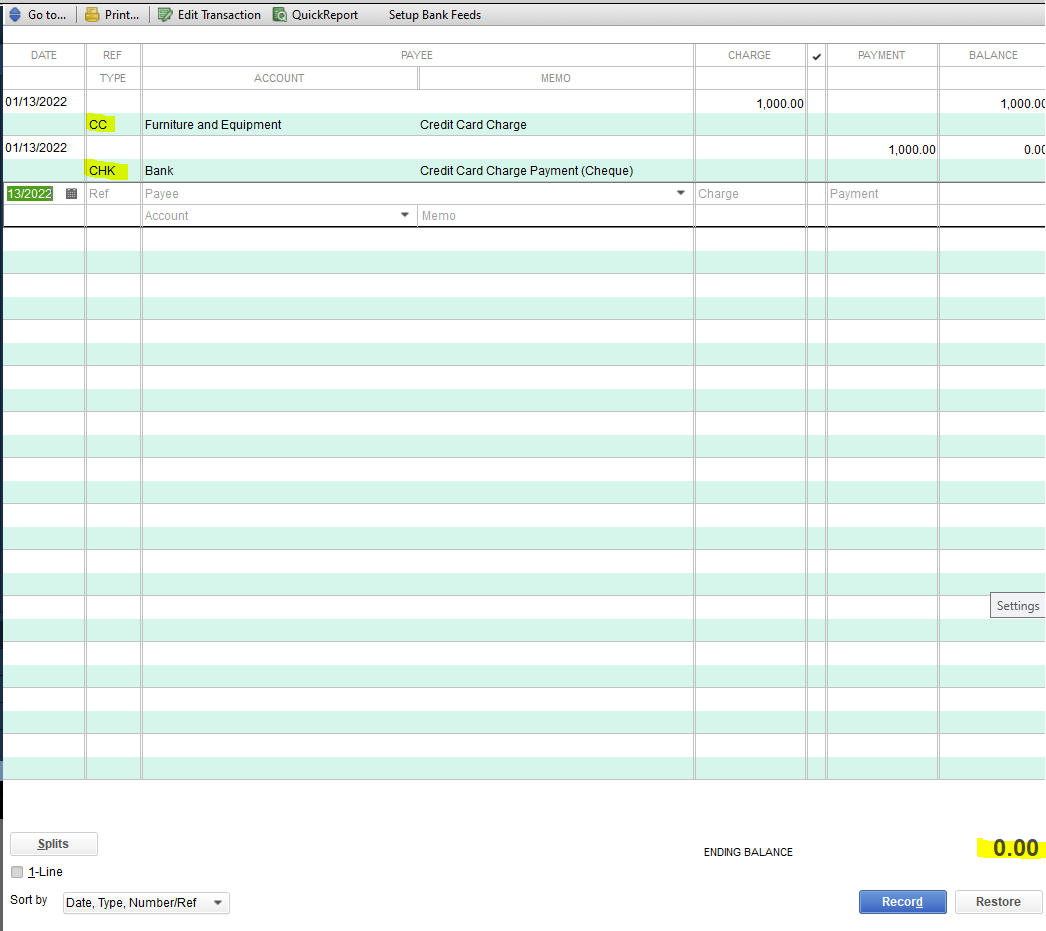
See this article to learn more about setting up, use, and pay credit card accounts in QuickBooks Desktop.
Visit here again if you have other QuickBooks concerns. I'll be more than happy to help. Have a good day!

