June 8, 2023
Solved

.0 on invoice

  • June 8, 2023
  • 2 replies
  • 0 views

If I enter 1.0 as time, on the printed invoice it only prints 1.  Meanwhile, if I enter 1.2 as time, 1.2 is printed on the invoice.  How to set so 1.0 is on invoice?

Best answer by BigRedConsulting

@cjf303161 

RE: How to set so 1.0 is on invoice?


Follow these steps change your invoice so it prints with trailing zeros even when the quantity is a round number:

1. Open the Templates list.

2. Select the invoice template you are using and edit it.

3. Click the Additional Customization button at the bottom of the window.

4. Select the Print tab and then enable the "Print Trailing Zeros" option. Then minimum number of decimal places to print.
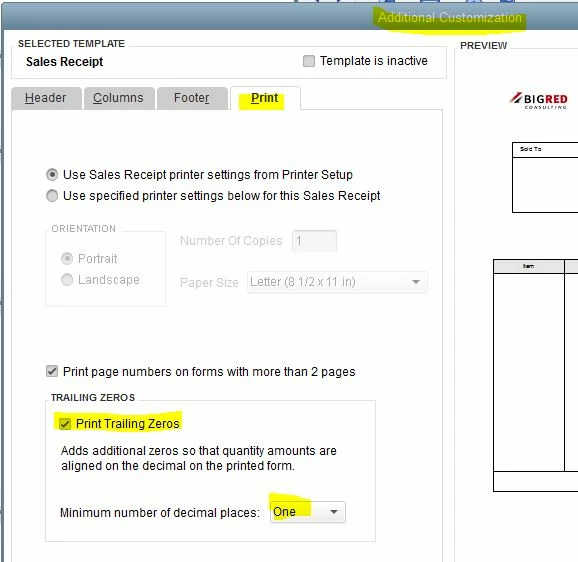


Note that the Additional Customization area isn't available for the canned Intuit templates. If you have been using one of them, you can create a copy it and then modify it as above and then use the copy going forward.

2 replies

Candice C
June 8, 2023

Good evening, @cjf303161


It's great to see you back in the Community! Allow me to share some details about this problem you're having with printing invoices. 


I can see how beneficial showing 1.0 on a printed invoice instead of 1 could be for you and your business. However, the system is working properly and it will show as 1 instead of 1.0 on an invoice. 


I recommend submitting feedback to our Product Developers so they can consider adding this in the near future. 


I hope this helps answer your question. I'm only a post away if you have any other concerns. Take care! 

cjf303161Author
June 8, 2023

I do not see gear icon.

KlentB
June 8, 2023

We greatly appreciate your input as it helps us improve our products and services to better meet your needs, cjf303161.


Please know that the link shared by my colleague above pertains to the online version (QBO). I want to clarify that the process for submitting feedback for QuickBooks Desktop is slightly different. Allow me to walk you through the steps:
 

  1. Go to the Help menu.
  2. Select Send Feedback Online.
  3. Choose Product Suggestion
  4. Pick a feedback type and product area. 
  5. Enter your comments, name, and email address (optional).
  6. Click the Send Feedback button.


Let me know if you need more help in managing your invoice preferences in the program. You can always count on me. Have a greater rest of the day!

BigRedConsulting
June 9, 2023

@cjf303161 

RE: How to set so 1.0 is on invoice?


Follow these steps change your invoice so it prints with trailing zeros even when the quantity is a round number:

1. Open the Templates list.

2. Select the invoice template you are using and edit it.

3. Click the Additional Customization button at the bottom of the window.

4. Select the Print tab and then enable the "Print Trailing Zeros" option. Then minimum number of decimal places to print.


Note that the Additional Customization area isn't available for the canned Intuit templates. If you have been using one of them, you can create a copy it and then modify it as above and then use the copy going forward.

cjf303161Author
June 9, 2023

THANK YOU!!!!!!!!!!!!!!!!!!!!!!!!!!!!!!