January 21, 2022
Solved

A credit card payment was applied to the wrong PO, which was reconciled several months ago. How do I move the payment to the correct purchase order?

  • January 21, 2022
  • 1 reply
  • 0 views
Original commenter did not share additional details

Best answer by MariaSoledadG

Let me guide you on how you can move the payment to the correct purchase order, Carol S1.


A purchase order (PO) is used by a buyer to place an order and is issued before delivery. In QuickBooks Desktop, a PO is a non-posting transaction. Since the transaction has already been reconciled, you're unable to delete the payment that was applied to the incorrect PO. You'll want to delete and recreate it instead. To do this, I've added a screenshot for your visual guide. 
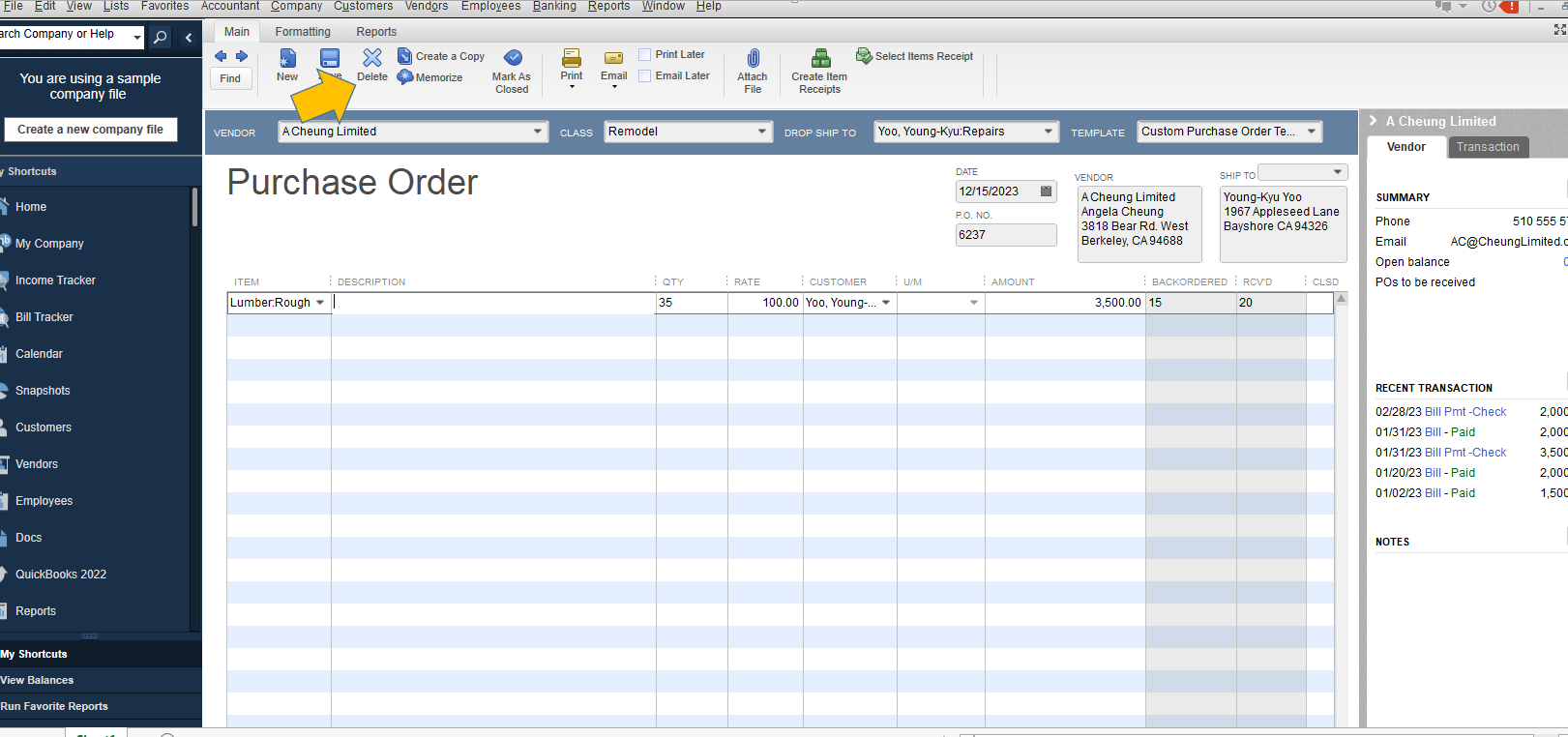
 

After that, recreate the PO with the correct information. Here's how:

  1. Go to Vendors and select Create Purchase Orders.
  2. In the Vendor dropdown, select the vendor you'd like to create a purchase order for. You can also select Add New to add a new vendor.
  3. Fill out the rest of the fields, and add the items you'd like to order.
  4. Select Save & Close.


Additionally, QuickBooks has three Bank Feed modes available. Each display and handles transactions in your Bank Feeds differently. To learn more on how to add and match transactions, go through this article for your guide: Add And Match Bank Feed Transactions In QuickBooks Desktop.


Keep me posted if you have any concerns about your payment or PO's. The Community is always here to help you all the time.

1 reply

MariaSoledadG
January 21, 2022

Let me guide you on how you can move the payment to the correct purchase order, Carol S1.


A purchase order (PO) is used by a buyer to place an order and is issued before delivery. In QuickBooks Desktop, a PO is a non-posting transaction. Since the transaction has already been reconciled, you're unable to delete the payment that was applied to the incorrect PO. You'll want to delete and recreate it instead. To do this, I've added a screenshot for your visual guide. 


After that, recreate the PO with the correct information. Here's how:

  1. Go to Vendors and select Create Purchase Orders.
  2. In the Vendor dropdown, select the vendor you'd like to create a purchase order for. You can also select Add New to add a new vendor.
  3. Fill out the rest of the fields, and add the items you'd like to order.
  4. Select Save & Close.


Additionally, QuickBooks has three Bank Feed modes available. Each display and handles transactions in your Bank Feeds differently. To learn more on how to add and match transactions, go through this article for your guide: Add And Match Bank Feed Transactions In QuickBooks Desktop.


Keep me posted if you have any concerns about your payment or PO's. The Community is always here to help you all the time.
