February 28, 2023
Solved

Add Territory

  • February 28, 2023
  • 1 reply
  • 0 views

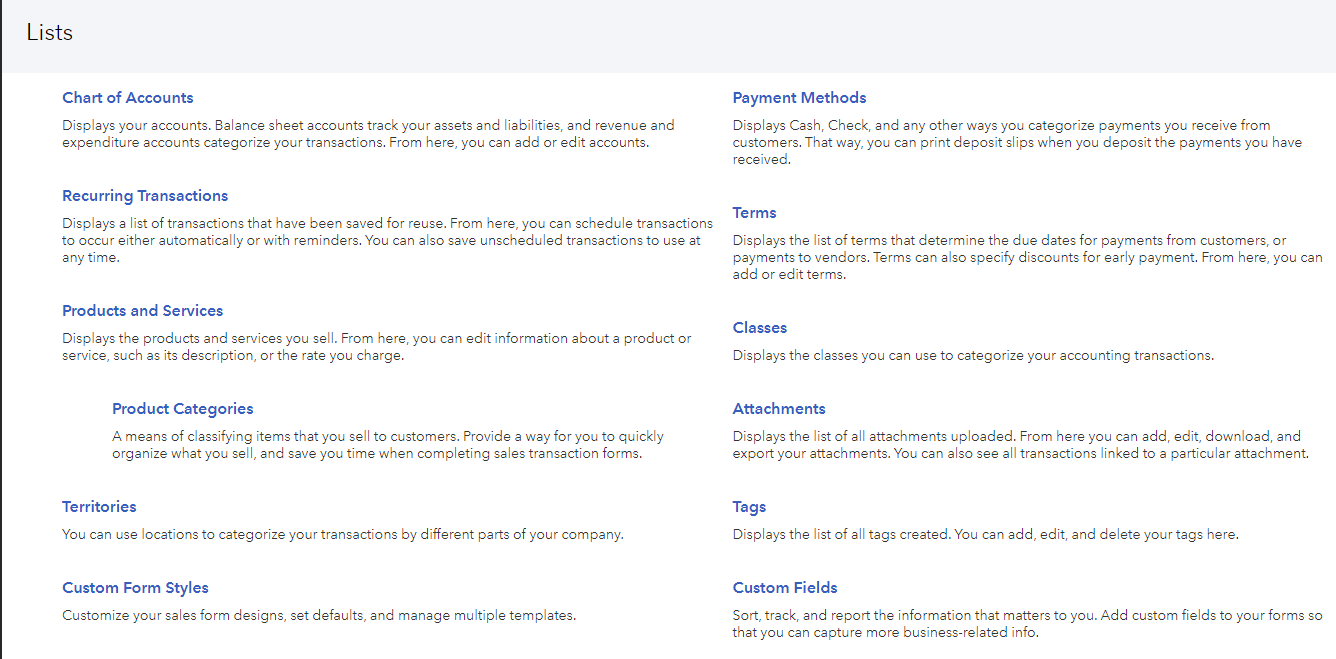
Hello everyone. I don't have the "Territory" option in "List/All List".
I can't add territories.
Nor do Sales Reports according to territory.
Can you help me?

Best answer by RCV

Let me help you add territory in QuickBooks Online (QBO), CTSGrocers.

It's possible the Track locations feature is not yet enabled in the Categories section. We'll need to turn it on and choose the Territory option in the Location label field. See the screenshot for your reference:


Here's how to turn on location tracking: 


  1. Go to the Gear icon on the top menu. 
  2. Select Account and settings.
  3. Tap Advanced.
  4. In the Categories section, turn on the Track locations feature. 
  5. Choose the checkbox to track locations. then, select Territory from the list in the Location label field.
  6. Hit Save, then press Done.


Then, add a new territory from the list by following the steps below: 
 

  1. Go to the Gear icon on the top menu. 
  2. Select All lists.
  3. Choose Territories.
  4. Tap New, then add the Name of the location you want to track.
  5. Press Save and close.


Here's an article you can refer to for more insights about setting up and using location tracking. In addition, you can utilize this article if you need to customize a report. Select which accounts or customers to view or rearrange their order to see the relevant information: Customizing reports in QuickBooks Online.


Let me know if there's anything else I can do to help you succeed with QuickBooks. I'm always around to lend a hand. Keep safe and good day.

1 reply

RCVAnswer
February 28, 2023

Let me help you add territory in QuickBooks Online (QBO), CTSGrocers.

It's possible the Track locations feature is not yet enabled in the Categories section. We'll need to turn it on and choose the Territory option in the Location label field. See the screenshot for your reference:


Here's how to turn on location tracking: 


  1. Go to the Gear icon on the top menu. 
  2. Select Account and settings.
  3. Tap Advanced.
  4. In the Categories section, turn on the Track locations feature. 
  5. Choose the checkbox to track locations. then, select Territory from the list in the Location label field.
  6. Hit Save, then press Done.


Then, add a new territory from the list by following the steps below: 


  1. Go to the Gear icon on the top menu. 
  2. Select All lists.
  3. Choose Territories.
  4. Tap New, then add the Name of the location you want to track.
  5. Press Save and close.


Here's an article you can refer to for more insights about setting up and using location tracking. In addition, you can utilize this article if you need to customize a report. Select which accounts or customers to view or rearrange their order to see the relevant information: Customizing reports in QuickBooks Online.


Let me know if there's anything else I can do to help you succeed with QuickBooks. I'm always around to lend a hand. Keep safe and good day.

