

October 24, 2022
Solved

Audit trail for who applied a payment or credit to a customer invoice

  • October 24, 2022
  • 1 reply
  • 0 views

Dear QB Staff:

* I do know how to receive payments, create credit memos, and apply payments/credit memos to invoices.

* I do know how to bring up the audit trail


I need to find out who applied a payment or credit/credit memo to an invoice. Where can I find out who applied the credit from a credit memo to an invoice? You can apply it through the "receive payments" window, and I think sometimes it gives you the option of applying a credit when you save the invoice. I think it happened in the latter situation.
Best answer by DivinaMercy_N

Hello, @Maverick2. You can customize the Audit Trail report to check who applied the payment or credit memo to that particular invoice in QuickBooks Desktop (QBDT). Follow along below to get this done right away.


Let's start with pulling up the Audit Trail report. Here's how:


  1. In your QBDT account, go to the Reports menu.
  2. Scroll down to the Accountant and Taxes section and select Audit Trail.
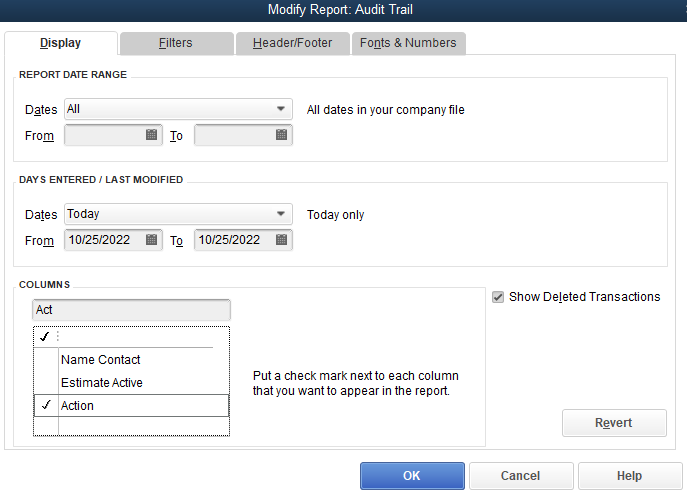
  3. Once opened, select the Customize Report button. 
  4. Then, navigate to the Columns field in the Display tab.
  5. From there, add the Action, User Edit?, and any other column you want to include.
  6. When done, select OK. Then, click the Refresh button. 


For reference, check out this article: Customize reports in QuickBooks Desktop. 


Additionally, here's a helpful link that you can open to further guide you in managing your customer's transactions in QBDT: Get started with customer transaction workflows in QuickBooks Desktop. 


Please let me know how this goes. I'm always here ready to provide further assistance to help achieve your goal. Have a good day ahead and take care.

1 reply

DivinaMercy_N
October 24, 2022

Hello, @Maverick2. You can customize the Audit Trail report to check who applied the payment or credit memo to that particular invoice in QuickBooks Desktop (QBDT). Follow along below to get this done right away.


Let's start with pulling up the Audit Trail report. Here's how:


  1. In your QBDT account, go to the Reports menu.
  2. Scroll down to the Accountant and Taxes section and select Audit Trail.
  3. Once opened, select the Customize Report button. 
  4. Then, navigate to the Columns field in the Display tab.
  5. From there, add the Action, User Edit?, and any other column you want to include.
  6. When done, select OK. Then, click the Refresh button. 


For reference, check out this article: Customize reports in QuickBooks Desktop. 


Additionally, here's a helpful link that you can open to further guide you in managing your customer's transactions in QBDT: Get started with customer transaction workflows in QuickBooks Desktop. 


Please let me know how this goes. I'm always here ready to provide further assistance to help achieve your goal. Have a good day ahead and take care.