January 4, 2019
Solved

Best method for drop shipping items that are also inventoried

  • January 4, 2019
  • 2 replies
  • 0 views

We are a distributor and sometimes we sell items out of our warehouse, other times we will sell the same items drop shipped from a manufacturer to take advantage of free freight.

What is the best way to enter/receive orders that are going to be drop shipped? We currently receive it as if we have physically received the items, but this throws off our inventory numbers.


Thanks for the help!

Best answer by VivienJ

Its nice to see you in the Community, JDCSupply. 


Thanks for providing such detailed information. I have a suggestion on how you can record these orders. 


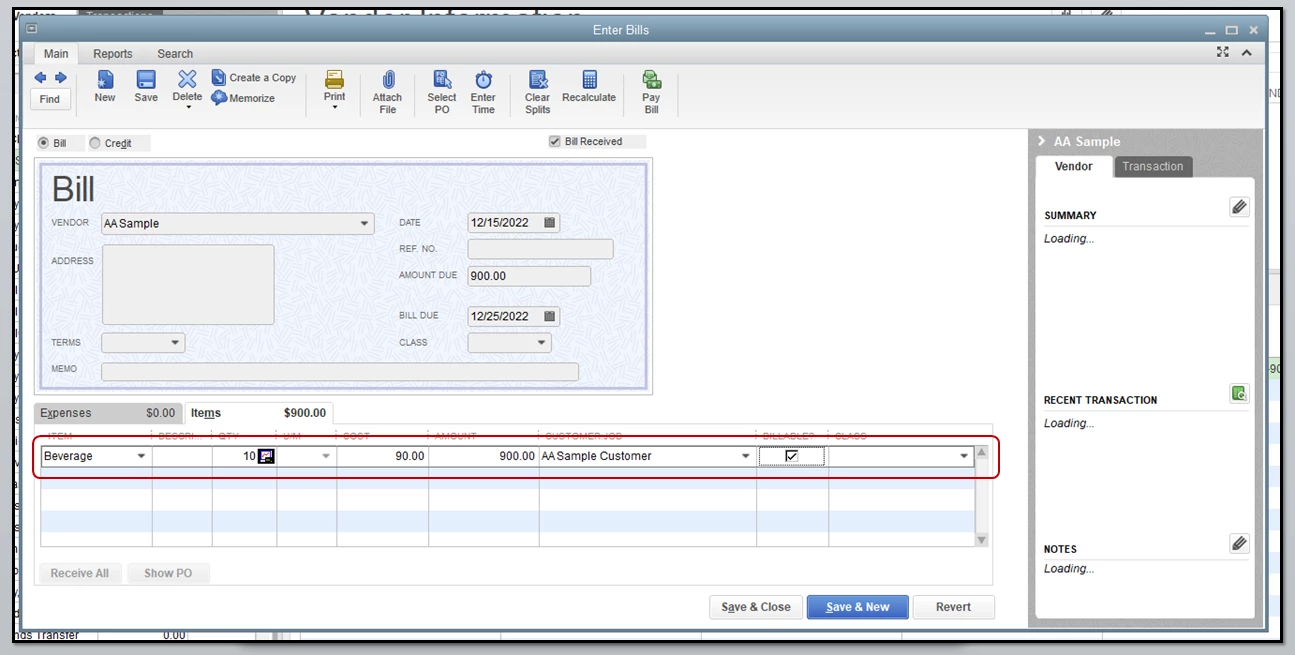
You can create bills to record the purchase of the items, then mark them billable to your customers. This way, the program recognizes that the ordered products are charged to your clients. 


To mark a bill as billable:

  1. Go to Vendors at the top menu bar and select Enter Bills.
  2. Click the Items tab, enter the inventory you've entered. 
  3. In the Customer:Job column, enter the name of customer.
  4. Put a check mark in the Billable field. 
  5. Click Save and Close (see screenshot below). 

To record the bill payment:

  1. Re-open the bill you created for the vendor.
  2. Click the Pay Bills button at the upper right side.
  3. Choose Ok, then Done.

Once done, create an invoice to link the billable charge. Check out the steps below:

  1. Go to Customers at the top menu bar, then select Create Invoices.
  2. In the Customer:Job field, choose the customer you've charged the bill to.
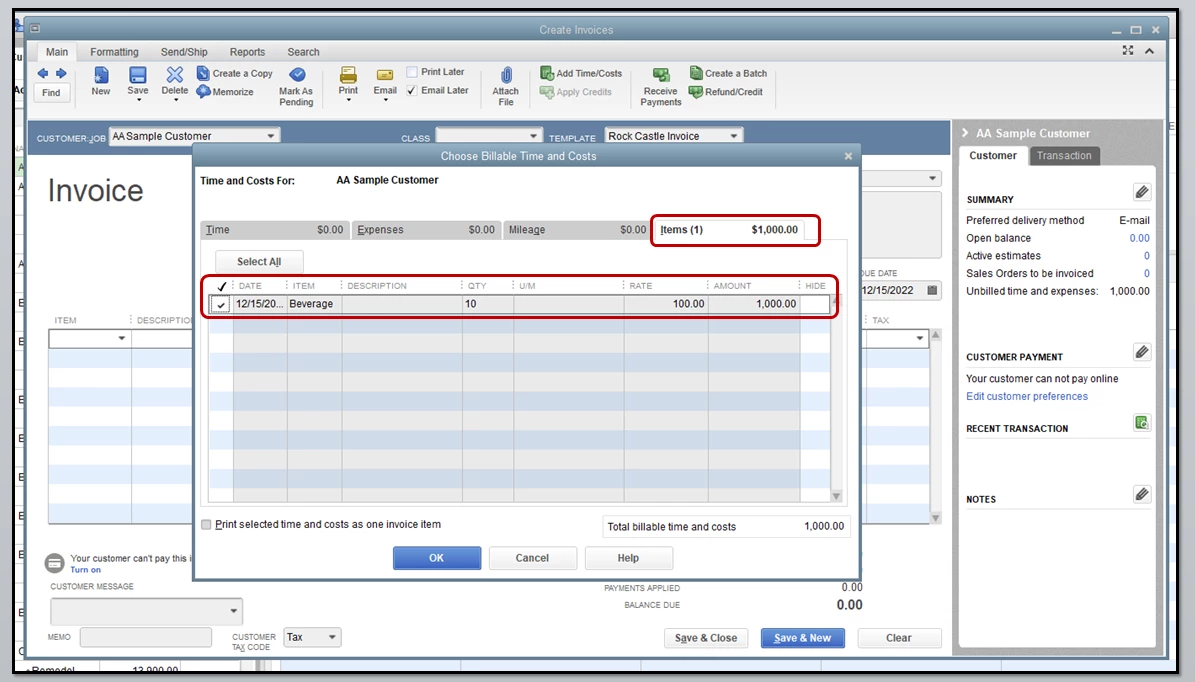
  3. Mark the Select the outstanding billable time and costs to add to this invoice radio button and click Ok.
  4. From the Choose Billable Time and Costs box, pick the Items tab.
  5. Select the items you need. 
  6. Click Ok (see screenshot below).
  7. In the Invoice screen, click Save & Close.

To receive the payment:

  1. Re-open the invoice you've created.
  2. Click the Receive Payments button.
  3. Select Save and Close

That should do it! Though you've entered the inventories in QuickBooks Desktop, the program will recognize them as sold. Therefore, the income incurred for selling these items will be recorded regardless if they've been drop shipped. 


Let me know if you have questions or if you're referring to something different. I'll be around!

2 replies

VivienJAnswer
January 4, 2019

Its nice to see you in the Community, JDCSupply. 


Thanks for providing such detailed information. I have a suggestion on how you can record these orders. 


You can create bills to record the purchase of the items, then mark them billable to your customers. This way, the program recognizes that the ordered products are charged to your clients. 


To mark a bill as billable:

  1. Go to Vendors at the top menu bar and select Enter Bills.
  2. Click the Items tab, enter the inventory you've entered. 
  3. In the Customer:Job column, enter the name of customer.
  4. Put a check mark in the Billable field. 
  5. Click Save and Close (see screenshot below). 

To record the bill payment:

  1. Re-open the bill you created for the vendor.
  2. Click the Pay Bills button at the upper right side.
  3. Choose Ok, then Done.

Once done, create an invoice to link the billable charge. Check out the steps below:

  1. Go to Customers at the top menu bar, then select Create Invoices.
  2. In the Customer:Job field, choose the customer you've charged the bill to.
  3. Mark the Select the outstanding billable time and costs to add to this invoice radio button and click Ok.
  4. From the Choose Billable Time and Costs box, pick the Items tab.
  5. Select the items you need. 
  6. Click Ok (see screenshot below).
  7. In the Invoice screen, click Save & Close.

To receive the payment:

  1. Re-open the invoice you've created.
  2. Click the Receive Payments button.
  3. Select Save and Close

That should do it! Though you've entered the inventories in QuickBooks Desktop, the program will recognize them as sold. Therefore, the income incurred for selling these items will be recorded regardless if they've been drop shipped. 


Let me know if you have questions or if you're referring to something different. I'll be around!

August 19, 2019

Hi,

Would this also work for Quickbooks Online?


Thank you!

Adrian_A
August 19, 2019

Yes, this will work in the QuickBooks Online Plus and Advanced versions, Jordank.


You'll have to turn on the Billable option first. Then, mark your items as billable.


Here's how to turn it on:

  1. Click the Gear icon, and then select Account and Settings.
  2. Go to the Expenses tab.
  3. Click the pencil (edit) icon in the Bills and expenses section.
  4. Tick () the Make expenses and items billable box.
  5. You can enter the default rate for those items.
  6. Click Save, and then Done.

I've added an article here as your reference in entering a billable expense: Enter billable expenses.


You always have me at your back, whenever you have challenges entering your billable expense.

September 3, 2020

Customer orders product that we will ship direct from factory (we also inventory these items). Customer pays in advance. Product ships and factory sends us the invoice. What is the correct process?  I have a workaround that is somewhat tedious and would like smarter minds to enlighten me on a better way, and save me some work. Here is our process (in chronological order):

  • Customer sends order
  • We send PO to vendor. When creating PO I enter customer in drop-ship-to field, copy the ship-to address, delete customer from drop-ship-to field and paste their address back in the ship-to field (but make sure to not save address when I send/close PO). I tried using the drop-ship-to field but it creates a bill and messes things up (see below), probably because I don't know how to do it right.
  • We send proforma invoice (just a different invoice template) to customer. This will put inventory in an imbalanced position since we just "sold" inventory that was not here.
  • Customer pays the proforma invoice and we receive payment against proforma invoice.
  • Factory ships the product and sends us their invoice and packing list.
  • We receive the PO (which now corrects the inventory imbalance).
  • We then go back to the customer invoice and print out a commercial invoice to send to customer along with a packing list we create in Excel.
  • We pay vendor and PO is then closed.

I have tried to enter the customer in the drop-ship-to field, but then a bill is created when PO is received but customer has already paid and then I am lost and screw things up. I am sure I am probably missing something simple, but then again Quickbooks wasn't set up for importing or drop-shipping and maybe my process is the best way.

Key concerns: a) customer is invoiced and pays before we ship, b) product being shipped is also stocked, c) inventory becomes temporarily imbalanced and if I forget then cycle counts may be off.

Please help this wayward soul improve my "DI" process.


Kristine Mae
September 3, 2020

I appreciate the detailed information, JOEBCO. It helped me understand your concern more.


I can think of one way to record your transactions. You'll have to record them as retainers. This method applies when your customers pay or deposit before performing any services. Although, you'll have to add the inventory items in the sales transaction.


We have different steps to set up and record the upfront deposits. I'll share the article that'll walk you through the process.


If you have additional questions, please feel free to leave a comment below. Keep safe!