December 24, 2021
Solved

Blank space on Sales Order screen.

  • December 24, 2021
  • 1 reply
  • 0 views

There is a blank space on the Sales Order screen, and I am having a hard time to enter the data because the sales order screen is very small. (See attached)

Is there anyway to remove the blank space on the screen?

Thank you.

Best answer by RCV

Let me help you with this one, gg92614.


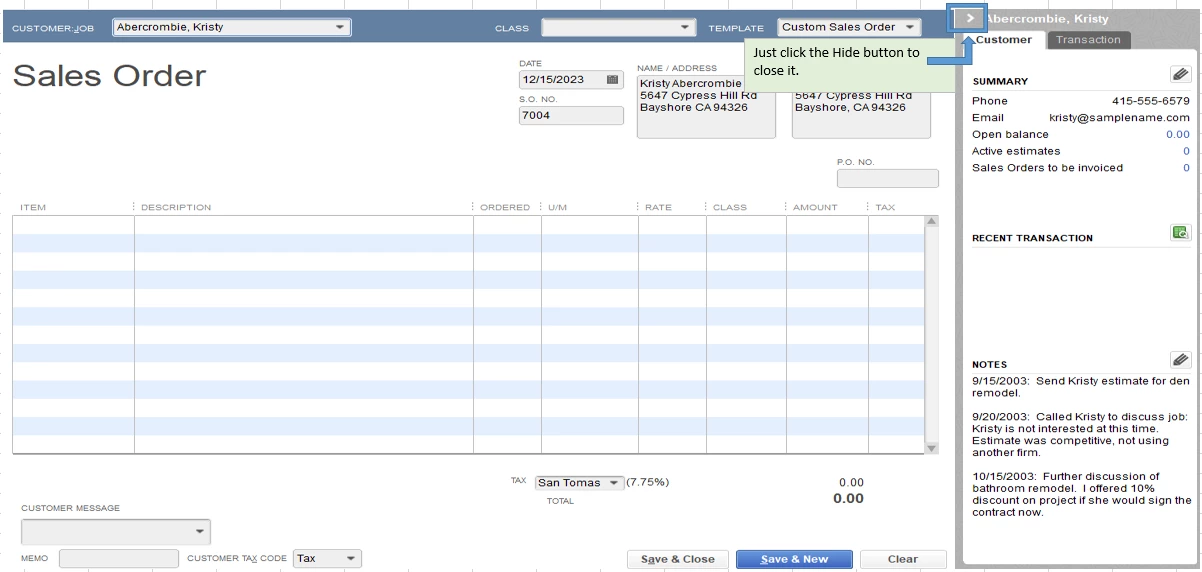
I appreciate you for providing a screenshot to better isolate this issue. The blank space on the right corner of the Sales Order is for the Customer and Transaction tab. This shows when you choose a name in the Customer:Job field. To close it, just click the Hide button to expand the screen. See the screenshot below for your reference.


Here's an article you can refer to for more details on creating a sales order in QuickBooks. To run open sales orders, we can pull up the Open Sales Orders by Customer report. Here's how: 

  1. Go to the Reports menu.
  2. Choose Sales. 
  3. Select Open Sales Orders by Customer.
  4. Once the report is opened, click the Customize Report button to modify the report based on the data you need.
  5. Hit OK when done.
  6. Once finished, tick the Refresh option to see the changes. 


We can check out the customize reports in the QuickBooks Desktop article that will provide info about modifying your report. 


Feel free to seek self-help articles on our Help Articles page to help you get your QuickBooks task done in no time. 


Drop a comment below if you have follow-up questions or concerns about creating sales transactions. I'm more than happy to assist you. Take care and have a wonderful day ahead.


1 reply

gg92614Author
December 24, 2021

Here is the screen shot.

RCVAnswer
December 24, 2021

Let me help you with this one, gg92614.


I appreciate you for providing a screenshot to better isolate this issue. The blank space on the right corner of the Sales Order is for the Customer and Transaction tab. This shows when you choose a name in the Customer:Job field. To close it, just click the Hide button to expand the screen. See the screenshot below for your reference.


Here's an article you can refer to for more details on creating a sales order in QuickBooks. To run open sales orders, we can pull up the Open Sales Orders by Customer report. Here's how: 

  1. Go to the Reports menu.
  2. Choose Sales. 
  3. Select Open Sales Orders by Customer.
  4. Once the report is opened, click the Customize Report button to modify the report based on the data you need.
  5. Hit OK when done.
  6. Once finished, tick the Refresh option to see the changes. 


We can check out the customize reports in the QuickBooks Desktop article that will provide info about modifying your report. 


Feel free to seek self-help articles on our Help Articles page to help you get your QuickBooks task done in no time. 


Drop a comment below if you have follow-up questions or concerns about creating sales transactions. I'm more than happy to assist you. Take care and have a wonderful day ahead.

gg92614Author
December 26, 2021

Thank you very much for your quick answer.

It has been solved!!