Hello there, @MartaMeydid.
Yes, it's possible to export, then reimport your client's vendor list after you make slight updates. However, the process will result to duplicate vendor since the information aren't entirely identical to the existing ones in QuickBooks Desktop (QBDT). Then, the history of the vendor (1099/bill pay) will be affected. With this, you'll have to merge the duplicates to the ones already on the system. This is to get rid of the duplicate accounts and update the vendor's current info.
Please know that the merging of vendor accounts is irreversible. After the process, you're unable to access the 1099 forms within QBDT that you've filed earlier. Thus, I'd recommend creating a backup copy of your client's company file and saving the local copies of the previously filed 1099 forms before doing so. This is to keep your previous year's business record. Here are the steps for QBDT 2019 version:
- Open QBDT.
- Access the Merge Vendors window. If you are using QuickBooks Desktop Accountant Edition, go to the Accountant menu, select Client Data Review, then choose Merge Vendors. If you are using QuickBooks Desktop Enterprise, go to the Company menu, select Accounting tools, then choose Merge Vendors.
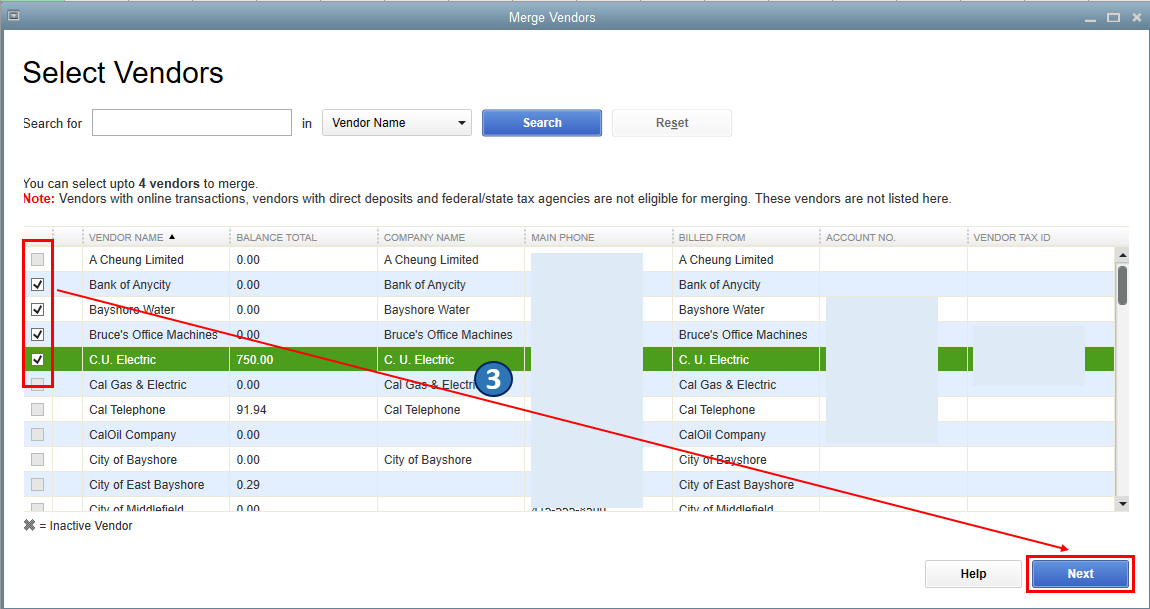
- On the Merge Vendors window, select the vendors to be merged then choose Next.
- Select a Master Vendor, then choose Merge.
- Click Yes on the confirmation prompt.
- Choose OK on the Merge Complete window.
I've attached screenshots below that show the third and fourth steps.

In case you're using other versions of QBDT, you can refer to this article's QuickBooks Desktop 2018 and below section: Merge Accounts, Customers, and Vendors. It also contains additional reminders befog merging vendor accounts.
After that, you can pull up the Vendor Contact List report. This is to confirm you're able to successfully merge the vendors' accounts. Just go to the Reports menu, then select the Vendors & Payables option.
I'm also adding this article to learn more about importing and exporting info in QBDT: Import and export data in QuickBooks Desktop. It also includes an overview and helpful articles about ways on how to perform each process.
Please know that you're welcome to comment below if you have other concerns or follow-up inquiries about managing the vendor list in QBDT. I'm just around to help. Take care always.

