

February 20, 2022
Solved

Credit Card Refund Where Payment was Already Settled

  • February 20, 2022
  • 1 reply
  • 0 views

I had a customer pay an invoice in August with a credit card. In September we also received a check for the same invoice. The customer wanted me to refund the card and use the check to pay the invoice, so I issued the refund through my cc processor (square) and used the check as payment.


In Quickbooks I issued a credit card refund via the card for the full amount to undeposited funds. The problem is matching this to my bank feed. The amount pulled from my checking is minus the credit cards fees, but when I try to make a "negative deposit" of the refund I can't remove the fees from the deposit (I get the error can't make a negative deposit). If the fees aren't included I have no problem making the negative deposit, but it no longer matches the bank feed.


I can't seem to find a solution to this anywhere.

TYIA
Best answer by Mike_ASG

Hi, Mike_ASG. Allow me to step in and help you sort this out.


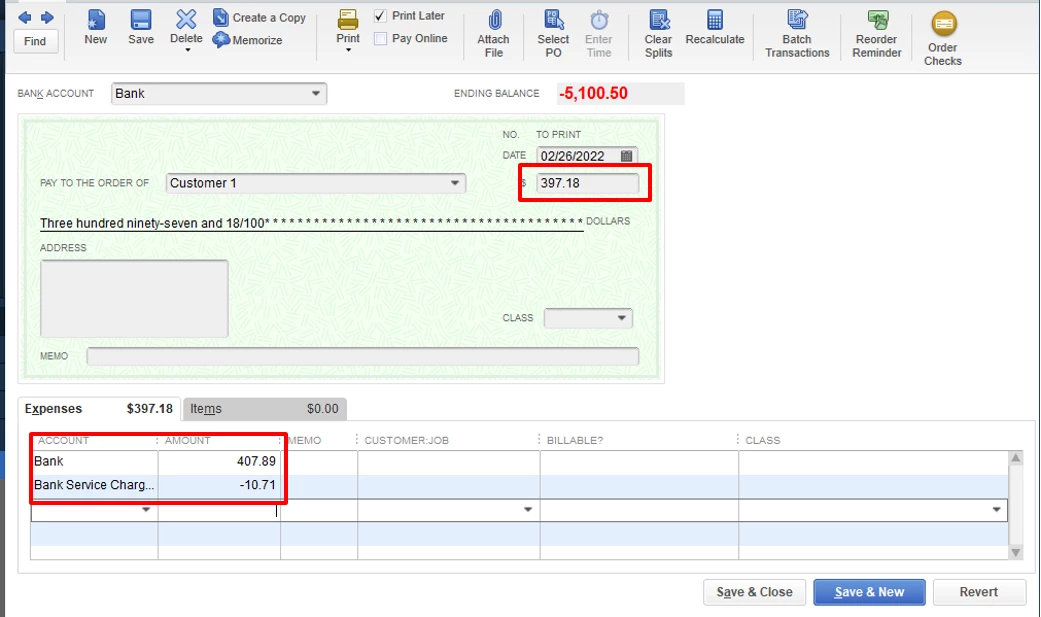
You might want to create a check for the full refund amount and include the fees from there. This way, you'll be able to math check to your bank feed transaction.


I'd suggest going through the following articles below. These will provide you with more details on how customer refund works in QuickBooks Desktop as well as managing your bank feeds:


Void or refund customer payments in QuickBooks Desktop.

Add and match Bank Feed transactions in QuickBooks Desktop.


Let me know if you need additional assistance. I'll be standing by to keep helping. Have a good one.


Thank you, I figured it out! The account on line 1 needed to be Accounts Receivable not my bank. Oh my god what a relief!

I just needed to issue the refund with the second payment and go back and edit the check in the register to include the square fees, because the credit card refund wizard doesn't allow for multiple line items.

1 reply

February 20, 2022

Welcome to Community, @Mike_ASG.


Let me help get your fees matched. You can use the Add More Details feature in the Bank Feed Center. This way, you can add the fees. 


Here's how:


  1. Go to Banking, Bank Feeds, and then Bank Feed Center.
  2. Select the bank account that has your refund transaction.
  3. Mark the transaction and then choose Add More Details from the drop-down.
  4. In the From Account drop-down, pick your fees account. Enter all the deposit details to match with QuickBooks.
  5. Click Add to QuickBooks.


Refer to these handy articles for more information about the process:


When you're ready, you can proceed with reconciling your bank or credit card accounts.


I'll be here if you still have questions or concerns with matching transactions. Drop them below and I'm more than happy to answer them for you. Take care and have a wonderful rest of the week.


Mike_ASGAuthor
February 21, 2022

Thank you, but you're showing how to subtract fees from a deposit which is not what I need to do.

I have the refund check that comes out of my account to my customer, but it does not match the total refunded because the credit card processor refunds the fees.

Sorry, I don't know if I'm explaining this correctly. 

AlexV
February 21, 2022

Hello 34602662!


Thanks for the reply. Let me assist you in recording a refund on QuickBooks Desktop.


The best option I can suggest is to record a refund receipt affecting the bank account where you deposited the payment or enter a credit card charge affecting the accounts receivable account. Then, we can link the deposit or the payment from the customer to the credit card charge 


Go to the Customers menu and select Create Credit Memos/Refunds to create a refund. Make sure to select the bank and not the Undeposited Funds account.


Here are the steps to create a credit card charge:

  1. Select Enter Credit Card Charges or Write Checks from the Banking tab.
  2. Choose Accounts Receivable from the Expenses column.
  3. You can also add the fees.
  4. Enter the amount and add the customer's name under the Name column.
  5. Click on Save and Close.


Once done, open the deposit/payment transaction. Unlink it to the invoice and select the check/credit card charge. This way, the invoice will reopen again and you can record a new payment against it. 


Please check this article for more details on how to handle credits and refunds: Give your customer a credit or refund in QuickBooks Desktop for Windows.


Don't hesitate to post again if you have more questions. Take care!