November 16, 2023
Solved

Deposits in QBO where no invoice was issued

  • November 16, 2023
  • 4 replies
  • 0 views

My client does not use invoices.  Deposits are recorded directly.  Why can I not see these deposits (or any activity for that matter) when I pull up that customer?

Best answer by IrizA

thank you.  I was using the snip tool but was trying to drag it directly instead of using the camera.

Here is what I see in my customer page.  I don't have that option to change what is included.
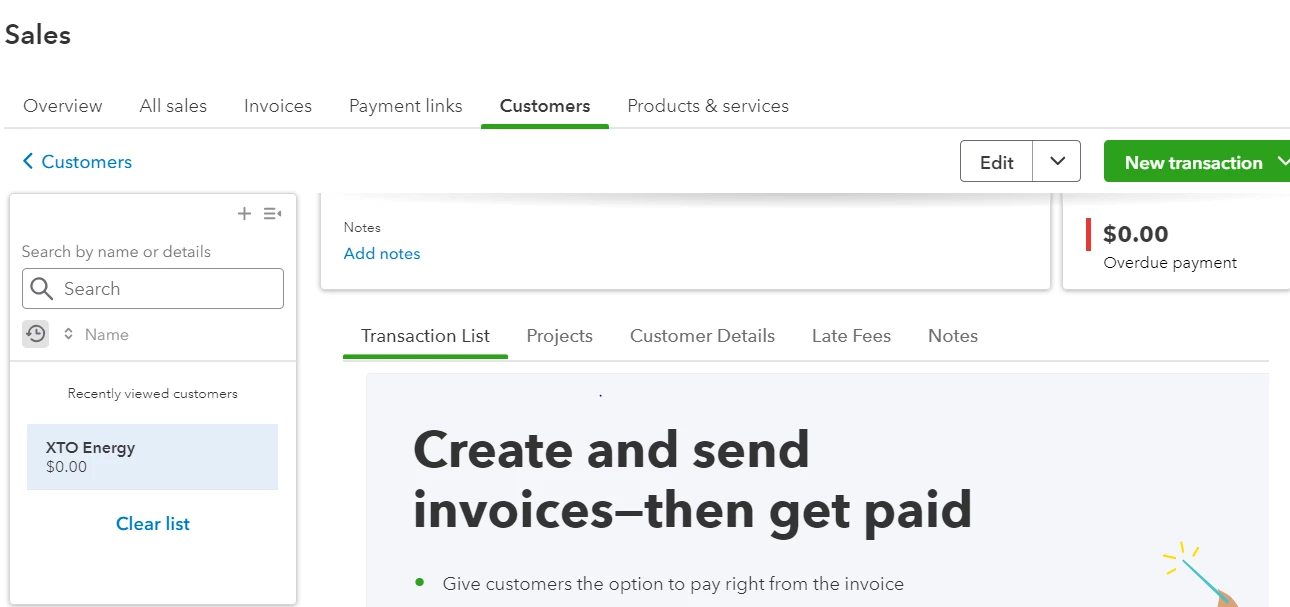


Accessing your customer transactions is indeed important, @jantco. Allow me to provide you with a set of steps that can effectively address your concern.


In QuickBooks, you can see the transactions of your customer within the Sales menu. Since you don't have that option yet, I recommend creating an invoice for you to see this option. You may also delete the invoice after viewing the transactions.


Kindly follow these steps: 


Step 1: You need to create an Invoice so that you can see the Type dropdown. 


  1. Go to +New located at the top left corner. 
  2. Under Customers, choose Invoice.
  3. Under the Customer dropdown, choose your desired customer. 
  4. Fill in the necessary fields such as the Product/ServiceQTY, Rate, and Amount
  5. Click Save and Close


Step 2: View the transactions with your customer.


  1. Go to Sales
  2. Under the Customers tab, click your preferred customer. 
  3. Under the Transaction list column, press the Type dropdown.
  4. Choose All plus deposits to see the deposit transactions with your customer.


In addition, you may also want to learn how to Edit, delete, and restore list elements in QuickBooks Online.


You're always free to reply whenever you have further concerns regarding the transaction list or anything that relates to it. I'll be here to help you. Have a great day! 

4 replies

November 17, 2023

I understand the importance of seeing our customers' activity, jan. 


In QuickBooks Online (QBO), we can obtain our customer's activity by manually pulling them individually. However, we can also run a report that functions similarly. 


We can pull up the Deposit Detail reports and filter them into Deposit transactions. The report lists all your completed bank deposits. 


Here's how: 
 

  1. Go to the Reports menu. 
  2. From the Find report by name, search for Deposit Detail. 
  3. Set the Report period
  4. Select Customize, then Filter. 
  5. From the Transaction Type dropdown list, choose Deposit
  6. Click Run report


Also, you can click the individual deposits to get more details. 


You can read this article for more info: Record and make bank deposits in QuickBooks Online

Alternatively, if your customer immediately pays for the product and services, we can create sales receipts. This is another way of recording your customer's remittances. 


 If you have any questions about managing your customers in QBO, feel free to leave a reply. We're one post away. Take care! 

jantcoAuthor
November 17, 2023

Thanks for your response, Erika.


That does work, but it's pretty cumbersome.  I still don't understand why this information is not available in the customer's record.  The name is on the deposit, so why doesn't it show up?

Tori B
November 17, 2023

Thanks for checking back with us, @jantco.


I believe I've found exactly what you're looking for. If you change the filter settings, the deposits will show as well. Let me show you how: 


  1. At the top of the screen, click on the Type box. 
  2. Choose All plus deposits


That should do the trick. Please let me know if you have any issues pulling the data. Take care and have a good one! 

November 18, 2023

Hello there, @jantco.


I want to ensure that you can find the right tool for taking screenshots in your QuickBooks Online.


If you are using Windows, I suggest using the Snipping Tool that is already installed in your Windows system. This tool can be used to take screenshots of an open window, rectangular areas, a free-form area, or an entire screen. 


Here's how to access the Snipping Tool:


  1. Search snipping tool in the windows search bar.
  2. Click on the scissors and paper icon.
  3. Double-click or enter to open.


If by any chance you are using a Mac, you can find tools for taking screenshots in your Mac App Store.


Just in case you want to add or delete attachments in QuickBooks Online, you can check out this article for more guidance: Add or delete attachments in QuickBooks Online.


If you have any other concerns about attachments in QBO, don't hesitate to leave a comment below. I will be happy to help.

January 21, 2024

Welcome to the Community space, @Shirley15.


I am here to provide some insights about viewing your customer's information without creating an invoice in QuickBooks Online.


If you wish to view your customers' transaction history without creating a dummy invoice, you can access the information through your bank register or by running a Transaction List by Customer report.


Here's how:


  1. Select Reports, from the left pane. 
  2. Search for the Transaction list by customers report.
  3. Then click Run report.


We value your opinion and suggestions about how QuickBooks Online (QBO) works. This will guide our product engineers on how to improve existing features and develop new ones to meet the needs of our customers. Here's how:


  1. Sign in to your QBO account.
  2. Go to the Gear icon.
  3. Select Feedback under Profile.
  4. Enter your suggestion. Then, click Next.


Moreover, I'm adding this helpful article as you reference in customizing your sales forms in QBO: Customize invoices, estimates, and sales receipts in QuickBooks Online.


Please don't hesitate to return to this post if you have other concerns about viewing your customer's information in QBO. I'll be here to lend a hand. 

May 7, 2024

I really don't think the solution selected as the "Best Answer" embodies the problems correctly. 

1st I think it's important to direct a person with this question to the decided workflows Quickbooks Promotes. You can find them here:

Get started with customer transaction workflows in QuickBooks Desktop


The next step in the question is to answer the user's question directly. How can you see the deposits of a customer if you don't invoice or follow one of the workflows. The answer is to 1) List the Customer in the "Received From" on the Line item of the deposit. Then under the Customer Transaction select the Type "All plus deposits" (img Item 1). The deposits will show up there.


The Third Piece of this question is to provide the simplest workflow solution that would solve the problem presented. In this case this is Workflow 2. Which is "Workflow 2: Sales Receipt - Deposit". If you take the time to do this, then you will still be able to capture Customer Transactions related to the services and also create a deposit receipt from multiple customer transactions.


In our scenario we created an Item: "301 General Services" to capture all the income received. This provides a very simple transactional entry that makes the rest of the process relatively painless.
