

October 31, 2024
Question

Direcciones en los invoices

  • October 31, 2024
  • 1 reply
  • 0 views

Buen Dia

Tengo una pregunta como colocar la dirección de un proyecto para que aparezca en el invoice.

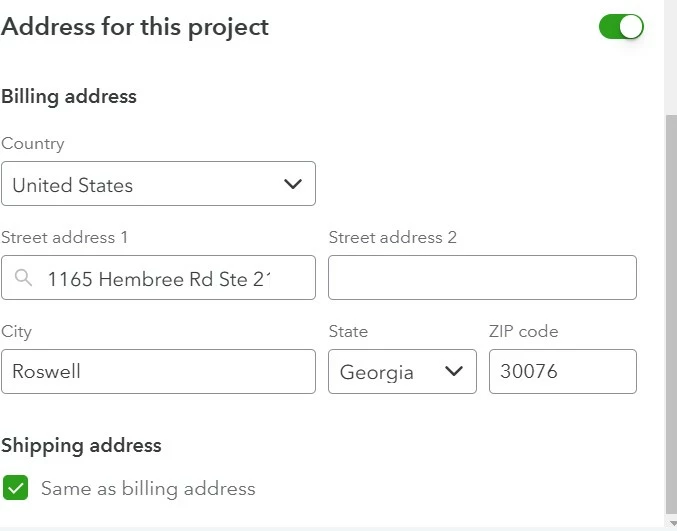
Porque me aparece la dirección del customer pero quiero que aparezca la dirección del proyecto, muestro imagen donde le he colocado la dirección pero al momento de elaborar el invoice, este muestra la dirección del customer.


1 reply

October 31, 2024

Hi there, Norma. Thank you for raising your concern on how to add the project address instead of the customer's address on the invoice. Rest assured I'm here to help you achieve that.
 

To add a project address in the invoice, you'll go to the project you've created and enter an address to it. Afterwards, you can make an invoice to the project you've created. Make sure that you select the correct customer to that specific project so that the address you entered in the project will automatically  appear on the invoice.
 

Here's how:
 

1. Click the Project tab in the left menu.


2. Select the specific project that you want to create an invoice. 

3. Choose the Edit option to add an address.


4. Toggle on the address for this project. Click the Circle icon to activate.


5. Input the important address information ( country, street address, city, state, and zip code).


6. Turn on the shipping address by entering the Check box, then click Save.


Meanwhile, you can add existing invoices to a project for a fast way of adding unpaid invoices to a project.
 

If you have more questions about how to automatically add a project address to the invoice, please don't hesitate to leave a message. You'll be assisted right away.


October 31, 2024

Segui los pasos para colocar la dirección pero al momento de crear los invoices aparece la dirección del costumer y no la del proyecto.

MorganB
October 31, 2024

Thank you for following up on this thread, Norma Galan.


I want to make sure you're able to add an address to the Project in QuickBooks Online.


Since the steps above didn't do the trick, I recommend reaching out to a member of the QuickBooks Online Support Team. Agents have the necessary tools, like the ability to share your screen, to take a more in depth look at what's preventing the correct address from appearing. Here's how to get in touch with the team:


1. Click the Help (?) button.
2. Select either tab to get started:
  - Assistant: Get quick, personalized answers. Select a suggested option, or type a question or topic you need help with. If you decide you need further help, you can still Talk to a human.
  - Search: Search the QuickBooks Online knowledge base directly, or select Contact Us and choose a way to connect with us:
    a. Start a chat with a support expert.
    b. Get a callback from the next available expert.
 

The following article provides these steps if you ever need them again in the future: QuickBooks Online Support


Please feel free to reach back out in the comments below if you have any other questions. I'll be here to help in any way that I can.


---------------------------------------------------------------------------------------------------------------------------------------------------------------------------
(Translated to Spanish with Google Translate)


Gracias por seguir este hilo, Norma Galan.


Quiero asegurarme de que puedas agregar una dirección al proyecto en QuickBooks Online.


Dado que los pasos anteriores no funcionaron, te recomiendo que te comuniques con un miembro del equipo de soporte de QuickBooks Online. Los agentes tienen las herramientas necesarias, como la capacidad de compartir tu pantalla, para analizar en profundidad qué impide que aparezca la dirección correcta. 


Aquí te mostramos cómo ponerte en contacto con el equipo:


1. Haz clic en el botón Ayuda (?).
2. Selecciona una de las pestañas para comenzar:
- Asistente: obtén respuestas rápidas y personalizadas. Selecciona una opción sugerida o escribe una pregunta o un tema con el que necesites ayuda. Si decides que necesitas más ayuda, aún puedes hablar con un humano.
- Buscar: busca directamente en la base de conocimientos de QuickBooks Online o selecciona Contáctanos y elige una forma de conectarte con nosotros:
a. Inicia un chat con un experto en soporte.
b. Recibe una devolución de llamada del próximo experto disponible.


El siguiente artículo proporciona estos pasos si los vuelve a necesitar en el futuro: Soporte de QuickBooks Online


No dude en comunicarse conmigo en los comentarios a continuación si tiene alguna otra pregunta. Estaré aquí para ayudar en todo lo que pueda.