

July 4, 2023
Solved

Error migrating from QuickBooks Desktop Pro to QuickBooks Online

  • July 4, 2023
  • 3 replies
  • 0 views
I'm trying to migrate from QuickBooks Desktop Pro 2022 Subscription to QuickBooks Online, and got this error message with converting the data from QB Desktop.
 
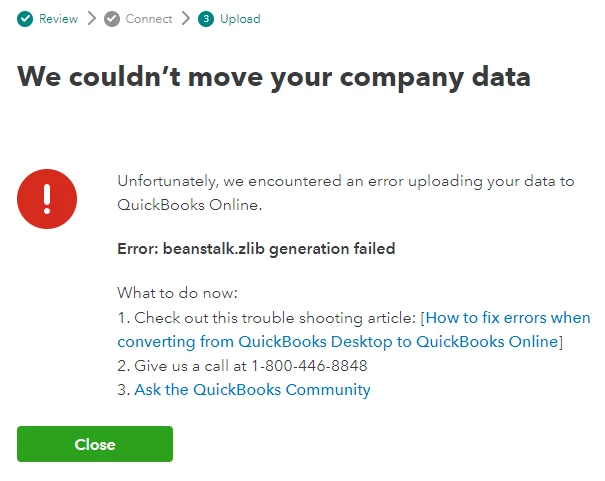
We couldn’t move your company data
 
Unfortunately, we encountered an error uploading your data to QuickBooks Online.
Error: beanstalk.zlib generation failed
 
 
Please advise.
Best answer by scottkeen

The issue was resolved with QuickBooks tier-2 support over the phone with screenshare.


It wasn't the company file size. It wasn't a Verify Data issue. Tier-2 support checked all that. But thank you for the suggestions.


Instead of pushing the Data Migration from QB Desktop to QB Online, tier-2 support had me export the company file to a backup QBB file on my PC. Then we went to the QBO initial setup and uploaded the QBB file from my PC to the cloud folder (QBO is on Amazon AWS). Then we migrated the file on the cloud folder to QBO. That worked.


3 replies

Fiat Lux - ASIA
July 4, 2023

Open your company file and hit CTRL+1 keys. How big is your Total Target?

Try also opening the sample file and converting it to QBO. Did you encounter the same error message?

July 4, 2023

Thank you for your interest in migrating from QBDT to QBO, @scottkeen. I'll share some troubleshooting steps to get rid of the error.


You'll want to consider Fiat's suggestions to review your total target and open a QBDT sample file to convert it from there. Please also ensure to log in as the master admin. Then, we can proceed to the steps below to verify and rebuild data to fix the error you encountered. 


Here's how:


  1. Go to the Window, then Close All to close all open QuickBooks windows.
  2. Choose the File menu, and then select Utilities.
  3. Click Verify Data.
  4. Then, go back again to Window, then Close All to close all open QuickBooks pages.
  5. Click File, and then Utilities.
  6. Select Rebuild data.


If you see the message QuickBooks detected no problems with your data, let's start the export process again. For more information, you may review this article: How to resolve issues when importing.


I'm adding some resources below to learn more about fixing errors while converting data:


Once done, move your lists to QuickBooks Online to save time. This will walk you through importing vendors, customers, inventory, and a chart of accounts list seamlessly.


Of course, you're always welcome to visit here again for further help with setting up QuickBooks Online. It will be my pleasure. Have a great day ahead.


scottkeenAuthorAnswer
July 4, 2023

The issue was resolved with QuickBooks tier-2 support over the phone with screenshare.


It wasn't the company file size. It wasn't a Verify Data issue. Tier-2 support checked all that. But thank you for the suggestions.


Instead of pushing the Data Migration from QB Desktop to QB Online, tier-2 support had me export the company file to a backup QBB file on my PC. Then we went to the QBO initial setup and uploaded the QBB file from my PC to the cloud folder (QBO is on Amazon AWS). Then we migrated the file on the cloud folder to QBO. That worked.


AlcaeusF
July 11, 2023

Hello scottkeen,


I have reviewed the solution you’ve shared and it's correct and accurate. Thank you for sharing your inputs to help address the issue.


We love to see members supporting one another! Have a great day.