February 8, 2021
Solved

Gray colored rows on forms

  • February 8, 2021
  • 1 reply
  • 0 views

Just upgraded to Desktop Enterprise 2021. Now my printed forms all have gray colored rows, on every other row. They print very dark and we don't want them. I cannot see them in the layout designer. How can I make them go away? A sample of what a form looks like is attached.

Best answer by ReyJohn_D

Thanks for the screenshot, @AirandVac.


I'll help you get rid of the shaded rows on your printed forms.


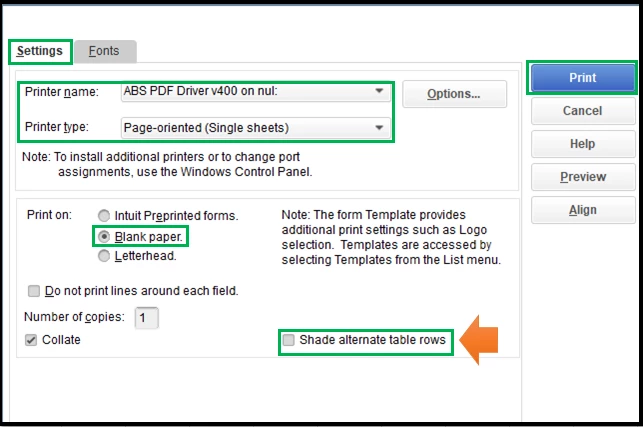
You'll have to configure the printer settings to remove those dark gray colored rows on your forms. I can walk you through the steps how:


  1. Go to the File menu, and then choose Printer Forms.
  2. Select the form you want, and then click OK.
  3. On the Settings tab, choose Blank Paper, and the Printer name and type.
  4. Untick the Shade alternate table rows checkbox. 
  5. Click Print when you're ready.


If the issue persists, you can run our PDF and printing repair tool to fix it.


You'll want to customize your forms to personalize their details. Also, we've collated a handy article that lists the new features in QuickBooks Desktop Enterprise 2021.


Let me know in the comment section if you need more printing tips in QuickBooks. I'm always around to back you up.


1 reply

ReyJohn_DAnswer
February 8, 2021

Thanks for the screenshot, @AirandVac.


I'll help you get rid of the shaded rows on your printed forms.


You'll have to configure the printer settings to remove those dark gray colored rows on your forms. I can walk you through the steps how:


  1. Go to the File menu, and then choose Printer Forms.
  2. Select the form you want, and then click OK.
  3. On the Settings tab, choose Blank Paper, and the Printer name and type.
  4. Untick the Shade alternate table rows checkbox. 
  5. Click Print when you're ready.


If the issue persists, you can run our PDF and printing repair tool to fix it.


You'll want to customize your forms to personalize their details. Also, we've collated a handy article that lists the new features in QuickBooks Desktop Enterprise 2021.


Let me know in the comment section if you need more printing tips in QuickBooks. I'm always around to back you up.

AirandVacAuthor
February 17, 2021

Thank you so much for your help. Your instructions worked perfectly. The instructions apply per computer, so all of my co-workers also used them to remove the gray rows. 


I have another related question. I was able to remove the rows from all of my forms except Estimates. It seems "Estimates" is not a choice in my "Print Forms" screen. I have attached another screen shot for your review.


Again, thanks so much. We appreciate your help.

February 17, 2021

I'm glad that the steps provided by my peer work for you, AirandVac.


I'm here to share additional information on how to remove the rows and print your Estimates. The option to print your estimate isn't thru the Print forms but individually within the Estimates page. From there, you can remove the row by unticking the box Shade alternate table rows.


I've attached screenshots for your visual guide:


The following screenshots should help you remove the rows as well as print the estimates individually.


Reach back to me if you need anything else. Have a good one!